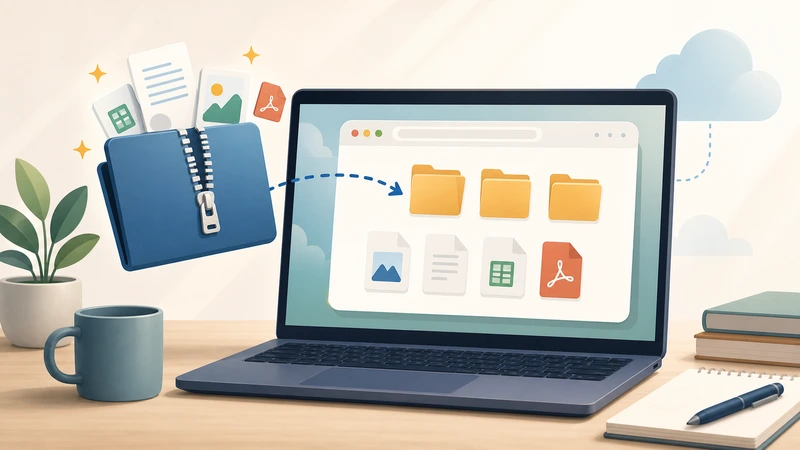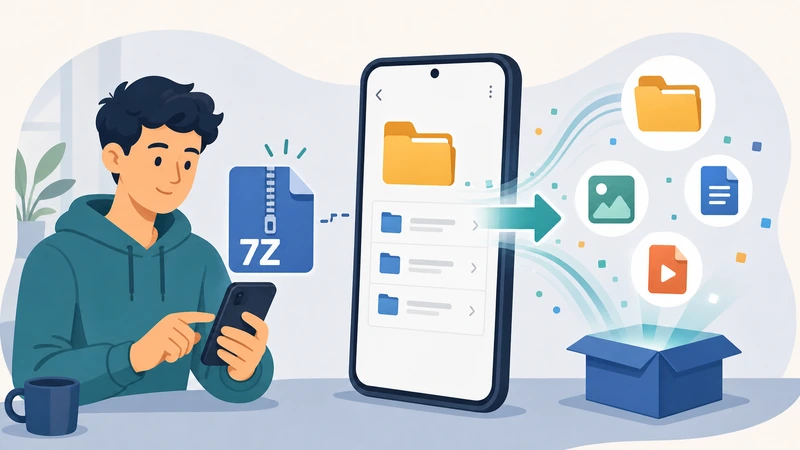
Uploading files to websites sounds straightforward until you run into a .7z archive that wont open on your device. Maybe it contains product photos, PDFs, audio samples, or client assets packed into one compressed bundle. For many everyday users, the challenge is less about compression itself and more about getting access to the files without installing another desktop utility.
Thats where the ability to extract 7Z files directly in the browser becomes genuinely useful. Instead of relying on heavyweight archive software, browser-based tools now let people unpack archives online, review the contents, and continue working immediately.

What You Should Know First
A 7Z file is a compressed archive format designed to reduce file size while keeping many files bundled together. Its commonly used for:
- website upload packages
- downloadable media collections
- scanned document bundles
- software distributions
- large image archives
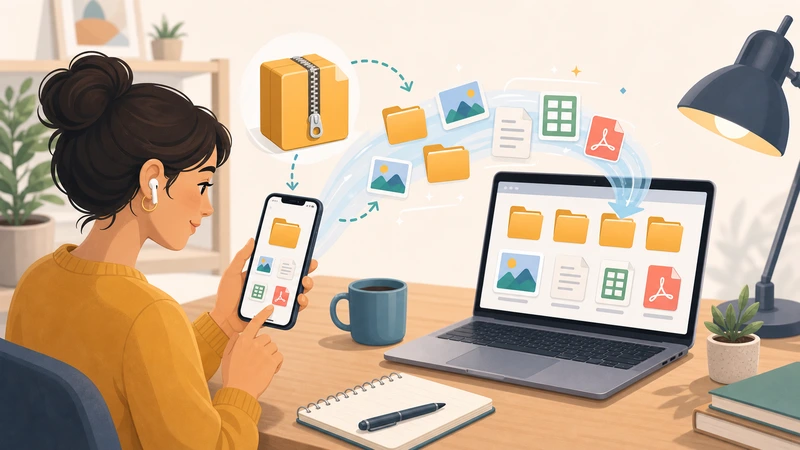
If your goal is simply to open compressed files online and retrieve the contents quickly, a web-based extractor is often the easiest route especially when youre working from a Chromebook, shared computer, or mobile device.
For browser-based extraction, tools like Filemazing Archive Extractor https://filemazing.com/archive-extractor are designed around lightweight workflows rather than full desktop archive management.
How the Process Works
When testing browser-based extraction workflows, the process was fairly direct even with larger uploads.
Heres the general workflow most users follow:
- Upload the
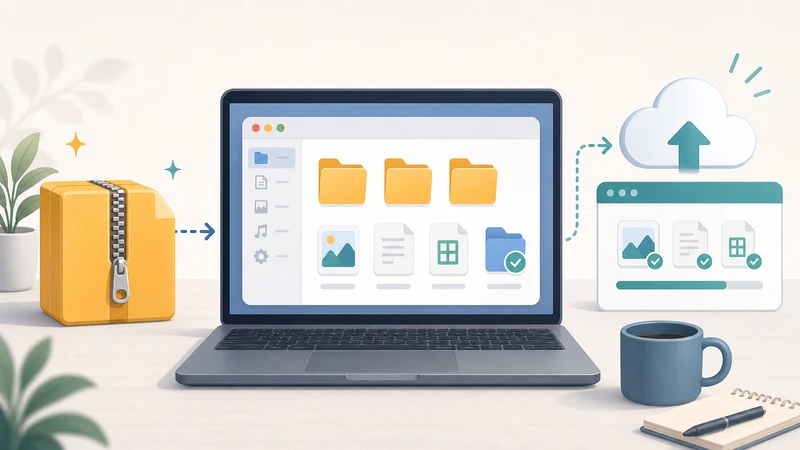
.7zarchive from your computer, cloud storage, or shared link. - The extractor processes the compressed structure and lists the contained files.
- Preview or download only the files you actually need.
- Continue processing extracted files if necessary.
In practice, this becomes especially helpful for mixed-content archives. One test archive included:
- 42 JPG images
- 3 PDFs
- 2 MP3 recordings
- nested folders for uploads
The archive unpacked cleanly without requiring desktop software installation.
Users handling extracted PDFs can also move directly into workflows like converting documents into image previews using the PDF to Image tool https://filemazing.com/pdf-to-image, which is useful when preparing website thumbnails or gallery assets.

Why Browser-Based Extraction Feels Different
Traditional archive software still works well, but browser-first workflows remove several common interruptions.
For everyday users, the advantages are practical rather than technical:
- no installation permissions required
- works across operating systems
- easier handling on temporary devices
- cleaner workflow for occasional archive use
- simpler cloud import handling
This matters more than people realize. In shared office environments or school computers, installing a desktop extractor often isnt possible at all.
Another useful detail is temporary processing behavior. Services focused on short-term processing rather than permanent storage reduce the likelihood of forgotten uploaded files lingering indefinitely. Filemazing, for example, treats uploads as temporary processing artifacts and clears them on a short retention cycle rather than functioning as long-term cloud storage.
A Real-World Extraction Test
To see how modern archive extraction performs in realistic conditions, a mixed-content website asset package was tested using a 680MB .7z file containing:
- PNG website banners
- compressed JPG product photos
- layered PDF documents
- audio narration files
- nested ZIP backups
The extraction itself completed faster than expected because the browser workflow avoided local installation and indexing overhead.
One interesting observation: archives containing thousands of tiny image files behaved differently from archives with fewer large media files. Small-file-heavy archives can take longer to organize because the browser has to process many directory entries individually.
Thats a subtle but important tradeoff users rarely think about.
Another takeaway involved audio assets. After extraction, some MP3 files needed conversion for a CMS upload requirement. Using the online audio converter workflow https://filemazing.com/audio-converter helped standardize formats without moving into another platform.
One Mistake That Slows Archive Extraction
A surprisingly common issue comes from nested archives.
People often download a .7z package that contains additional ZIP or RAR files inside it. They extract the first layer and assume something failed because the files still appear compressed.
In practice, this usually means the uploader organized assets into multiple archive layers.
A better workflow is:
- extract the primary archive first
- identify any secondary compressed folders
- unpack only the folders you actually need
This reduces unnecessary processing time and avoids clutter.
It also helps preserve folder structure for website uploads, which can matter when assets rely on relative paths or organized media directories.

Where It Becomes Useful
Everyday users encounter compressed archives more often than they expect.
Some common situations include:
- uploading downloadable resources to a website
- extracting school project submissions
- unpacking photography batches from clients
- reviewing compressed tax or legal documents
- accessing podcast assets from collaborators
- opening old backup archives on newer devices
For marketers and content managers, browser-based extraction can also speed up content publishing workflows. Instead of downloading software first, the archive can be opened immediately and sorted before upload.
Performance vs Compression: A Real Tradeoff
Not all archive formats behave the same way.
The .7z format usually achieves stronger compression ratios than standard ZIP archives, especially with image-heavy or document-heavy collections. That means smaller downloads and easier sharing.
However, stronger compression can increase extraction workload.
In real usage:
- ZIP files may unpack slightly faster
- 7Z archives often save more storage space
- larger compressed dictionaries can require more memory during extraction
For most everyday website uploads, the storage savings are worth the slight extraction overhead.
Still, if speed matters more than maximum compression, ZIP may remain the more convenient format for collaborative sharing.
Practical Tip for Cleaner Upload Workflows
If extracted files contain sensitive client material, invoices, or internal assets, its smart to secure them before redistribution.
Instead of leaving extracted folders exposed locally, many users repackage important files using encryption tools before cloud sharing. A workflow like the secure file encryption tool https://filemazing.com/encrypt-file can help protect extracted content during storage or transfer.
That becomes especially useful for agencies, freelancers, or anyone handling downloadable customer assets.
What You Gain From Online Archive Extraction
The biggest improvement is workflow continuity.
You open the archive, retrieve the needed files, and continue working without interrupting the task to install software or troubleshoot compatibility issues.
Other practical advantages include:
- easier mobile and Chromebook compatibility
- reduced software clutter
- support for mixed archive contents
- cloud import convenience
- manageable processing for occasional users
The transparent token-based pricing approach also makes costs more predictable for heavier usage. Instead of a fixed subscription, processing scales according to workload complexity and file characteristics.
Frequently Asked Questions
Can I extract 7Z files without installing software?
Yes. Browser-based tools allow users to open compressed files online directly through a web interface without desktop installation.
Are extracted files stored permanently?
Not necessarily. Some platforms process files temporarily and automatically clean uploaded content after a short retention period rather than storing archives indefinitely.
Is 7Z better than ZIP?
It depends on the goal. 7Z often compresses files more efficiently, but ZIP archives may extract faster and offer broader compatibility.
Can I unpack archives fast on mobile devices?
Modern browser-based extractors generally work on phones and tablets, although very large archives may process more slowly depending on device memory and browser limitations.
What types of files can be extracted from a 7Z archive?
Most archives contain combinations of:
- images
- PDFs
- audio files
- videos
- documents
- folders
- backup files
Are browser extractors safe for private files?
Safety depends on the platforms handling policies. Tools that emphasize temporary processing and scheduled cleanup reduce long-term exposure risks compared to permanent storage systems.

Final Thoughts
For everyday users, the ability to extract 7Z files online removes a lot of unnecessary friction from website upload workflows.
You no longer need to maintain dedicated archive software just to access occasional compressed packages. Browser-based extraction fits naturally into modern workflows where people move between devices, collaborate remotely, and handle mixed file types constantly.
If your goal is to unpack archives fast, review the contents, and continue working without software installation overhead, a lightweight online extractor is often the most practical option available today.