Photographers rarely think about image formats until a backup drive starts filling up faster than expected.
A folder of RAW exports becomes a mix of JPG, PNG, WEBP, and HEIC files collected from cameras, smartphones, client downloads, and editing apps. Then a cloud backup tool rejects certain formats, previews stop working properly, or archive sizes become difficult to manage.
Thats usually the moment when many photographers start looking for a reliable way to change image format online without installing another desktop utility.
Browser-based conversion tools have improved significantly in recent years, especially for batch workflows and large image libraries. Instead of running heavyweight software just to reformat files, you can now process images directly in the browser while keeping workflows lightweight and portable.
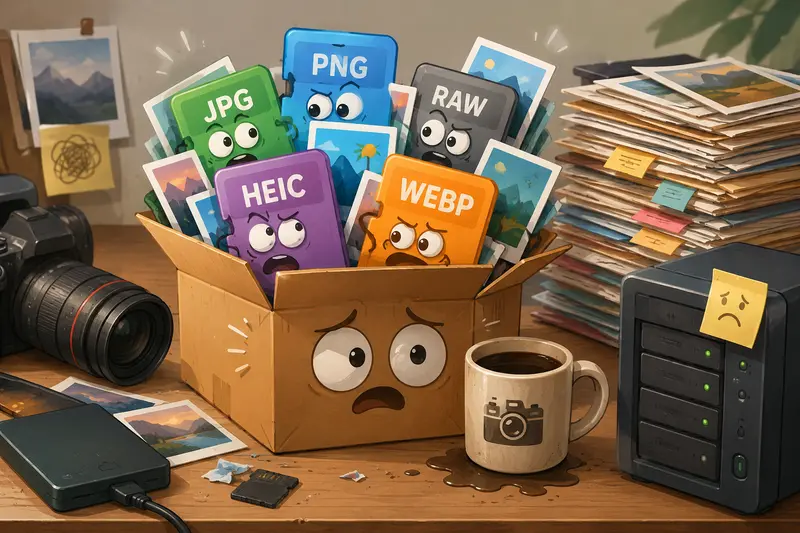
Why Backup Workflows Often Break Around File Formats
Different image formats solve different problems.
- JPG keeps storage usage lower
- PNG preserves transparency and lossless detail
- WEBP reduces web delivery size
- HEIC saves mobile photos efficiently
- TIFF remains useful for archival quality
The problem is compatibility.
Some NAS systems preview JPG files smoothly but struggle with HEIC thumbnails. Certain client delivery systems reject WEBP uploads entirely. A mixed archive also complicates automated backup indexing.
Converting files into a standardized format before backup makes long-term storage easier to manage.
For many photographers, that usually means:
- converting HEIC photos into JPG for compatibility
- changing PNG exports into WEBP for portfolio uploads
- converting WEBP back into JPG for client submissions
- standardizing older archives into fewer formats
A Practical Test Using Real Backup Material
To evaluate how well a browser-based converter handles photography workloads, we tested Filemazing with a realistic archive set:
- 320 travel photos
- mixed JPG, PNG, HEIC, and WEBP formats
- total upload size around 2.1 GB
- combination of DSLR exports and smartphone images
The goal was straightforward:
- Convert HEIC images into JPG
- Convert large PNG exports into WEBP
- Prepare smaller backup-friendly versions for cloud storage
Processing was handled in queued batches instead of trying to convert everything simultaneously in the browser. That mattered because larger image jobs remained responsive while uploads continued in the background.
The output quality stayed consistent across the tested formats, especially during HEIC image conversion, where color balance and metadata handling can sometimes become inconsistent in lower-quality converters.
One useful detail: temporary processing and cleanup scheduling meant files were not treated as permanent cloud storage. For photographers working with client galleries or unreleased commercial shoots, that privacy-focused handling matters.
What Actually Changes When You Convert Formats
Changing formats is not only about compatibility.
It affects:
- file size
- image fidelity
- transparency support
- editing flexibility
- backup speed
- synchronization time
A large PNG export might look identical after converting to WEBP while consuming dramatically less storage.
Meanwhile, converting heavily compressed JPG images repeatedly can introduce visible degradation over time.
That tradeoff is important.
Lossless formats preserve more detail but increase storage requirements. Compressed formats reduce archive size but may soften edges or gradients if pushed too aggressively.
The best approach depends on the role of the image:
- archival master
- client preview
- online gallery
- social upload
- long-term cold storage
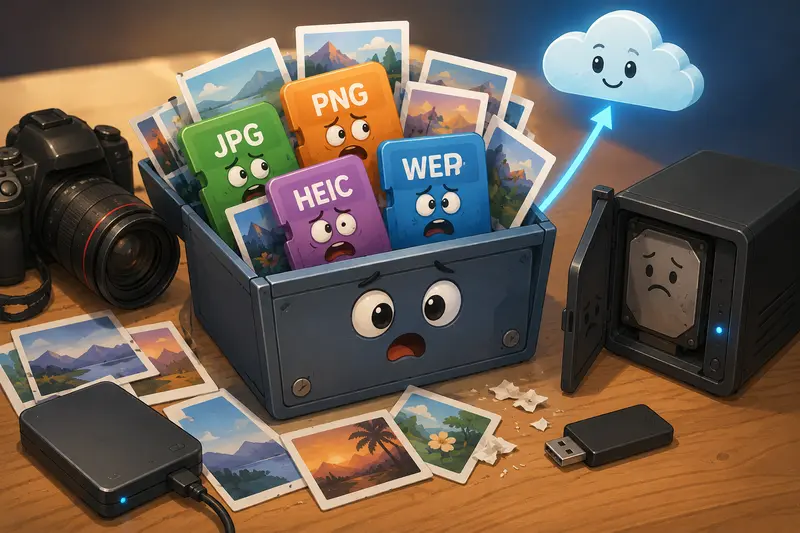
A Smarter Workflow for Photographers Managing Large Libraries
Instead of treating conversion as a one-off task, many photographers now integrate it into their backup pipeline.
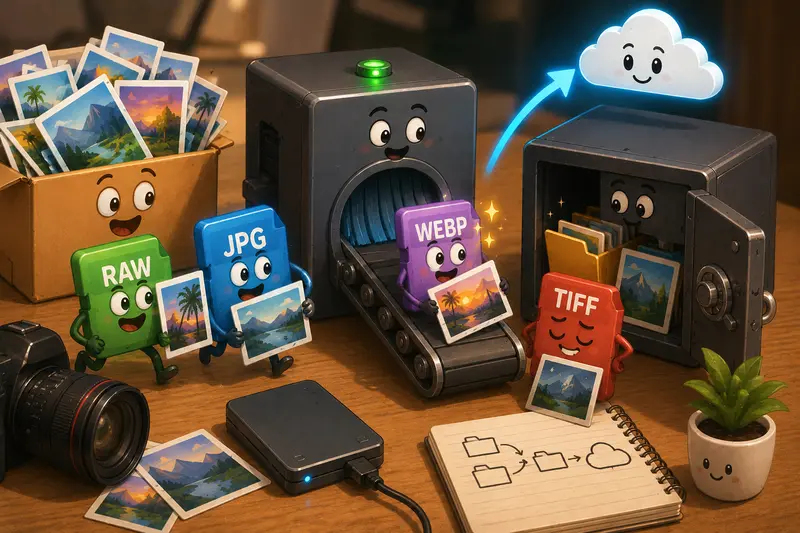
A practical workflow often looks like this:
Original Capture
Keep RAW originals untouched.
Working Exports
Export edited images into high-quality JPG or TIFF.
Web Delivery Copies
Use a tool to convert WEBP online for website galleries and portfolio delivery.
Backup Optimization
Store compressed secondary copies for cloud redundancy.
Privacy Cleanup
Before sharing converted files externally, remove hidden metadata using the metadata scrubbing tool, especially for client-sensitive location data.
That layered approach reduces storage costs while preserving archival quality where it actually matters.
Where Browser-Based Conversion Helps Most
Desktop converters still make sense for extremely heavy studio production pipelines.
But browser-based processing has advantages photographers increasingly appreciate:
- no installation conflicts
- works across Mac, Windows, and Linux
- easier remote workflows
- accessible from editing laptops during travel
- useful for quick client delivery adjustments
It also helps when collaborating with editors or assistants who may not use identical software environments.
Filemazing leans into that lightweight workflow model. The platform focuses on practical file operations rather than becoming a full media management suite.
That distinction keeps tasks fast and predictable.
One Common Mistake During HEIC Image Conversion
HEIC files are efficient, but compatibility remains inconsistent outside Apple ecosystems.
A mistake many photographers make is bulk converting HEIC images directly into low-quality JPG exports to save space. The result can introduce visible compression artifacts in shadows and gradients.
A better approach:
- convert HEIC into high-quality JPG first
- archive originals separately
- create smaller compressed variants afterward
If storage reduction is still needed, running converted images through an image compression workflow afterward gives more control over quality loss.
The order matters more than many people expect.

Understanding Token-Based Processing Costs
Unlike subscription-heavy creative platforms, Filemazing uses token-based pricing tied to actual workload complexity.
For format conversion, usage depends on factors such as:
- base operation cost
- file size
- file count
That structure makes occasional processing inexpensive while still scaling for larger archive batches.
During testing, smaller conversion jobs consumed very modest token amounts, while larger mixed-format batches scaled predictably instead of triggering hidden limits.
For photographers processing backups periodically rather than daily, this model tends to feel more practical than another recurring monthly subscription.
Backup Speed vs Output Quality
There is always a balance.
Higher-quality exports:
- preserve detail
- maintain print flexibility
- improve editing tolerance
But they also:
- increase backup duration
- consume more cloud bandwidth
- enlarge archive footprints
For backup workflows specifically, many photographers benefit from separating:
- archival masters
- working copies
- lightweight recovery copies
That separation avoids treating every image as if it requires maximum fidelity forever.
And honestly, not every behind-the-scenes lighting test shot deserves a 120 MB TIFF archive for eternity.
Security Considerations Before Sharing Converted Files
Photographers frequently convert files for delivery, collaboration, or backup syncing.
That introduces another issue: security.
Converted files may still contain:
- EXIF metadata
- GPS coordinates
- camera serial information
- editing software traces
If files are being sent externally, especially for commercial projects, it can be useful to encrypt converted image files before sharing.
This becomes particularly relevant when distributing private galleries, pre-release campaigns, or client review packages.
Questions Photographers Commonly Ask
Does converting image formats reduce quality?
Sometimes.
Lossless formats like PNG preserve original data, while JPG and some WEBP settings introduce compression. The amount of quality loss depends heavily on export settings and repeated conversions.
Is HEIC image conversion safe for archival workflows?
Yes, if handled correctly.
Many photographers keep original HEIC files archived separately while creating JPG versions for compatibility and backup convenience.
Can I convert WEBP online without installing software?
Yes. Browser-based tools now handle WEBP conversion reliably, including bulk processing workflows for galleries and web delivery assets.
Are uploaded files stored permanently?
Filemazing treats uploaded files as temporary processing artifacts rather than permanent cloud storage. Cleanup scheduling helps reduce long-term retention concerns.
Which format works best for cloud backups?
There is no universal answer.
- JPG works well for compatibility
- WEBP improves storage efficiency
- PNG helps preserve lossless edits
- TIFF remains useful for master archives
The best choice depends on whether storage efficiency or editing flexibility matters more.
Can converted images be compressed afterward?
Absolutely. Many photographers first convert formats, then optimize storage size separately using the image compression tool.
Final Thoughts
For photographers juggling growing archives, format consistency quietly becomes part of maintaining a healthy backup workflow.
Being able to change image format online simplifies:
- cloud synchronization
- cross-device compatibility
- long-term organization
- client delivery preparation
Filemazing works particularly well for photographers who want practical browser-based processing without adding another heavyweight desktop utility into the workflow.
The combination of batch handling, temporary processing, predictable token pricing, and multi-format support makes it useful for both occasional cleanup jobs and larger recurring archive maintenance tasks.