WAV files are great when you need clean, uncompressed audio. They are less great when your lecture recording, podcast draft, or music project suddenly becomes too large to send, store, or play comfortably on your phone.
For students, that usually means one thing: you need a reliable WAV to MP3 converter that works on Linux without turning a simple audio task into a terminal troubleshooting session.

Heres the Fast Answer
The fastest practical way to convert WAV to MP3 on Linux is to use a browser-based audio converter instead of installing desktop software or configuring command-line tools.
With Filemazings audio converter, you can upload WAV files, convert them to MP3, and download the finished audio through a clean web workflow. It is useful when you need batch audio conversion, smaller files for sharing, or a format that works better for mobile listening.
This matters because MP3 is usually the more convenient format for:
- lecture recordings
- study notes
- interview audio
- podcast drafts
- music practice files
- audio submitted through school portals
Why Linux Users Often Want a Browser-Based Option
Linux gives you powerful audio tools, but not every student wants to install packages, remember command syntax, or fix codec issues five minutes before submitting a project.
Filemazing is a browser-based file processing SaaS that helps users convert, clean, compress, and prepare files quickly without installing desktop software. Alongside audio conversion, it includes tools for PDF to image, merge PDF, image compression, archive extraction, metadata scrubbing, format conversion, and file encryption workflows.
That makes it especially useful when your files are not neatly organized. For example, if a classmate sends a ZIP or RAR folder full of recordings, you can first unpack archived audio files before converting the WAV files to MP3.
Getting the Conversion Done
A typical Linux workflow looks like this:
- Open the audio converter in your browser.
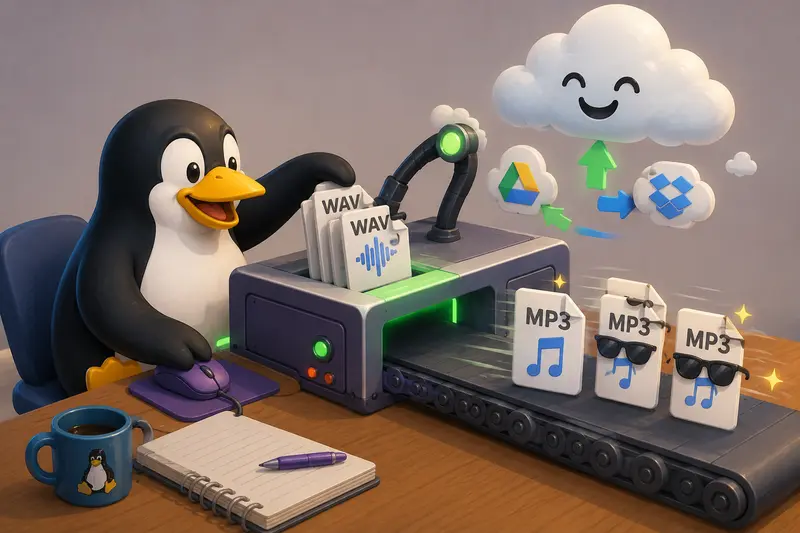
- Upload one WAV file or a group of WAV files.
- Choose MP3 as the output format.
- Start the conversion and track the job status.
- Download the completed MP3 files when processing finishes.
The browser-based approach saves time because the work happens through a web interface instead of local software setup. For larger jobs, Filemazing uses queued processing, job status tracking, and download delivery, so bigger audio tasks do not freeze the page while processing runs.
What Filemazing Adds Beyond Basic Conversion
Filemazing supports both manual use and API endpoints for automation, which gives it more flexibility than a one-off converter. Non-technical users can use the web interface, while developers or campus teams can connect conversion into repeatable workflows.
Its pricing model is token-based instead of subscription-only. For audio conversion, token usage can account for base cost, file size, file count, and media duration. The current audio-converter rule includes a base cost of 10, per MB cost of 2.5, per file cost of 4.0, and per minute cost of 1.5, with guards for predictability.
That is helpful when converting a few class recordings because you can estimate the workload before processing instead of guessing at hidden charges. Anonymous and registered users can start with daily free tokens, then top up with token packs when they need more throughput.
Cloud input is also practical. You can import from Google Drive or Dropbox in addition to local upload and URL input, which fits how students often store coursework.
Real Usage Example: Converting Lecture Audio
A realistic test scenario would be a student converting 12 WAV recordings from a seminar series. Each file is around 2030 minutes long, recorded from a laptop or handheld recorder, and too large to keep on a phone.
The workflow is straightforward: upload the WAV files, convert them to MP3, download the finished set, then move them into a study folder or mobile playlist.
The observed result in this kind of workflow is smaller, more portable audio that is easier to replay during commuting or revision. The key takeaway: WAV is better for original quality, but MP3 is often better for everyday studying and sharing.
Quality Settings Students Should Actually Care About
For high quality audio conversion, do not only think about speed. Audio quality depends heavily on bitrate.
A useful rule:
- Use 128 kbps for basic speech notes.
- Use 192 kbps for clearer lectures or interviews.
- Use 256 kbps or higher for music, performance practice, or audio you may publish.
The tradeoff is simple: higher bitrate usually sounds better, but it creates a larger MP3 file. Lower bitrate saves storage, but may make music dull or speech slightly thinner. For spoken lectures, that tradeoff is often acceptable. For music coursework, it may not be.
Before publishing or sharing audio publicly, it can also be smart to remove metadata from media files, especially if the original recording contains device details or personal information.
Practical Use Cases for Students
A WAV to MP3 converter can help with more than one-off file shrinking.
Common student workflows include:
- converting lecture recordings for phone playback
- preparing interview audio for research projects
- reducing file size before uploading to an LMS
- turning music practice recordings into shareable MP3 files
- organizing group project audio into one consistent format
- converting lab, language, or presentation recordings for mobile review
If your project also includes visual assets, such as diagrams or cover images, Filemazings related format conversion tools can help keep the rest of the submission workflow organized.
Where This Saves Time
The main advantage is not just conversion. It is avoiding setup.
On Linux, command-line tools can be excellent, but they are not always the fastest route for students who just need a usable MP3. A browser-based converter keeps the workflow focused: upload, convert, download, move on.
Privacy is another important factor. Filemazing treats uploaded files as temporary processing artifacts and cleans them on a short retention schedule rather than using the platform as permanent file storage.
That is reassuring when working with class recordings, interviews, or unpublished project material.
FAQ
Is MP3 good enough for lecture recordings?
Yes. MP3 is usually suitable for lectures, voice notes, and study recordings. For speech, a moderate bitrate can keep the file small while preserving clarity.
Can I do batch audio conversion?
Yes. Filemazing is designed for file workflows that can include multiple files, queued processing, and job tracking, which makes it practical for batches rather than only single-file conversions.
Will converting WAV to MP3 reduce quality?
Yes, MP3 uses compression. The quality loss depends on bitrate and source audio. For casual listening and study use, the difference is often acceptable. For editing or archiving, keep the original WAV as a backup.
Can I convert audio for mobile?
Yes. MP3 is widely supported on phones, tablets, laptops, and learning platforms, making it a strong choice when you need to convert audio for mobile.
Do I need to install anything on Linux?
No. With Filemazing, the conversion runs through the browser, so you do not need to install desktop software.
What happens to uploaded files?
Uploaded files are treated as temporary processing artifacts and cleaned on a short retention schedule. Filemazing is built for processing files, not storing them permanently.
Final Takeaway
For students using Linux, the fastest WAV to MP3 converter is usually the one that avoids setup entirely. Filemazing gives you a browser-based way to convert WAV files into MP3, handle batches, estimate token usage, and keep the workflow moving without installing extra software.
Use it when you need smaller, mobile-friendly audio files and want the conversion process to stay practical.