Photographers often deal with files that are too important to leave exposed. Client galleries, RAW image archives, licensing documents, and preview exports all move between devices, cloud folders, and collaborators constantly. One misplaced upload or unsecured ZIP file can create unnecessary risk.
If you need a practical way to protect files with password on Mac without installing another desktop utility, browser-based encryption workflows have become surprisingly effective especially for sharing selected files securely under deadline pressure.
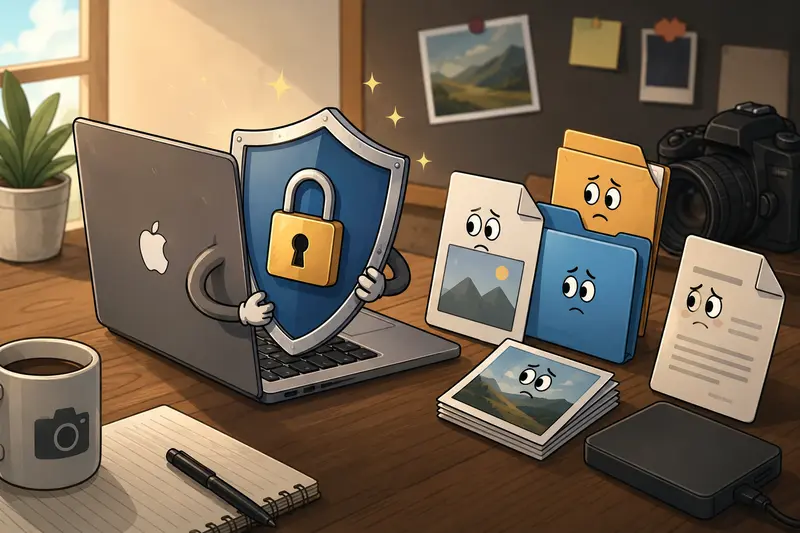
What You Should Know First
Modern browser tools can encrypt files directly before download or sharing, making it possible to:
- add password protection to photos and documents
- secure files online without permanent cloud storage
- avoid installing extra encryption software
- prepare multiple files for private delivery workflows
One useful option is Filemazing Encrypt File Tool https://filemazing.com/encrypt-file, which runs entirely in the browser and supports lightweight file encryption workflows for common file types.
For photographers working across laptops, external SSDs, and client portals, that flexibility matters more than most people realize.
Why Photographers Usually Need Password Protection
The obvious reason is privacy, but there are several smaller workflow issues that appear in real projects:
- client proofs sent before final payment
- wedding galleries shared with multiple family members
- scanned contracts stored alongside image exports
- licensing PDFs emailed through unsecured channels
- backup archives sitting temporarily in shared cloud folders
A surprisingly common mistake is encrypting the archive but forgetting hidden metadata inside the files themselves. Before locking down images, it helps to use a metadata cleanup step like Filemazing Metadata Scrubber https://filemazing.com/metadata-scrubber to remove camera location data, embedded author information, and editing traces.
Some EXIF data is harmless. Some of it absolutely is not.
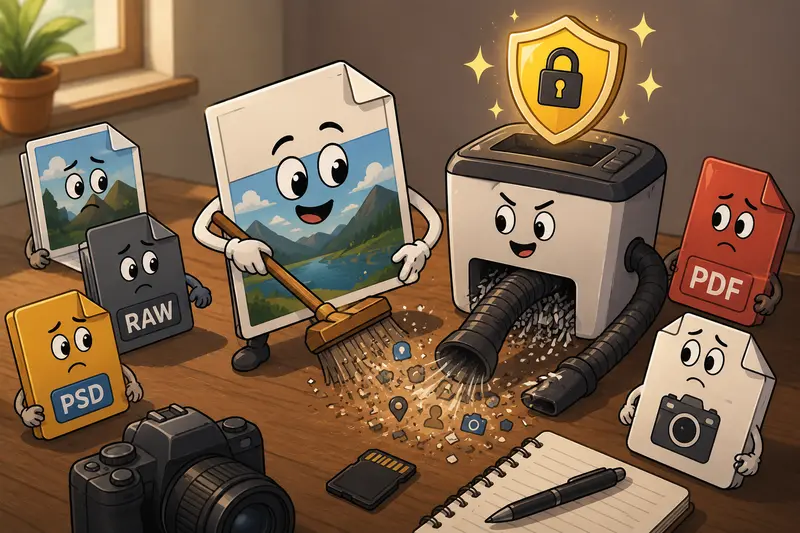
How the Process Works
The workflow itself is fairly straightforward once you separate preparation from encryption.
1. Organize the Files First
Create a clean folder with only the files you actually plan to share.
For example:
- 120 edited JPG previews
- 1 signed PDF contract
- 3 licensing documents
Avoid including RAW files unless necessary. Large CR3 or NEF files dramatically increase transfer time and encryption workload.
If youre sending several PDFs together, combining them first with Merge PDF documents efficiently https://filemazing.com/merge-pdf can simplify the delivery process and reduce confusion for clients.
2. Reduce File Size Before Encryption
This step matters more than most photographers expect.
Encryption itself is fast, but uploading huge image sets is not. Compressing oversized JPG exports before encryption can noticeably improve delivery speed.
A practical tradeoff:
- high-quality JPG at 90% quality larger but visually safer
- aggressive compression smaller transfer size but possible skin-tone artifacts
For client previews, moderate compression is usually the sweet spot.
If needed, you can shrink oversized exports with image compression for secure sharing https://filemazing.com/compress-image before encrypting the final package.
3. Encrypt the Files
Upload the prepared files into the encryption workflow, create a strong password, and process the archive.
The browser-based approach works well here because theres no desktop installation, no plugin conflicts, and no need to maintain another utility on your Mac.
4. Share the Password Separately
This is the step people skip when theyre tired at 1:00 AM before a delivery deadline.
Never send:
- encrypted file
- password
inside the same email thread.
Use:
- SMS
- Signal
- phone call
- separate messaging app
That separation is still one of the simplest security improvements available.
A Real-World Test With Photo Deliverables
To see how this workflow behaves in practice, I tested a fairly realistic photography delivery package:
- 84 JPG previews
- 2 PDF documents
- total size: roughly 620 MB
The files were compressed slightly before encryption to reduce upload time while keeping visual quality intact for client review.
Observed results:
- upload and encryption completed smoothly in-browser
- encrypted archive downloaded normally on macOS
- extracted files preserved original image quality
- no obvious metadata remained after pre-cleaning
- processing felt predictable even with larger batches
One useful observation: moderate image compression before encryption had a bigger impact on transfer speed than encryption itself.
Large wedding galleries especially benefit from this.
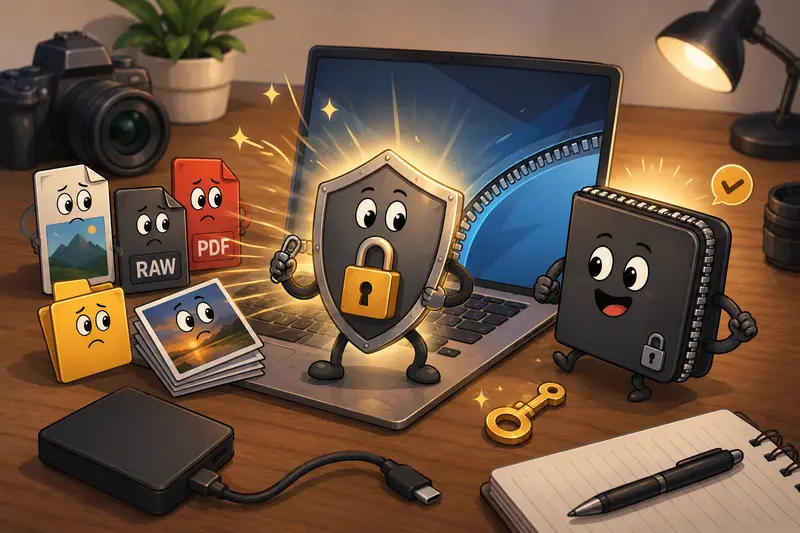
A Common Mistake That Causes Sharing Problems
Photographers sometimes encrypt individual files separately instead of packaging them together.
That creates several problems:
- clients receive dozens of protected files
- passwords become inconsistent
- download organization becomes messy
- mobile extraction becomes harder
A better workflow is:
- prepare folder
- compress if needed
- encrypt once
- deliver one protected archive
It sounds minor, but clients appreciate simplicity more than advanced security terminology.
Where This Workflow Saves Time
The browser-based setup is particularly useful for photographers who:
- edit on multiple Macs
- work remotely while traveling
- send proofs frequently
- use temporary client-sharing links
- collaborate with retouchers
- avoid installing niche utilities
Because Filemazing also supports API-ready workflows, teams handling repetitive deliveries can automate portions of the process later if needed.
That matters for studios processing dozens of galleries every week.
Why This Approach Works Well for Mac Users
macOS already includes some encryption options, but theyre not always convenient for quick file-sharing tasks.
Browser-based encryption offers a few practical advantages:
- works across devices without setup
- avoids software maintenance
- supports mixed file formats
- easier for occasional use
- useful for temporary secure sharing
Theres also a privacy advantage in workflows that treat uploads as temporary processing artifacts instead of long-term storage. Short retention handling reduces the risk of forgotten archives lingering indefinitely online.
For sensitive client projects, that matters.
Practical Use Cases for Photography Workflows
Here are a few realistic examples where password protection becomes genuinely useful:
Client Preview Galleries
Protect low-resolution previews before payment approval.
Destination Wedding Projects
Secure files online while traveling between editing locations and unreliable hotel networks.
Commercial Licensing Packages
Encrypt invoices, usage agreements, and delivery assets together.
Retoucher Collaboration
Share selected PSD exports privately with freelancers.
Backup Transfer Between Macs
Protect portable archives stored temporarily in cloud folders.
Event Photography Teams
Distribute selected folders securely among editors and assistants.
What You Gain From This Workflow
The biggest benefit is not just encryption itself.
Its reducing friction while keeping client files private.
A lightweight workflow helps photographers:
- move faster under deadlines
- avoid unnecessary software installs
- keep transfers organized
- maintain cleaner client delivery habits
- reduce accidental exposure risks
And importantly, browser-based encryption no longer feels like a workaround. For many small studios, its becoming the default approach.
FAQ
Can I protect image files with password directly on Mac?
Yes. You can encrypt image archives or documents using browser-based tools or built-in archive utilities. Browser workflows are often easier when sharing files externally.
Does encryption reduce image quality?
No. Encryption itself does not change image quality. Compression performed before encryption can affect quality depending on settings.
Is browser-based file encryption safe?
It depends on the provider and workflow. Privacy-conscious platforms that use temporary processing and cleanup schedules are generally preferable to long-term file storage systems.
What file types can be encrypted?
Most common formats work normally:
- JPG
- PNG
- ZIP
- PSD
- TIFF
- audio and video exports
Is file encryption without software practical for large photo sets?
Yes, although upload speed becomes the main limitation with multi-gigabyte projects. Compressing files beforehand usually improves the experience.
Can I combine documents before protecting them?
Absolutely. If you need a cleaner delivery package, you can combine PDF files before encryption https://filemazing.com/merge-pdf to reduce clutter and simplify client downloads.
Final Thoughts
If your photography workflow regularly involves contracts, previews, client galleries, or portable archives, taking a few extra minutes to protect files with password can prevent surprisingly common sharing mistakes.
The process no longer requires complicated desktop encryption tools either. Browser-based workflows now handle most day-to-day protection tasks efficiently while keeping operations lightweight and flexible.
For photographers juggling deadlines, uploads, revisions, and client communication all at once, fewer moving parts is usually the real productivity upgrade.