Running a small business from an iPhone is normal now. Quotes arrive as PDFs. Menus get sent as PDFs. Invoices, flyers, product sheets, event forms, scanned contracts, and supplier catalogs all seem to land in the same format.
That works fine until you need one page as an image.
Maybe you want to post a flyer to Instagram, send a receipt preview in WhatsApp, upload a product sheet to a marketplace, or turn a PDF page into a JPG for a client who does not want to open attachments. In those moments, knowing how to save PDF pages as images can save time and reduce back-and-forth.
Filemazings PDF to image converter is built for exactly this kind of browser-based workflow: upload a PDF from your iPhone, convert pages to images, and download the results without installing desktop software.
The Practical Answer
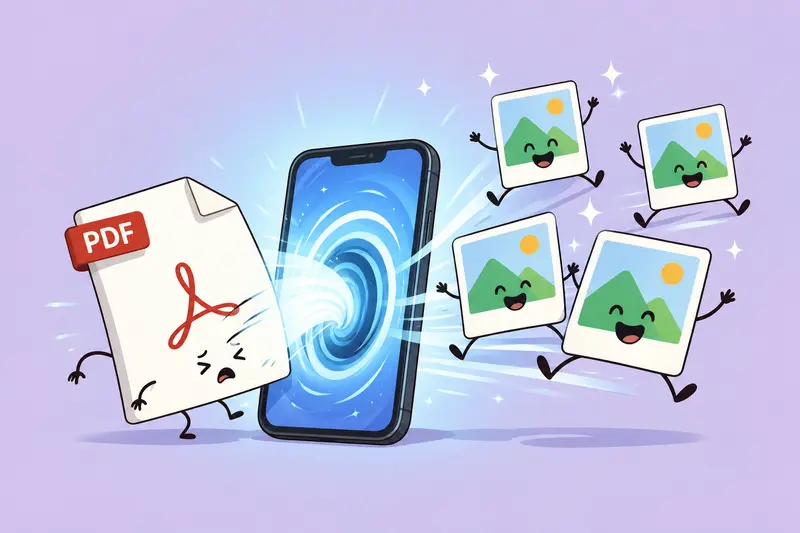
To save PDF pages as images on iPhone, use a browser-based PDF to image tool, upload your PDF, choose the output format, convert the pages, and download the image files.
For most small business tasks:
- Use JPG when you need smaller files for email, messaging, websites, or social posts.
- Use PNG when clarity matters more, especially for screenshots, text-heavy pages, or graphics.
- Convert only the pages you need when possible.
- Compress exported images before sharing if file size becomes an issue.
A good best PDF to JPG converter should preserve readability, handle multiple pages, and work smoothly from Safari or another mobile browser. That matters when you are not sitting at a laptop and the client is already asking, Can you send that as an image?
Why Small Business Owners Need This More Often Than They Expect
PDFs are excellent for preserving layout, but they are not always convenient for daily business communication.
A bakery owner might receive a 12-page supplier catalog and only need to send page 4 to a staff member. A real estate assistant may need to turn a listing sheet into an image for a group chat. A salon might want to extract one promotional page from a PDF flyer and share it on social media.
In real workflows, images are often easier to preview, forward, post, and archive.
This is where batch PDF to image conversion helps. Instead of opening each page manually, you can convert multiple PDF pages into separate image files and keep only the ones you need.
If your PDF is assembled from several separate documents, it may be cleaner to combine the PDF files first, then convert the final version into images.
How to Save PDF Pages As Images on iPhone
The workflow is straightforward:
- Open Filemazings PDF to image tool in your iPhone browser.
- Upload your PDF from local files, cloud storage, or a supported input source.
- Choose image output settings depending on your needs.
- Start the conversion.
- Download the converted image files once processing is complete.
- Share, upload, or store the images where your business needs them.
For small business owners, the browser-based approach is useful because it avoids app installs and keeps the process accessible from almost anywhere.
You can process a client brochure while traveling, convert a quote before forwarding it to a supplier, or prepare product images without moving everything to a desktop first. Nobody enjoys wrestling with files ten minutes before closing time.
Tested Workflow Example: A 16-Page Product PDF
Imagine a small retailer receives a 16-page product PDF from a supplier. The file is around 28 MB and includes product tables, photos, and order codes.
The owner only needs pages 3 through 8 as images for a staff buying discussion.
A practical workflow would be:
- Upload the PDF from iPhone Files or cloud storage.
- Convert the required pages to JPG.
- Review the exported images for text clarity.
- Compress the final images before sending them in a group chat.
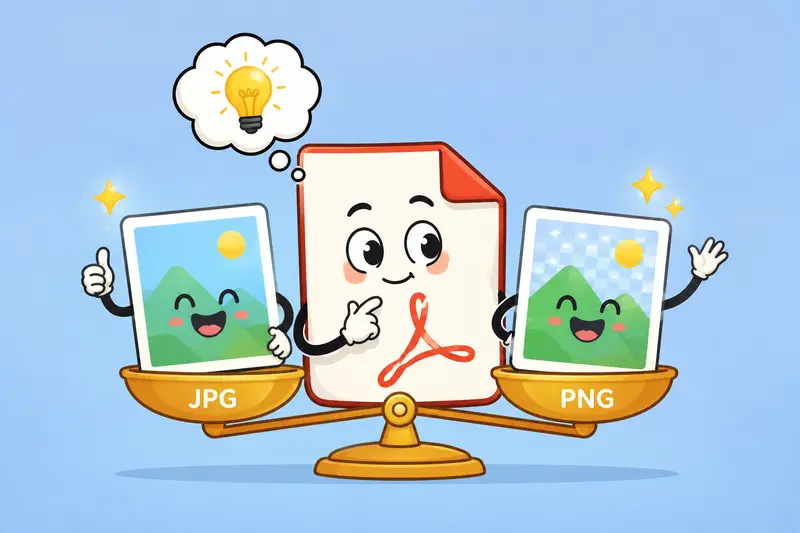
In this kind of case, JPG usually works well because the pages contain product photos and do not need transparent backgrounds. If the page has very small text, PNG may preserve sharper edges, but the files will often be larger.
After conversion, using an image compression tool can make the exported images easier to send through email, messaging apps, or website upload forms.
Quality vs File Size: The Decision That Actually Matters
The best format depends on what you plan to do next.
JPG is usually better when you want smaller files. It is useful for:
- product sheets
- social media previews
- email attachments
- client references
- website uploads
PNG is usually better when the page contains:
- small text
- sharp line art
- screenshots
- charts
- forms
- graphics with clean edges
The tradeoff is predictable: JPG keeps files lighter, while PNG can keep details cleaner. For a high quality PDF to image result, start with the clearest source PDF possible. A blurry scanned PDF will not magically become crisp after conversion. The goal is a useful image, not a digital museum artifact.
Common iPhone Mistakes That Lead to Poor Results
A few small choices can make converted images harder to use.
One common mistake is converting an entire PDF when only one or two pages are needed. This creates extra files, uses more processing resources, and makes the final download harder to manage.
Another issue is sending uncompressed images after conversion. A high-resolution PDF page can become a large image file, especially if the page contains photos or dense graphics. That can cause email limits, slow uploads, or failed message sends.
Small business owners should also watch out for screenshots as a workaround. Taking a screenshot of a PDF page may be fast, but it often crops awkwardly, lowers quality, or includes unwanted phone interface elements. A proper converter gives a cleaner result.
Before sending files externally, it can also be smart to remove metadata from exported images, especially when sharing documents with clients, vendors, or public platforms.
Why Filemazing Fits This Use Case
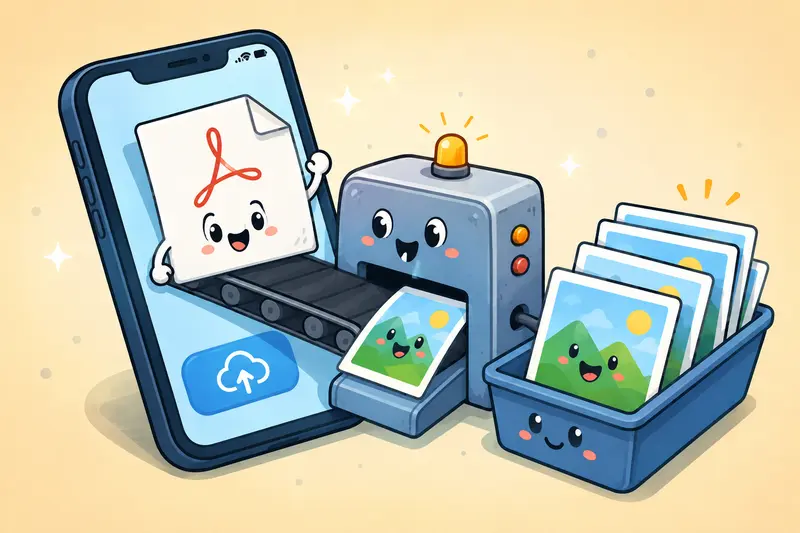
Filemazing is designed for practical file workflows rather than long software setup. It runs in the browser, supports everyday tools like PDF to image conversion, PDF merging, image compression, metadata scrubbing, archive extraction, encryption, and format conversion.
For business users, the token-based pricing model is useful because it connects cost to workload. PDF to image conversion uses a transparent formula based on factors such as base cost, file size, page count, and file count. That makes it easier to estimate usage before processing instead of dealing with unclear subscription limits.
Files are processed as temporary artifacts and cleaned on a short retention schedule rather than treated as permanent storage. That is important when handling client documents, invoices, contracts, or internal business materials.
Developers and operations-focused teams can also use API endpoints for automation, but non-technical users can still handle one-off tasks directly from the web interface.
When Batch Conversion Is Worth It
Batch conversion is most useful when your PDF has multiple pages that need to become separate images.
Good examples include:
- turning a full event flyer pack into individual social images
- exporting product catalog pages for sales conversations
- preparing visual invoice copies for client records
- converting scanned forms into image files
- splitting a presentation PDF into shareable page images
For larger batches, it is worth organizing files before conversion. Rename the original PDF clearly, remove unnecessary pages if possible, and keep the downloaded images in a dedicated folder. Future-you will appreciate it.
FAQs
Can I save PDF pages as images directly on iPhone?
Yes. The most reliable method is to use a browser-based PDF to image converter from Safari or another mobile browser. Upload the PDF, convert the pages, and download the image files to your iPhone.
What is the best PDF to JPG converter for small business use?
The best option is one that works in the browser, handles multi-page PDFs, preserves readable output, and does not require desktop software. Filemazing is a strong fit because it supports PDF to image conversion, batch workflows, transparent token usage, and temporary file handling.
Should I use JPG or PNG for PDF pages?
Use JPG for smaller files and easier sharing. Use PNG when the page has small text, forms, charts, or sharp graphics where clarity matters more than file size.
Can I convert multiple PDF pages at once?
Yes. Batch PDF to image conversion lets you turn multiple PDF pages into separate image files. This is useful for catalogs, brochures, reports, flyers, scanned documents, and presentations.
Are uploaded files stored permanently?
Filemazing treats uploaded files as temporary processing artifacts and cleans them on a short retention schedule. It is designed for file processing, not long-term file storage.
Final Recommendation
For small business owners, the easiest way to save PDF pages as images on iPhone is to use a browser-based converter that keeps the workflow clean: upload, convert, download, share.
Use Filemazings PDF to image converter when you need a practical balance of output quality, batch processing, mobile access, transparent token pricing, and privacy-conscious temporary file handling.