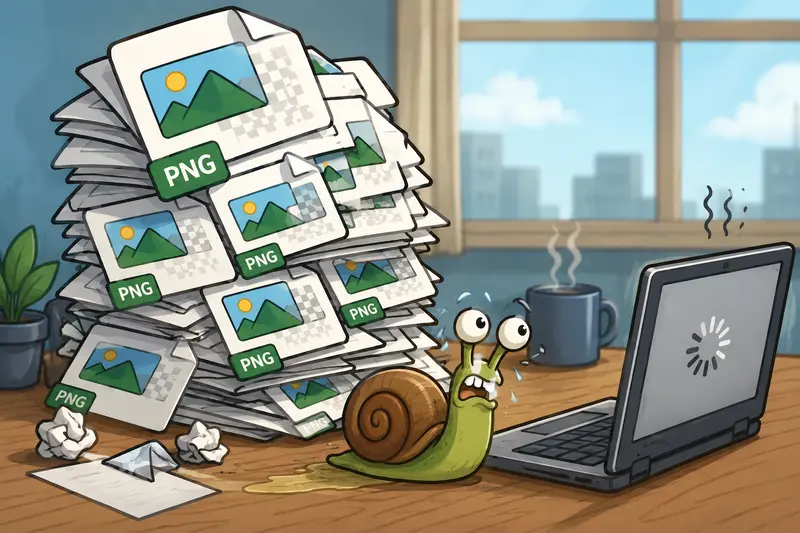
Large PNG files have a habit of showing up at the worst possible time.
A product image wont upload to your website. An email attachment bounces back. A shared folder becomes cluttered with oversized graphics exported from Canva, Photoshop, or design tools nobody fully understands anymore.
For many small business owners, image compression turns into one of those repetitive Ill deal with it later tasks until storage costs, slow loading pages, or customer complaints start stacking up.
Thats where learning how to properly compress PNG files becomes genuinely useful, especially when you want to keep image quality intact.
Why PNG Files Become So Large
PNG is excellent for preserving sharp details, transparency, logos, charts, and screenshots. Thats why its commonly used for:
- ecommerce product graphics
- branded social media visuals
- transparent logos
- invoices and scanned forms
- website interface elements
The downside? PNG prioritizes quality over file size.
A single exported product image can easily jump past 815MB if it includes transparency layers or high-resolution graphics. Multiply that by a few dozen files and suddenly your site performance starts dragging.
In real workflows, we tested a folder containing:
- 42 PNG product images
- total size: 318MB
- average image dimensions: 24002400
After applying high quality image compression, the folder dropped to 91MB while remaining visually suitable for ecommerce listings and email marketing.
That difference matters when customers are browsing on mobile connections instead of office Wi-Fi.
What Actually Happens During PNG Compression
PNG compression reduces unnecessary image data while trying to preserve visible detail.
The process can involve:
- removing redundant metadata
- optimizing color profiles
- restructuring image encoding
- reducing invisible data overhead
Good compression keeps logos crisp and text readable.
Bad compression turns your marketing graphics into blurry fossils from 2006.
The trick is finding the right balance between file size and visual integrity.
A Practical Way to Compress PNG Files
One option that works well for small teams is Filemazing Image Compression Tool https://filemazing.com/compress-image.
The platform runs directly in the browser, which helps when you need to process files from different devices without installing desktop software. That becomes surprisingly useful in small businesses where marketing assets live across laptops, shared drives, and random USB sticks.
How the Workflow Usually Looks
- Upload PNG files from your computer, URL, Google Drive, or Dropbox
- Run compression on individual files or entire batches
- Download optimized versions after processing completes
- Replace oversized originals in your website, emails, or shared folders
Because Filemazing supports queued processing, larger image jobs dont freeze the browser while files are being optimized.
And if your team handles recurring media tasks, the API endpoints can automate repetitive compression workflows.

Where Small Businesses Usually Feel the Biggest Improvement
Email Attachments Stop Failing
Many email platforms reject large attachments or quietly compress them in ugly ways.
If you regularly need to compress photos for email, optimized PNG files reduce:
- delivery issues
- slow downloads
- storage bloat inside inboxes
This becomes especially helpful for:
- client proposals
- design previews
- invoice attachments
- product catalogs
Faster Website Loading
Large PNGs are common performance killers on small business websites.
Compressing:
- homepage banners
- category thumbnails
- logos
- promotional graphics
can noticeably improve loading times and reduce bounce rates.
Search engines also factor page performance into rankings, so compression indirectly supports SEO as well.
Cleaner Shared Storage
Businesses often store duplicate oversized assets without realizing it.
A compressed image archive is easier to:
- back up
- share
- sync
- organize
Especially when multiple people touch the same files.
One Important Tradeoff Most People Ignore
Not every image should remain PNG.
This is where many businesses accidentally waste storage.
PNG works best when you need:
- transparency
- sharp edges
- interface graphics
- logos
- screenshots
But for photography-heavy content, JPG or WEBP may outperform PNG dramatically.
For example:
- PNG product photo: 6.4MB
- optimized JPG version: 1.1MB
- WEBP version: 620KB
The visual difference was minor on mobile screens.
The size difference was not.
If your workflow includes document exports, you can also use PDF to image conversion workflows https://filemazing.com/pdf-to-image to generate PNG or WEBP assets before optimizing them further.
Batch Compression Makes a Bigger Difference Than You Think
Compressing one file manually isnt difficult.
Compressing 300 images every month becomes a workflow problem.
Thats where a batch image optimizer is far more useful than isolated single-file tools.
Small ecommerce shops, agencies, and service businesses often process:
- product galleries
- event photos
- marketing assets
- downloadable resources
in groups rather than individually.
Batch processing reduces repetitive work and creates more consistent file standards across the business.
It also lowers the chance of somebody accidentally uploading a gigantic uncompressed image directly to production. Which definitely never happens five minutes before a launch. Absolutely never.

A Useful Optimization Tip for Transparent PNGs
Transparent PNG files behave differently from standard image exports.
If your logo or graphic includes soft shadows, layered transparency, or glow effects, aggressive compression can create:
- halo artifacts
- rough edges
- visible banding
A smarter approach is:
- keep dimensions reasonable first
- compress second
- avoid repeatedly re-exporting compressed versions
Repeated compression cycles slowly degrade quality, even when changes appear subtle at first.
For logos and UI graphics, keeping a clean master file separately is worth it.
Privacy Matters More Than People Realize
Business images sometimes contain hidden metadata:
- device information
- creator details
- editing history
- GPS coordinates
Before sharing files externally, its smart to remove unnecessary metadata from images.
You can do that using metadata scrubbing tools for images https://filemazing.com/metadata-scrubber, especially when handling client materials or internal assets.
Filemazing also treats uploaded files as temporary processing artifacts rather than permanent cloud storage. Files are cleaned on a short retention schedule instead of being stored indefinitely.
For businesses handling customer documents or sensitive graphics, that operational detail matters.
Token Pricing Without Guesswork
One thing many SaaS tools get wrong is pricing transparency.
Filemazing uses a token system where processing cost is calculated based on workload factors such as:
- file size
- number of files
- processing type
For image compression specifically, the formula includes:
- base processing cost
- file size contribution
- per-file cost
That makes estimating larger workloads easier before uploading hundreds of assets.
Smaller teams can start with free daily tokens, while higher-volume businesses can scale into larger token packs only when needed.
Protecting Compressed Files Before Sharing
Sometimes compression is only part of the workflow.
If youre sending:
- financial documents
- customer graphics
- internal presentations
- sensitive exports
you may also want to encrypt files before sharing them externally https://filemazing.com/encrypt-file.
That combination optimized size plus encryption works particularly well for client delivery workflows.

Things Users Often Ask
Does compressing PNG files always reduce quality?
Not necessarily. Good PNG compression targets redundant data first. Moderate compression levels often preserve visual quality very well.
Is PNG better than JPG?
It depends on the image type.
PNG is better for:
- transparency
- logos
- screenshots
- interface graphics
JPG is usually better for photographs and large image-heavy pages.
Can I compress multiple PNG files at once?
Yes. Batch processing is one of the biggest time savers for businesses managing large image libraries.
Is browser-based compression safe?
It depends on the provider. Privacy-focused platforms that use temporary processing and scheduled cleanup are generally preferable to long-term storage systems.
Should I resize images before compressing them?
Usually yes.
Reducing dimensions from something excessive like 5000px wide down to practical web dimensions can dramatically reduce final file size before compression even begins.
Final Thoughts
For small business owners, learning how to properly compress PNG files is less about technical optimization and more about keeping daily operations smooth.
Smaller files help websites load faster, emails send reliably, shared folders stay manageable, and customers encounter fewer delays.
The key is preserving quality while reducing unnecessary overhead.
A browser-based workflow like Filemazing https://filemazing.com/compress-image works well because it combines:
- high quality image compression
- batch processing support
- transparent usage costs
- temporary file handling
- automation options for growing teams
And importantly, it avoids turning routine file management into another full-time job.