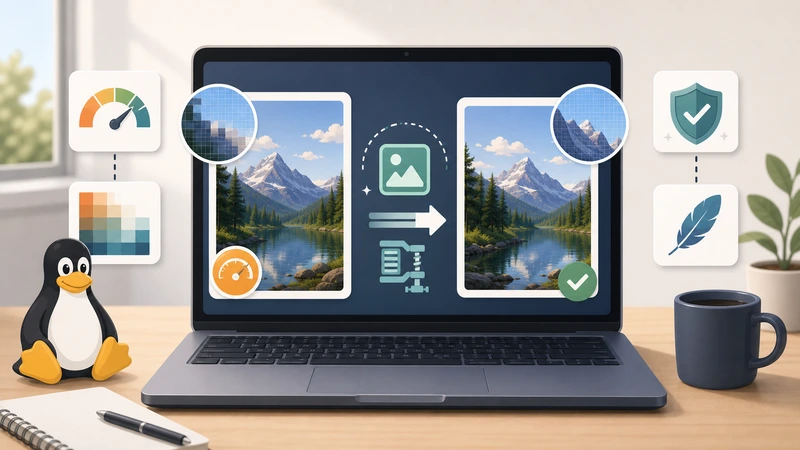
PNG files are great for screenshots, interface elements, simple graphics, and images that need reliable transparency. They are also often far larger than the actual web page needs.
That is why PNG optimization matters. The goal is not to make every file microscopic. The goal is to remove unnecessary weight so the image is easier to upload, faster to serve, and less annoying to work with.
If you are preparing PNGs for websites, support docs, product pages, or content systems, practical file-size reduction usually matters more than theoretical perfection.
Why PNG files get so heavy
- screenshots often preserve more detail than the destination needs
- transparent graphics can stay unnecessarily large through repeated exports
- teams reuse source assets instead of publishing copies
- nobody stops to optimize before upload
This is common because PNG is often used as a "safe" working format, which means the output is convenient but not always efficient.
When PNG is still the right format
Do not treat PNG as a problem by default. It is still the right choice in many situations, especially when you need clear edges, screenshots, or dependable transparency.
The real question is whether the current PNG is heavier than the destination justifies.
What web optimization should solve
For most practical workflows, PNG cleanup should improve one or more of these:
- upload speed
- page weight
- storage efficiency
- fewer failed or delayed publishing steps
When to compress and when to convert
Compress when PNG is still the right format
If the file type already fits the job, compression is usually the first move.
Convert when the format itself is the bottleneck
If the destination would benefit more from another format, then conversion may be the smarter route.
That is why Compress Image and Format Converter complement each other. One reduces unnecessary weight. The other changes the file type when that is the real problem.
What people usually overdo
Trying to optimize everything manually
If the workflow is repetitive, you want a simple path, not a twenty-step inspection process for each image.
Using original source files as publish-ready assets
Source graphics are often bigger than the version a website actually needs.
Waiting until uploads feel slow
It is better to reduce image weight before the page or CMS makes the problem visible.
How Filemazing fits
Filemazing's Compress Image is a good fit when the PNG format is still appropriate and the real issue is file size. If the workflow later needs a different format for compatibility or delivery, move to Format Converter.
A practical PNG workflow
- Decide whether PNG is still the right output format.
- If yes, compress the image before publishing.
- Check whether the destination still needs a lighter or alternate format.
- Upload the optimized output instead of the source file.
Frequently asked questions
Should I always convert PNGs to another format for the web?
No. PNG is still useful in many web workflows. Compression may be all you need.
Why are PNGs often so much bigger than JPG or WEBP?
Because they preserve image data differently and are often used for screenshots, transparency, or editing-friendly outputs.
What matters most when shrinking PNGs for websites?
Lower practical file size without creating visual issues or breaking the reason PNG was chosen in the first place.
Can I do this quickly in a browser?
Yes. A browser-based compression step is often enough for everyday publishing workflows.
Final takeaway
PNG files are not "bad for the web," but many of them are heavier than necessary. A quick compression step can make them easier to publish, faster to load, and less painful to move through your workflow.
If PNG is still the right format and the issue is weight, start with Filemazing Compress Image before you upload.