Converting an image sounds harmless until the result comes back blurry, oversized, oddly colored, or unusable on the site where you needed it. If you regularly convert image formats for web uploads, client files, profile images, product photos, or shared documents, the goal is not just change JPG to PNG or make this WebP.
The real goal is keeping the image useful.
That means preserving visible quality, choosing the right format for the job, avoiding unnecessary compression, and keeping the workflow manageable when you have more than one file. For web projects especially, it also helps to pair conversion with smart optimization, such as using an image compression tool to reduce converted image sizes after exporting.
What You Should Know First
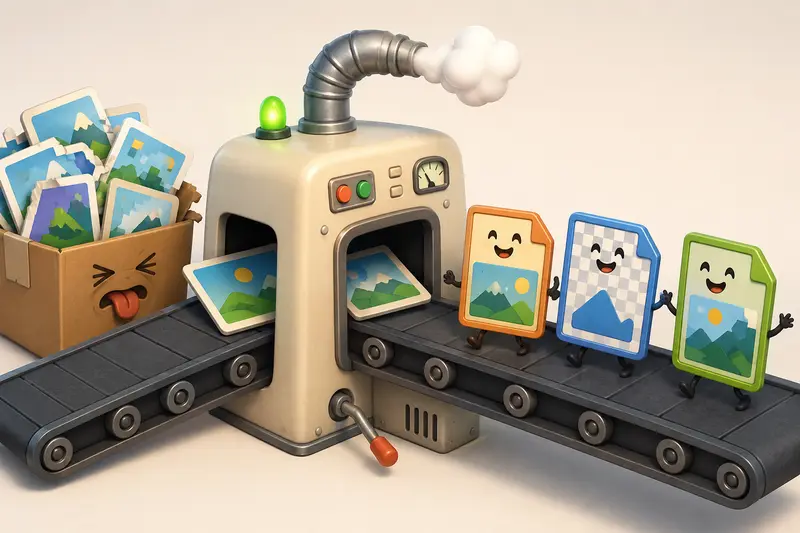
The best way to convert image formats without noticeable quality loss is to start with the highest-quality source file, choose a format that matches the image type, and avoid repeated lossy conversions. A browser-based tool like Filemazings format converter can help handle this without installing desktop software.
For most users, the safest rule is simple: use PNG when sharp edges or transparency matter, JPG when file size matters more than perfect detail, and WebP when you want strong web performance with good visual quality.
Why Image Quality Drops During Conversion
Image quality loss usually happens for one of four reasons:
- A lossy format is used too aggressively
- The image is resized during conversion
- Transparency or color data is not supported by the target format
- The same file is converted back and forth multiple times
JPG is the usual suspect because it compresses by permanently removing some image data. That does not make JPG bad. It is excellent for photos. But if you convert a sharp PNG logo into JPG, the edges may look softer and the background may flatten.
Some formats cooperate nicely. Others seem personally offended by compatibility.
A Practical Format Cheat Sheet
| Use case | Better format choice | Why it works |
|---|---|---|
| Product photos | JPG or WebP | Good quality with smaller file sizes |
| Transparent graphics | PNG or WebP | Keeps transparency intact |
| Screenshots | PNG | Preserves text and sharp UI details |
| Blog images | WebP or compressed JPG | Balances quality and loading speed |
| Icons and logos | PNG or SVG when available | Keeps edges clean |
| Social media graphics | JPG or PNG | Broad compatibility |
The non-obvious part: converting to a better format does not automatically improve the image. A low-quality JPG converted to PNG will usually become a larger file with the same visible flaws. PNG can preserve quality, but it cannot restore detail that was already removed.
How the Conversion Workflow Should Look
A good image conversion process is less about pressing one button and more about making a few small decisions in the right order.
Check the source file first
Start with the largest or cleanest version available. Avoid converting screenshots that were already compressed by messaging apps.Choose the output format based on the final use
For websites, WebP is often a strong option. For print sharing or transparency, PNG may be safer. For general photo use, JPG is still widely compatible.Convert in batches when files share the same purpose
Batch image format conversion is useful when preparing product galleries, article images, real estate photos, or marketing assets.Review one sample before processing everything
Test a single image if the files are important. Look for color shifts, softened text, transparency loss, or file size changes.Optimize after conversion when needed
Converted web images often benefit from compression, especially if upload limits or page speed matter.

Where Filemazing Fits into the Process
Filemazing is a browser-based file processing SaaS for converting, cleaning, compressing, and preparing files without installing desktop software. Its format conversion tool is useful when you want a clean web workflow for changing image formats, especially if you are handling multiple files rather than one-off conversions.
The platform also includes related tools for PDF to image, merge PDF, image compression, archive extraction, audio conversion, metadata scrubbing, file encryption, and API-based automation. That makes it practical for general users who want a clean interface and for developers who need repeatable file workflows.
A useful detail is Filemazings token-based pricing. Instead of subscriptions, operations consume tokens based on workload factors such as base cost, file size, file count, page count, or media duration depending on the tool. For format conversion, the example pricing rule is based on a base cost plus file size and file count factors, which makes cost easier to estimate before processing.
For privacy-conscious users, uploaded files are treated as temporary processing artifacts and cleaned on a short retention schedule rather than kept as long-term storage. That matters when converted files include client images, personal photos, internal graphics, or unpublished creative assets.
A Realistic Test Scenario
For a practical test, imagine a mixed folder of 42 images prepared for a small website refresh:
- 18 JPG product photos, around 35 MB each
- 12 PNG screenshots with visible text
- 8 transparent PNG icons
- 4 oversized export images from a design tool, each over 10 MB
The goal was to convert the web-facing images into lighter formats while keeping screenshots readable and icons clean. The product photos converted well to WebP because they contained natural detail rather than sharp text. The screenshots were better left as PNG or converted carefully, because small text can become fuzzy when compression is too aggressive. The icons needed transparency preserved, so JPG was not suitable.
The practical takeaway: batch conversion saves time, but format choice still matters. A best image format converter should help you process groups efficiently without forcing one format choice onto every visual asset.
Quality Tradeoffs People Often Miss
Format conversion for web images is always a balance.
A smaller file is not automatically better if the image becomes visibly degraded. A perfect-quality PNG is not automatically better if it slows down a page. Browser-based conversion is convenient, but extremely large image sets may still take time because upload speed, file size, and processing queues all affect the experience.
The most common tradeoffs are:
- JPG vs PNG: JPG is smaller for photos; PNG is better for sharp graphics and transparency.
- WebP vs older formats: WebP is efficient, but some older workflows may still expect JPG or PNG.
- Quality vs compression: Lower compression can protect detail, but larger files may hurt page speed.
- Speed vs precision: Batch processing is efficient, but high-value images deserve a quick manual review.
If converted images contain location data, camera details, or other embedded information, it is also worth using a metadata scrubber for converted image files before publishing or sharing them.

When Batch Image Format Conversion Makes Sense
Batch conversion is especially useful when the files share the same destination. For example:
- Preparing blog images before uploading to a CMS
- Converting product photos for an online store
- Standardizing client image submissions
- Turning exported design assets into web-ready formats
- Preparing email newsletter graphics
- Cleaning up large folders of screenshots or reference images
The key is to avoid treating every image the same. Photos, screenshots, icons, and transparent graphics have different needs. A single batch can be efficient, but splitting images by type often produces better results.
Small Workflow Habits That Protect Quality
A few habits can prevent most disappointing conversions:
Keep an original copy before converting. Use the largest source file available. Avoid converting JPG to JPG repeatedly. Check transparency before choosing a target format. Review images with text at full size, not just as thumbnails.
For teams sharing converted assets externally, it can also make sense to secure converted files before sending, especially when images contain private drafts, client materials, or internal documentation.
Helpful Clarifications
Can I convert image formats without losing quality?
Yes, but it depends on the source and target format. Converting from PNG to PNG-like formats can preserve visual quality well, while converting to JPG may introduce compression loss.
What is the best format for web images?
WebP is often a strong choice for web images because it offers good quality at smaller file sizes. JPG is still widely compatible for photos, and PNG is better for transparency or sharp graphics.
Is batch image format conversion safe for quality?
It can be, as long as the images have similar needs. For mixed folders, split photos, screenshots, icons, and transparent graphics into separate batches.
Will converting JPG to PNG improve the image?
Usually no. PNG may prevent further quality loss, but it will not restore detail already removed by JPG compression.
Are uploaded files stored permanently?
With Filemazing, uploaded files are treated as temporary processing files and cleaned on a short retention schedule rather than stored as long-term user storage.
Why did my transparent background disappear?
The target format probably did not support transparency. JPG does not preserve transparent backgrounds, so PNG or WebP is usually a better option.
Final Takeaway
To convert image formats without the usual quality loss, choose the format based on the images purpose, protect the original file, and avoid unnecessary recompression. For everyday users and teams handling repeated image work, Filemazing offers a practical browser-based way to manage format conversion, batch workflows, temporary processing, and predictable token-based usage without adding desktop software to the mix.