Printing from PDFs sounds straightforward until the pages refuse to scale properly, images look blurry, or your printer struggles with large files. Thats usually when people start looking for a reliable way to convert PDF to JPG without sacrificing quality.
For many everyday tasks printing forms, sharing scanned pages, preparing flyers, or uploading documents to online portals image files can be easier to manage than PDFs.
This is where browser-based tools like Filemazing https://filemazing.com/pdf-to-image become practical. Instead of installing desktop software, you can convert documents directly in your browser, process multiple files in batches, and download image-ready pages quickly.
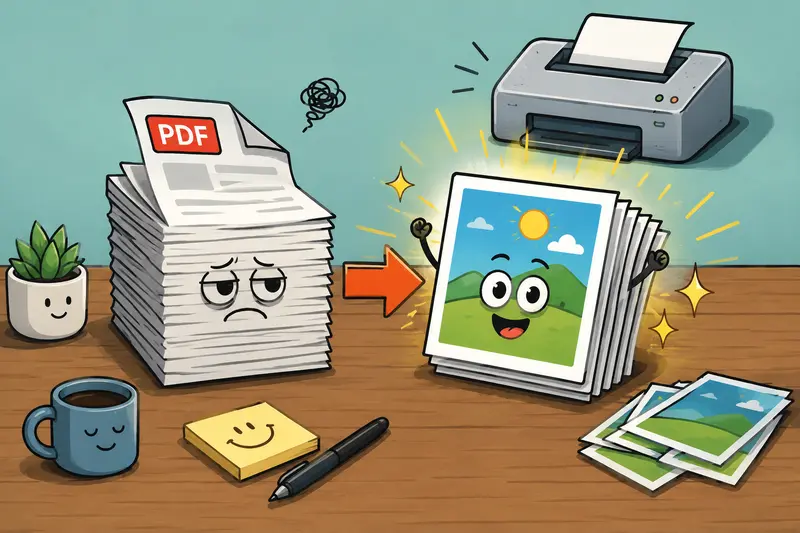
Why People Convert PDFs Into JPG Images
PDFs are designed to preserve layouts, but they are not always ideal for printing workflows.
A JPG version of each page can help when:
- a print shop requests image files instead of PDFs
- you need individual pages for posters or flyers
- mobile printing apps reject large PDFs
- older printers process images more reliably
- you want to insert document pages into presentations or design software
Theres also a convenience factor. A folder full of JPG pages is often easier to preview visually than scrolling through a long document.
For image-heavy PDFs, especially scanned paperwork, converting pages to images can reduce compatibility headaches. Large files tend to appear at the exact moment upload limits become a problem.
What Matters Most During Conversion
Not all PDF exports are equal.
The biggest concern for most users is preserving readability. Tiny text, scanned signatures, and embedded graphics can quickly degrade if conversion settings are too aggressive.
When trying to achieve high quality PDF to image output, three things matter most:
- source document quality
- export resolution
- image format choice
JPG works well for photographs and standard document printing because file sizes stay manageable. PNG, however, may preserve sharper text edges for diagrams or black-and-white documents.
That tradeoff matters.
A PNG export may look cleaner, but the files can become significantly larger than JPG versions, especially for long documents.
If your goal is standard printing at home or office quality, JPG is usually the more practical option.
A Real-World Conversion Test
To see how modern browser-based conversion performs, we tested a 42-page scanned PDF containing:
- mixed text pages
- charts
- embedded signatures
- several color photographs
The original file size was roughly 96MB.
Using Filemazings PDF-to-image workflow, the conversion completed in batches without locking the browser tab. Each page exported as an individual JPG file suitable for printing and sharing.
Text remained readable even after zooming in on smaller sections, although highly compressed scans from the original PDF naturally retained some softness.
Thats important to understand: no converter can fully restore detail that was already lost in the source file.
The more interesting result was workflow stability during batch PDF to image conversion. Larger files processed consistently because jobs are queued rather than forcing everything through a single browser action.
Getting Better Print Results Without Oversized Files
One useful trick many people overlook is adjusting export expectations based on the document itself.
For example:
| Document Type | Better Format |
|---|---|
| Photographs | JPG |
| Scanned contracts | JPG |
| Line art or diagrams | PNG |
| Small text-heavy pages | PNG or high-quality JPG |
| Presentation slides | JPG |
If your exported images become too large afterward, the image format conversion tools https://filemazing.com/format-converter can help convert between JPG, PNG, WEBP, HEIC, and other formats depending on where the files will be used next.
This becomes especially useful when printing services enforce upload size limits.
How the Workflow Usually Goes
Most people follow a fairly similar process when converting PDFs for printing:
- Upload the PDF file
- Choose JPG output
- Select image quality or resolution
- Start conversion
- Download exported pages
- Print selected images or archive them
For multi-document projects, it can help to first use a tool to combine PDF files before converting pages to images https://filemazing.com/merge-pdf. That avoids managing scattered page exports from separate files later.
Browser-based workflows also remove a common frustration: outdated desktop software compatibility issues. Some older converters still struggle with modern PDFs generated from cloud office platforms.
One Non-Obvious Quality Tip
If you need to print documents containing very small text, avoid converting directly from low-resolution scans whenever possible.
Instead:
- rescan at 300 DPI or higher
- export at high-quality JPG settings
- avoid repeated conversions between formats
Every additional compression step introduces more visual degradation.
This matters most for:
- receipts
- invoices
- archival records
- legal paperwork
- handwritten annotations
Repeated JPG recompression can make fine details noticeably worse over time.
Some formats cooperate nicely. Others behave like they were invented during a group argument.
Privacy and Temporary File Handling
When dealing with sensitive PDFs, privacy handling matters just as much as image quality.
Filemazing processes uploaded files as temporary working data rather than long-term cloud storage. Files are cleaned on a short retention schedule after processing, which reduces the risk of forgotten document archives lingering indefinitely.
Thats particularly relevant when converting:
- ID scans
- contracts
- medical paperwork
- financial statements
For users sharing exported images afterward, using a metadata removal tool for exported JPG files https://filemazing.com/metadata-scrubber can also help remove hidden metadata before distribution.
Browser-Based Conversion vs Installed Software
Desktop applications still have advantages for advanced publishing environments, especially when color calibration or professional print preparation is involved.
But for general users, browser-based conversion often wins on convenience and maintenance.
Heres why many people prefer it now:
- no installation
- no software updates
- works across operating systems
- accessible from multiple devices
- easier handling for occasional use
Filemazing also supports API-based automation for teams handling recurring document workflows, although most everyday users will simply use the browser interface.
The token-based pricing model is also more predictable than subscriptions for occasional conversion work. Users can estimate processing costs based on file size, page count, and workload complexity instead of paying monthly for tools they barely use.
Common Issues After Conversion
A few problems appear repeatedly during PDF image exports.
Blurry text
Usually caused by:
- low source resolution
- aggressive JPG compression
- exporting at small dimensions
Huge image files
Often happens when:
- using PNG unnecessarily
- exporting oversized pages
- converting scanned image-heavy PDFs
Missing fonts or strange formatting
This typically originates from the PDF itself rather than the converter.
If the original document was created improperly, exported pages may preserve those issues exactly.
FAQ
Can I convert PDF to JPG without losing quality?
You can preserve most visible quality if the source PDF is already high resolution and the export settings are appropriate. Extremely compressed or blurry PDFs cannot be fully restored during conversion.
Is JPG better than PNG for printing?
For most everyday printing tasks, JPG is more practical because file sizes remain smaller. PNG may produce sharper edges for diagrams or fine text but creates larger files.
Does batch PDF to image conversion slow down browsers?
Large conversions can strain weaker devices, but queued processing systems help reduce browser freezing during bigger jobs.
Can I convert scanned PDFs into printable images?
Yes. Scanned PDFs are commonly converted into JPG files for printing, archiving, and document sharing.
Are uploaded PDFs stored permanently?
Filemazing treats uploaded files as temporary processing artifacts and removes them on a short cleanup schedule rather than storing them long term.
Final Thoughts
For everyday users, the ability to convert PDF to JPG efficiently is less about advanced publishing and more about avoiding friction.
You want printable pages that stay readable, manageable file sizes, and a workflow that doesnt require installing complicated software.
Browser-based tools now handle that surprisingly well especially for scanned documents, multi-page exports, and bulk workflows where convenience matters just as much as quality.
Whether youre preparing school paperwork, print-shop files, presentations, or archived scans, a reliable PDF to JPG without losing quality workflow can save considerable time while keeping output clean enough for real-world printing.