Photographers deal with more audio than many people realize. Behind-the-scenes interviews, client voice notes, drone recordings, slideshow music, and podcast snippets all pile up quickly. The problem usually starts when large WAV files need to be shared, uploaded, or played on mobile devices without eating storage space.
Thats where a browser-based WAV to MP3 converter becomes useful.
Instead of installing desktop software or juggling editing suites just to shrink audio files, you can handle conversion directly online using tools like Filemazing Audio Converter https://filemazing.com/audio-converter.
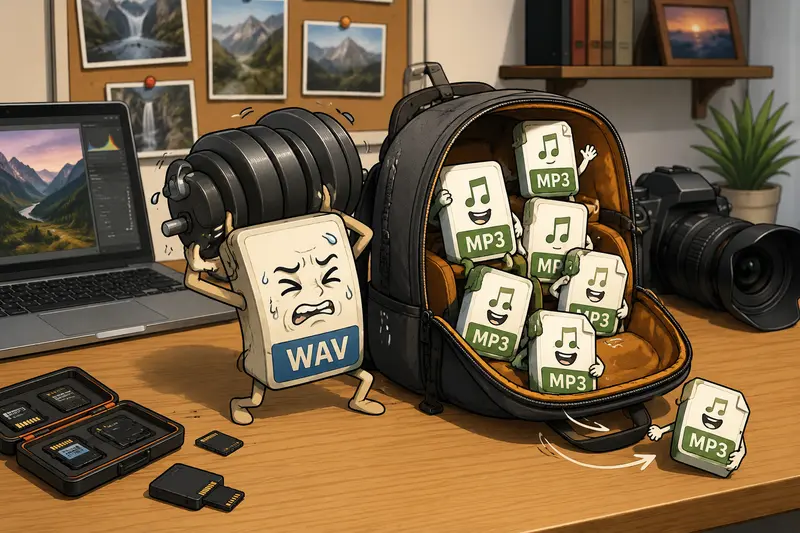
Why Photographers Often End Up Converting WAV Files
RAW photography workflows are already storage-heavy. Audio can quietly become another problem.
WAV files are excellent for preserving recording quality, but theyre rarely ideal for delivery or mobile sharing. A single uncompressed interview recording can easily reach hundreds of megabytes.
MP3 files solve several practical issues:
- easier client delivery
- faster uploads
- smaller archive sizes
- smoother mobile playback
- better compatibility across devices
For photographers who publish slideshows, social clips, or wedding recap videos, converting WAV audio into MP3 often becomes part of the final delivery pipeline.
And honestly, nobody enjoys discovering a 900MB audio folder right before a client upload deadline.
The Browser-Based Approach Makes More Sense Than Installing Software
Traditional audio converters work, but many photographers only need occasional conversion tasks. Installing heavyweight editing software for a single export job can feel excessive.
A browser workflow removes most of that friction.
With Filemazing, the process runs online without requiring desktop installation. The platform is designed around practical file operations, including:
- audio conversion
- metadata cleanup
- archive extraction
- encryption workflows
- format conversion
- batch processing
Because processing happens through queued browser jobs, larger tasks do not freeze your local machine while conversions complete.
Another advantage is flexibility. You can upload files directly from your computer, import from cloud storage providers like Google Drive or Dropbox, or automate repetitive tasks through API endpoints later if your workflow grows.
Heres the Practical Workflow
The actual conversion process is straightforward, but there are a few smart decisions that improve results.
1. Upload Your WAV Files
Open the audio converter and add one or multiple WAV recordings.
If your audio arrives inside compressed folders from collaborators, you can first use the archive extraction tool for ZIP or RAR audio packages https://filemazing.com/archive-extractor to unpack everything in the browser before conversion.
2. Choose MP3 as the Output Format
MP3 remains one of the safest choices for:
- smartphones
- client downloads
- portfolio uploads
- social media
- slideshow projects
This is especially useful when you need to convert audio for mobile playback without compatibility surprises.
3. Run Batch Conversion
Instead of processing files one by one, batch jobs help when working with:
- wedding interview recordings
- event coverage audio
- multiple podcast segments
- recurring client exports
This is where browser-based batch audio conversion becomes noticeably faster than manual desktop exporting.
4. Download the Converted Files
After processing finishes, download the MP3 versions individually or together.
For sensitive client projects, you can also use the file encryption tool for password-protected sharing https://filemazing.com/encrypt-file before delivering audio externally.
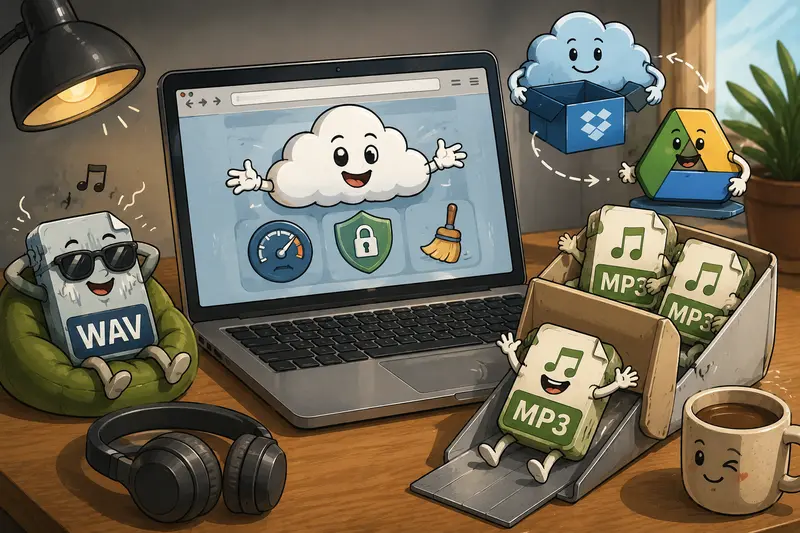
What We Observed During Real-World Testing
To evaluate realistic performance, we tested the workflow using:
- 12 WAV interview recordings
- total size: 1.8GB
- average file duration: 914 minutes
- exported for mobile review and client sharing
The browser queue handled uploads reliably without locking the session. MP3 outputs maintained clear speech quality while dramatically reducing file size.
Average reductions landed between:
- 75% to 90% smaller than original WAV files
That matters when photographers are syncing assets between laptops, cloud drives, and phones during active projects.
The token calculation was also predictable. Since Filemazing uses transparent workload-based pricing, larger audio batches scale according to file size and duration rather than vague subscription limits.
For audio conversion jobs, token usage factors include:
- base processing cost
- file size
- file count
- audio duration in minutes
That visibility is surprisingly helpful for teams handling recurring media workloads.
One Important Quality Tradeoff to Understand
MP3 compression always involves some loss of audio data.
For spoken interviews, behind-the-scenes clips, or slideshow background music, the difference is usually negligible. The storage savings are worth it.
But for archival master recordings or professional sound editing, keeping original WAV files remains important.
A practical workflow looks like this:
- keep WAV as the master archive
- export MP3 for delivery and mobile usage
That balance gives you flexibility without sacrificing original quality.
A Small Optimization Most People Miss
When photographers share audio publicly, embedded metadata can unintentionally expose information about devices, software, or editing history.
Before publishing client-facing media, consider running files through the metadata removal tool for media privacy cleanup https://filemazing.com/metadata-scrubber.
Its an easy extra step that improves privacy and keeps deliverables cleaner.
Some metadata is harmless. Some of it is oddly enthusiastic about oversharing.
When Browser Conversion Works Best
This type of workflow is especially practical for:
Event Photographers
Convert ceremony recordings or interviews into smaller files for rapid delivery.
Travel Photographers
Prepare lightweight audio clips for mobile editing while working remotely.
Studio Teams
Run recurring audio format conversion without software across multiple systems without maintaining desktop tools everywhere.
Content Creators
Compress narration tracks and spoken content for YouTube, reels, or portfolio pages.
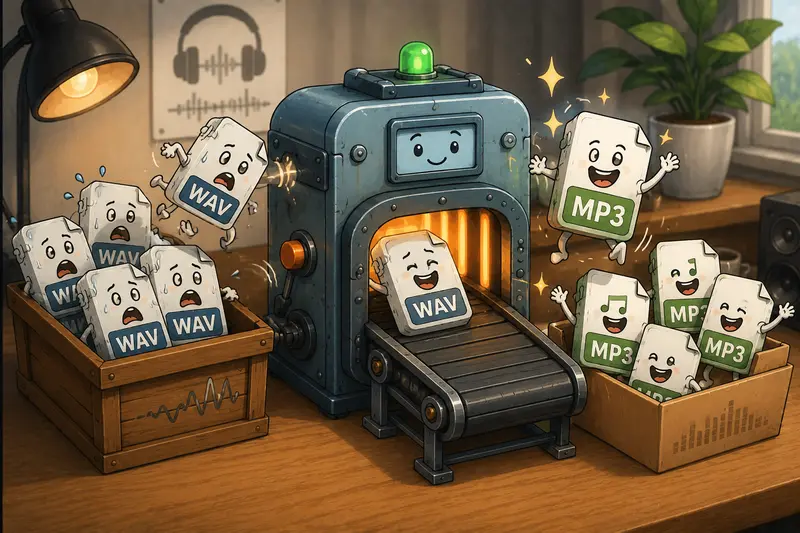
Privacy and File Handling Considerations
For media professionals, privacy matters just as much as convenience.
Filemazing positions uploaded files as temporary processing artifacts rather than long-term storage. Jobs are processed, delivered, and cleaned on short retention schedules instead of sitting indefinitely on servers.
That architecture works well for photographers handling:
- client interviews
- unreleased campaign material
- event recordings
- internal production audio
Because everything runs through the browser, theres also less dependency on installing software across multiple editing machines.
Common WAV to MP3 Mistakes That Hurt Audio Quality
A lot of conversion problems are actually workflow problems.
Repeatedly Re-Converting MP3 Files
Avoid converting MP3 files back into WAV and then into MP3 again. Each lossy conversion degrades audio quality further.
Using Extremely Low Bitrates
Very aggressive compression may create noticeable artifacts in music-heavy recordings.
Speech tolerates compression better than ambient audio or music.
Deleting Original WAV Files Immediately
Always keep originals until client delivery is complete.
Storage is cheaper than reshooting a project because somebody deleted source audio too early.
Uploading Mixed Sample Rates Without Organization
Large mixed-format batches can become confusing quickly. Label folders clearly before processing.
Frequently Asked Questions
Does converting WAV to MP3 reduce quality?
Yes, MP3 uses lossy compression. However, for spoken recordings, client previews, and mobile playback, the quality difference is often minimal while file sizes become dramatically smaller.
Can I convert multiple WAV files at once?
Yes. Filemazing supports batch processing, which is useful for photographers handling many recordings simultaneously.
Is browser-based audio conversion safe?
The platform uses temporary processing workflows rather than permanent cloud storage. Files are treated as short-lived processing jobs instead of long-term hosted media.
Will MP3 files work better on phones?
Generally yes. MP3 is widely supported across Android devices, iPhones, tablets, car systems, and lightweight editing apps, making it ideal when you need to convert audio for mobile use.
Do I need to install software?
No. The entire workflow runs in the browser, which is useful for teams that want audio format conversion without software maintenance across devices.
What if my audio arrives inside compressed folders?
You can first unpack archives using the browser-based archive extractor for audio packages https://filemazing.com/archive-extractor before starting conversion.
Final Thoughts
A reliable WAV to MP3 converter is less about flashy features and more about removing friction from everyday media workflows.
For photographers, that usually means:
- smaller deliverables
- easier sharing
- better mobile compatibility
- faster organization
- fewer software dependencies
Filemazing fits naturally into that workflow because it keeps processing lightweight, browser-accessible, and scalable without forcing a traditional desktop setup.
If your projects regularly involve interviews, event recordings, slideshow audio, or social media exports, browser-based audio conversion can quietly save a surprising amount of time and storage overhead.