Audio conversion tends to become urgent at the worst possible moment.
A build pipeline rejects MP3 uploads. A speech-processing library expects WAV input. An audio archive needs uncompressed files before editing. Or you discover usually late in the process that compressed audio introduced artifacts your tooling cant ignore.
For developers working on Windows, the challenge is rarely how to convert audio. The real issue is finding a workflow that preserves quality, handles batches cleanly, and doesnt require installing another heavyweight desktop utility that lives forever in the system tray.
Thats where a browser-based MP3 to WAV converter can fit surprisingly well into modern workflows.
Filemazing approaches conversion differently from traditional desktop tools. Instead of bundling endless codecs into a local app, it provides a lightweight web-based processing system with optional API automation for larger workloads.
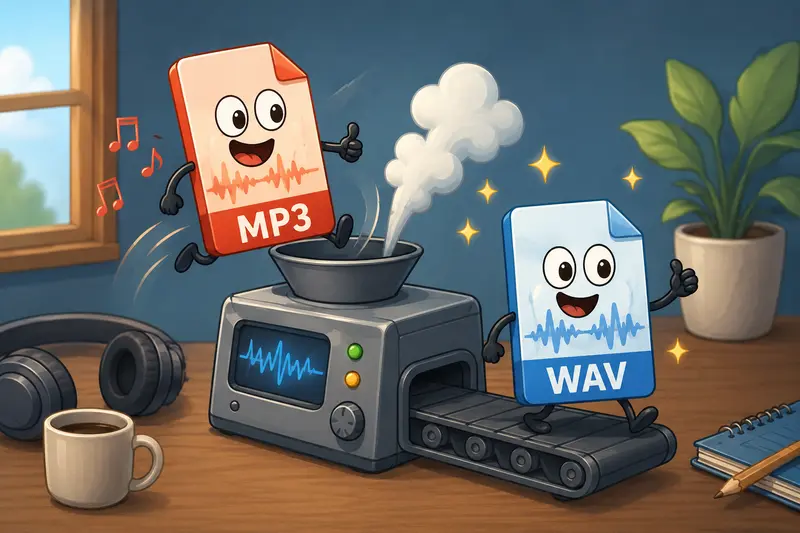
What Actually Changes When You Convert MP3 to WAV?
MP3 is a lossy format. WAV is typically uncompressed PCM audio.
That distinction matters because converting MP3 to WAV does not restore lost audio data. The WAV output simply stores the existing audio stream in a format that is easier for editing software, AI tooling, DAWs, and processing pipelines to work with.
In practice, developers usually convert MP3 to WAV for reasons like:
- speech recognition preprocessing
- machine learning datasets
- editing in DAWs
- compatibility with legacy systems
- waveform analysis
- podcast mastering
- game audio pipelines
WAV files are larger, but they remove another layer of compression from downstream processing.
That tradeoff is usually worthwhile when reliability matters more than storage savings.
A Windows Workflow That Avoids Desktop Clutter
One practical approach is using the browser-based Filemazing audio converter https://filemazing.com/audio-converter directly from Windows without local installation.
The workflow is straightforward:
- Upload MP3 files from local storage, Dropbox, or Google Drive
- Select WAV as the output format
- Process files in batches if needed
- Download converted WAV outputs
- Continue processing or automate later through API endpoints
The interesting part is less about the conversion itself and more about operational convenience.
For example:
- no codec pack maintenance
- no local transcoding queue setup
- no version conflicts between libraries
- temporary processing rather than permanent cloud storage
That last point matters more than people expect. Audio files often contain internal metadata, embedded comments, or naming conventions that were never intended for distribution.
If you need to sanitize media before publishing or sharing, using the metadata scrubbing workflow https://filemazing.com/metadata-scrubber alongside conversion can prevent accidental leakage of recording details or embedded tags.
Real Testing Scenario: Batch Audio Preparation for Speech Processing
During testing, a batch of 42 MP3 interview recordings was converted to WAV for ingestion into a speech-analysis pipeline on Windows 11.
The source files ranged from:
- 6 MB to 48 MB
- mono and stereo mixes
- varying bitrates from 96 kbps to 320 kbps
The goal was consistency rather than better sound quality.
A few observations stood out:
- higher bitrate MP3s produced cleaner WAV outputs for transcription
- low-bitrate recordings retained their original compression artifacts
- batch handling remained stable even with mixed durations
- browser responsiveness stayed intact because processing was queued server-side
One useful detail developers may appreciate: large jobs do not freeze the interface while conversion runs. Jobs are tracked independently, which is preferable to browser tabs appearing completely dead during long media tasks.
Some file formats cooperate nicely. Others behave like theyre filing a formal complaint against interoperability.
Where WAV Output Makes the Biggest Difference
Not every workflow benefits equally from WAV conversion.
For casual listening, MP3 remains efficient and practical.
But WAV becomes valuable when downstream tools repeatedly reprocess audio. Each additional lossy export can compound quality degradation.
This is especially noticeable in:
- AI voice training datasets
- mastering workflows
- spectrogram analysis
- forensic audio review
- audio normalization pipelines
If your Windows workflow involves multiple transformation steps, converting early to WAV can reduce cumulative damage later.
One Non-Obvious Quality Issue Developers Run Into
A surprisingly common mistake is repeatedly converting between compressed formats before finally exporting to WAV.
Example:
- MP3 AAC OGG WAV
At that point, the WAV file is technically uncompressed, but the audio quality may already be heavily degraded from multiple lossy stages.
The better approach:
- preserve the original source whenever possible
- convert directly once
- perform editing in WAV
- export final delivery formats afterward
This matters particularly in automated media pipelines where intermediate assets can quietly accumulate compression artifacts over time.
Why Browser-Based Conversion Is Becoming More Practical
Historically, developers preferred local tools because web converters were slow, unreliable, or overloaded with ads.
That landscape has changed.
Modern browser-based systems now make sense for many workloads because:
- upload bandwidth improved
- queued processing is more reliable
- cloud execution scales better for batches
- APIs bridge manual and automated workflows
Filemazing also uses transparent token pricing instead of fixed subscriptions, which changes the economics for occasional conversion tasks.
Rather than paying monthly for software you barely use, workloads consume tokens based on measurable factors like:
- file size
- duration
- file count
- processing complexity
For indie developers and smaller SaaS teams, that model is often easier to predict operationally.
Related Workflow Optimization Most Teams Overlook
Audio rarely travels alone.
Many publishing workflows also involve:
- cover images
- thumbnails
- metadata assets
- supporting documents
If you need to standardize accompanying visuals, the format conversion tools for related assets https://filemazing.com/format-converter can help keep media pipelines consistent without introducing separate utilities for image handling.
And if converted recordings need secure delivery to clients or contractors, using encrypted file protection before sharing audio files https://filemazing.com/encrypt-file adds another layer of control without requiring external packaging software.
Tradeoffs Worth Knowing Before You Convert
No MP3 to WAV converter changes the physics of audio compression.
A few realistic expectations help:
| Situation | Expected Result |
|---|---|
| High bitrate MP3 WAV | Stable editing format with minimal additional degradation |
| Low bitrate MP3 WAV | Existing artifacts remain audible |
| Large WAV output | Significantly increased storage usage |
| Batch conversion | Faster operationally, but heavier downloads afterward |
WAV prioritizes compatibility and processing integrity over compact storage.
For archival or editing pipelines, that is usually the correct tradeoff.
For distribution? Often not.
Final Thoughts
If your Windows workflow involves recurring audio preprocessing, transcription, editing, or media automation, using a browser-based MP3 to WAV converter can reduce operational friction more than expected.
The practical advantage is less about novelty and more about workflow consistency:
- predictable conversion handling
- batch support
- temporary file retention
- API-ready automation
- no local maintenance burden
For developers especially, that combination tends to matter more over time than flashy interface features.
And honestly, avoiding another permanently installed audio utility has its own quiet appeal.