Photographers deal with PDFs more often than most people expect. Client proof sheets, scanned contact sheets, licensing documents, portfolio exports, print-ready catalogs eventually, someone needs those pages as images instead.
Thats where the need to turn PDF into JPG becomes practical rather than technical.
The challenge is rarely the conversion itself. The real issue is preserving image clarity while handling large files efficiently, especially when PDFs contain high-resolution photography. A poor conversion can soften details, flatten contrast, or create compression artifacts that become painfully obvious once images are shared or printed.
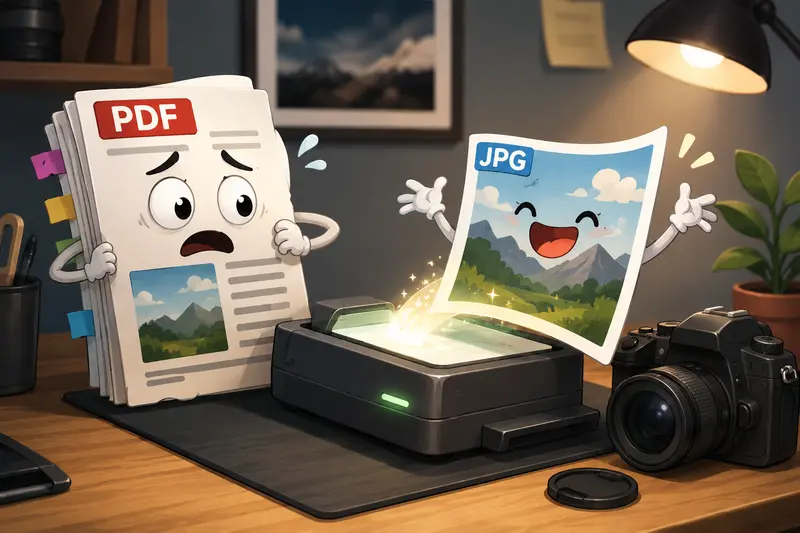
For photographers working on desktop workflows, browser-based tools have become surprisingly capable. Services like Filemazing PDF to Image Tool https://filemazing.com/pdf-to-image allow you to convert PDF pages online without installing additional software, which is useful when moving between editing stations or collaborating remotely.
In many workflows, speed matters. But output quality matters more.
What Actually Happens During PDF to JPG Conversion
A PDF page is not always a simple image file. It can contain:
- embedded photos
- vector graphics
- layered text
- transparency
- color profiles
- mixed resolutions
When you convert the document, the tool rasterizes each page into an image format such as JPG or PNG.
For photography-heavy PDFs, JPG is usually preferred because:
- file sizes stay manageable
- sharing becomes easier
- galleries load faster
- client previews remain lightweight
PNG can preserve more detail in some cases, but exported files become significantly larger. For multi-page portfolios or proofing documents, that tradeoff often becomes inconvenient fast.
A Practical Workflow That Works Well
If your goal is clean image exports without unnecessary quality loss, the process is fairly straightforward.
1. Start with the cleanest PDF possible
Export from Lightroom, Photoshop, Capture One, or InDesign at high quality before conversion. Poor source PDFs stay poor after export.
2. Upload the file
Using Filemazing PDF to Image Tool https://filemazing.com/pdf-to-image, you can upload directly from desktop storage, cloud providers, or URL sources.
Large client PDFs are common in photography. Browser-based queue handling helps prevent the interface from freezing during bigger uploads.
3. Choose image output settings
For online galleries or email previews:
- JPG usually works best
For archival graphics or transparent elements:
- PNG may preserve edges better
4. Download exported pages
Each page becomes an individual image file, which is useful for:
- client previews
- social sharing
- portfolio uploads
- proofing systems
- image-based slides
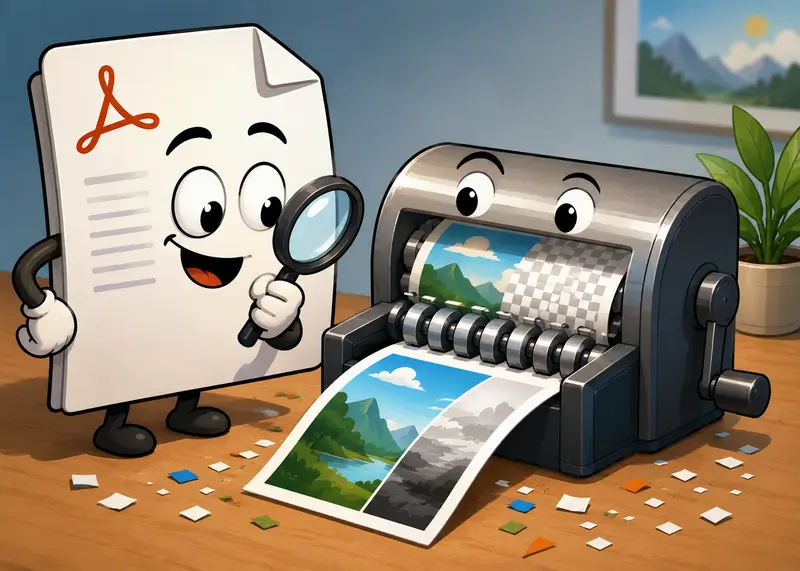
Real-World Test: Large Photography Portfolio PDF
To see how well browser conversion performs in practice, I tested a 148-page portfolio PDF exported from Adobe InDesign.
Test file details
- File size: 612 MB
- Mixed landscape and portrait spreads
- Embedded TIFF images
- Several pages with typography overlays
- Color-heavy editorial photography
What happened
The conversion completed faster than expected on a desktop Chrome session. The exported JPGs retained sharp edge detail well, particularly in high-contrast black-and-white images where poor converters usually introduce softness.
A few observations stood out:
- Fine grain structure remained intact
- Typography stayed readable
- Color shifts were minimal
- Larger pages naturally produced heavier JPG files
One useful surprise was how manageable the workflow stayed during batch PDF to image conversion. The queued processing approach prevented browser slowdowns even with a large upload.
This matters more than it sounds. Massive PDFs have a habit of appearing right before deadlines.
The Hidden Quality Mistake Most Photographers Make
Many users assume maximum JPG compression is automatically better because smaller files are easier to send.
That shortcut often damages image consistency.
When converting portfolio PDFs, aggressive compression tends to create:
- skin texture smearing
- gradient banding
- muddy shadow detail
- halo artifacts around sharp edges
A smarter approach is:
- export moderate-quality JPGs first
- then optimize separately afterward
If you need smaller delivery sizes, using a dedicated tool to compress converted images for sharing https://filemazing.com/compress-image usually produces cleaner results than crushing quality during initial conversion.
The difference becomes obvious in photography work containing subtle tones or low-light images.
Situations Where Converting PDF Pages Online Helps Most
Photographers often use image exports for more than simple previews.
Here are common real-world use cases:
- Turning wedding album proofs into mobile-friendly JPG galleries
- Exporting magazine spreads for social media promotion
- Creating client review boards from PDF contact sheets
- Sharing portfolio pages through messaging apps
- Pulling presentation slides from photography pitch decks
- Preparing marketplace previews for print products
For studios handling repeated workloads, API-based automation can also reduce repetitive tasks considerably.
Why Browser-Based Conversion Has Become More Practical
Desktop software still has its place, especially for advanced editing pipelines.
But lightweight browser workflows now solve many routine export problems efficiently.
With Filemazing, the process stays desktop-friendly while avoiding local installation overhead. Thats useful for freelancers, traveling photographers, and teams working across multiple systems.
The platform also uses transparent token pricing instead of locked subscriptions. Processing costs are tied to factors like:
- file size
- page count
- workload complexity
That predictability helps when estimating larger production batches.
Combining and Preparing PDFs Before Export
Sometimes photographers receive fragmented PDFs from clients or collaborators.
In those cases, it can help to merge multiple PDF documents first https://filemazing.com/merge-pdf before exporting pages to JPG. Consolidating files beforehand creates cleaner naming structures and simplifies gallery preparation.
It also reduces the chaos of exporting from multiple small documents separately.
Privacy Matters More Than Many People Think
Photography documents often contain:
- client contracts
- licensing information
- unpublished work
- embedded metadata
- internal review notes
That makes temporary processing policies important.
Filemazing positions uploaded files as short-lived processing artifacts rather than long-term storage. Files are cleaned on a short retention schedule instead of remaining permanently hosted.
For photographers delivering client previews, that approach is far more comfortable than leaving sensitive work sitting indefinitely on unknown servers.
If exported images still contain metadata youd rather remove before delivery, you can also strip metadata from image exports https://filemazing.com/metadata-scrubber afterward.
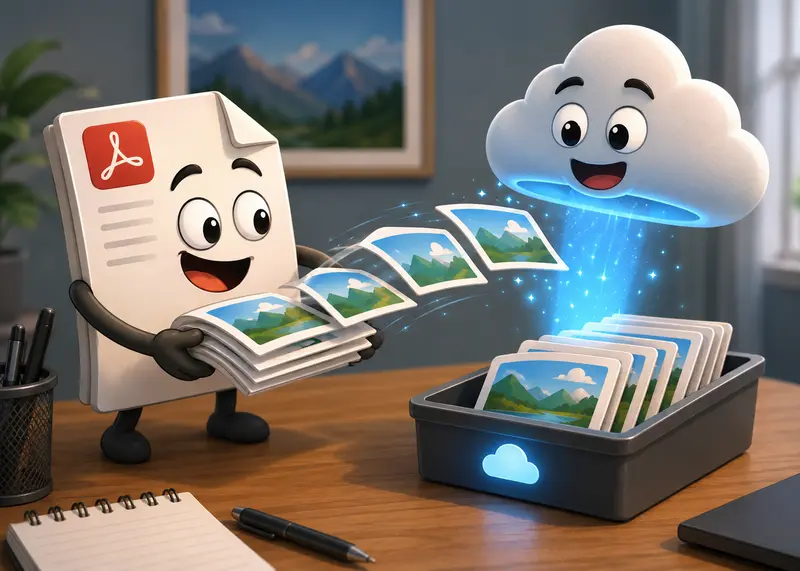
Where JPG Works Better Than PNG And Where It Doesnt
This tradeoff is easy to overlook.
JPG works better when:
- sharing galleries
- sending previews
- uploading to websites
- reducing storage overhead
- exporting photography-heavy pages
PNG works better when:
- preserving transparency
- exporting graphics or diagrams
- keeping text razor-sharp
- avoiding lossy compression entirely
For most photographers, JPG remains the practical default.
But for mixed-layout PDFs with typography-heavy pages, testing both formats on a few sample pages is worth the extra minute.
Common Problems During Conversion
Blurry output images
Usually caused by:
- low-resolution source PDFs
- over-compression
- poor export settings before conversion
Browser slowdowns
Very large PDFs can consume significant memory, especially scanned documents above several hundred megabytes.
Queued processing helps, but splitting extremely large documents can still improve reliability.
Washed-out colors
This occasionally happens when PDFs contain unusual embedded color profiles.
Testing a few pages first helps identify issues before exporting entire projects.
What You Gain From This Workflow
For photographers, the biggest advantage is flexibility.
You can:
- convert PDFs from virtually any desktop system
- avoid installing dedicated utilities
- process large multi-page documents
- maintain strong image clarity
- handle batch exports efficiently
And because the workflow stays browser-based, it adapts well to remote collaboration and temporary editing environments.
FAQ
Can I turn PDF into JPG without losing quality?
You can preserve most visible quality if the original PDF is high resolution and compression settings are kept moderate. Severe JPG compression is usually what causes noticeable degradation.
Is batch PDF to image conversion reliable for large portfolios?
Yes, especially when the platform uses queued processing instead of forcing everything through a single browser action at once. Large exports become much more stable that way.
Are converted files stored permanently?
Filemazing treats uploaded files as temporary processing data and removes them on a short retention schedule rather than using them as permanent cloud storage.
Should photographers choose JPG or PNG?
JPG is typically better for photography because file sizes remain manageable. PNG is more useful for graphics, transparency, or layout-heavy exports.
Can I convert PDF pages online from cloud storage?
Yes. Filemazing supports uploads from providers like Google Drive and Dropbox in addition to local desktop uploads.
Does converting scanned PDFs take longer?
Usually yes. High-resolution scanned pages create larger workloads because each page contains dense raster image data rather than lightweight vectors or text.
Final Thoughts
The best way to turn PDF into JPG depends heavily on what the PDF actually contains.
For photographers, preserving detail is usually more important than shaving every possible megabyte off the export. A balanced workflow clean source PDF, careful JPG settings, and optional post-compression afterward tends to produce the strongest results.
Browser-based conversion tools have matured enough that many desktop users no longer need dedicated installation-heavy software for routine exports.
When the workflow involves large proof sheets, client galleries, or portfolio pages, using a practical conversion platform like Filemazing PDF to Image Tool https://filemazing.com/pdf-to-image keeps the process fast, flexible, and easier to manage across different systems.