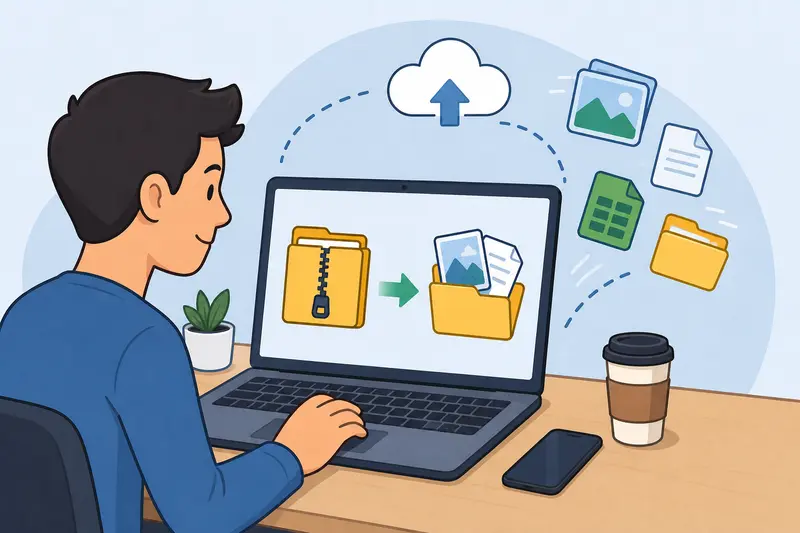
If you’ve ever downloaded a campaign asset bundle, only to find it locked inside a bulky .7z archive, you already know the friction. Installing software, waiting for extraction, dealing with compatibility—it all eats into time you could spend actually working.
For marketers juggling multiple files daily, the ability to extract 7Z files instantly—without setup—isn’t just convenient. It’s operational efficiency.
The Simple Answer
You can extract 7Z files directly in your browser using a tool like Filemazing—no installs, no setup. Upload the archive, let it process, and download the contents within seconds.
How the Process Actually Works
There’s no need to overthink it. The workflow is surprisingly clean:
- Upload your
.7zarchive (local file, URL, or cloud storage) - The system processes it in the background
- Files are extracted automatically
- Download individual files or the full extracted set
No plugins. No waiting for software installs.
Where Filemazing Fits In
The easiest way to handle this is through
👉 https://filemazing.com/archive-extractor
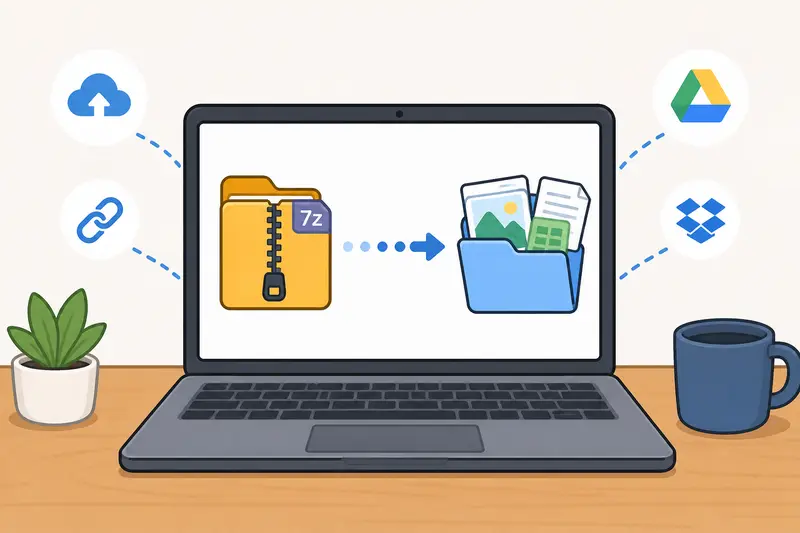
Filemazing is designed for speed-first workflows, especially when you don’t want to deal with desktop tools. Everything runs in the browser, so you can move from archive to usable assets in one pass.
What stands out:
- Fast processing, even for larger archives
- No signup required to get started
- Supports multiple archive formats beyond 7Z
- Works equally well on desktop and mobile
And because it’s browser-based, you can also extract archives on mobile without hitting compatibility issues.
What Happened When I Tested It
To see how it performs in a real marketing scenario, I ran a quick test:
- File: 7Z archive with 42 assets
- Contents: PNG images, 2 PDFs, 1 CSV export
- Total size: ~180 MB
Result:
- Upload + extraction completed in under 20 seconds
- Files were neatly organized and downloadable individually
- PDFs remained intact with zero corruption
One useful discovery: extracting first, then immediately using the tool to convert extracted PDFs to images saved another step in my workflow.
Takeaway: If your campaign assets include mixed formats, extracting in-browser and chaining tasks is significantly faster than switching tools.
When This Approach Fails (And What to Watch For)
This method works well most of the time—but not always.
Here’s where you might hit limits:
- Massive archives (multi-GB) can take longer due to upload time
- Encrypted 7Z files require passwords—no shortcut there
- Some older archives may use uncommon compression settings
A practical tip: if speed matters more than compression ratio, avoid ultra-high compression when creating archives. They’re slower to unpack.
Where This Helps Marketers Most
If your work revolves around files (and it probably does), this becomes surprisingly useful:
- Downloading asset packs from design teams
- Opening compressed reports from analytics tools
- Handling influencer content bundles
- Reviewing client deliverables without extra tools
- Quickly checking files before uploading to CMS
- Extracting archives directly on mobile while traveling
Why This Method Makes Sense
Instead of building your workflow around tools, you’re removing friction entirely.
You get:
- Immediate access—no installation delays
- Flexibility across devices
- Cleaner workflows (especially for batch tasks)
- Predictable processing without hidden complexity
And if your extracted files include multiple PDFs, you can easily combine PDFs extracted from archives into a single document afterward.
FAQ
Can I extract 7Z files without installing software?
Yes. Browser-based tools like Filemazing allow you to extract files instantly—no downloads required.
Is it safe to open compressed files online?
Files are processed temporarily and cleaned up shortly after. They are not stored long-term, which reduces exposure risk.
Can I open compressed files online on mobile?
Yes, and this is one of the biggest advantages. You can extract archives on mobile without needing specialized apps.
What file types can be extracted?
Most common archive formats are supported, including ZIP, 7Z, and others. Extracted files can include images, PDFs, and data files.
Does extraction affect file quality?
No—extraction simply decompresses files. However, if you convert formats afterward, quality tradeoffs may apply (e.g., PNG vs JPG).
What should I do after extracting sensitive files?
If security matters, it’s smart to secure extracted files for sharing or storage before distributing them.
Final Thoughts
When you need to extract 7Z files quickly, the biggest win isn’t just speed—it’s removing unnecessary steps.
Filemazing keeps things simple:
- upload
- extract
- move on
No installs, no delays, no cluttered workflows.
If your day involves constant file handling, this kind of lightweight setup isn’t just helpful—it’s a quiet productivity boost you’ll notice immediately.