PNG images are great for preserving detail, transparency, and sharp graphics, but they can quickly become a problem for remote teams sharing assets through cloud storage, documentation systems, project management platforms, and internal knowledge bases.
When large PNG files pile up, uploads take longer, repositories grow unnecessarily, and team members spend more time waiting for files to sync. If your goal is to compress PNG files on Linux without sacrificing visual quality, there is a faster approach than manually installing and configuring multiple desktop utilities.
A browser-based compression workflow can reduce file sizes significantly while keeping images visually intact and accessible from any Linux machine.
What You Need to Know First
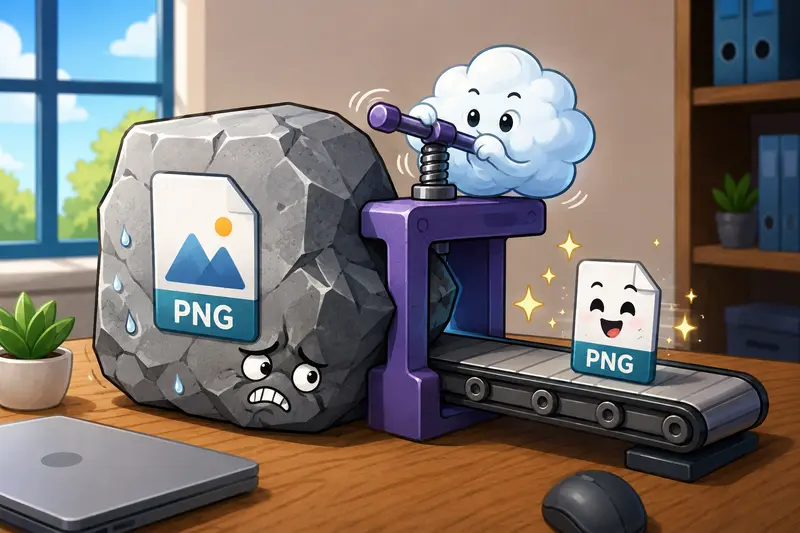
The fastest way to compress PNG files on Linux is to use a dedicated image compression tool that performs high quality image compression directly in the browser.
This approach eliminates software installation, works across distributions, and allows teams to process individual images or larger batches from a single interface. For organizations that regularly handle screenshots, UI assets, diagrams, and marketing graphics, it can save considerable time compared to maintaining local image-processing utilities.
Why PNG Compression Matters for Distributed Teams
Remote teams often exchange visual assets across multiple platforms:
- Product screenshots
- Documentation graphics
- UI mockups
- Marketing materials
- Technical diagrams
- Training resources
Even a handful of oversized PNG files can create bottlenecks during collaboration.
A compressed image typically:
- Uploads faster
- Consumes less storage
- Loads more quickly in browsers
- Improves sharing efficiency
- Reduces bandwidth usage for distributed teams
The challenge is achieving image compression without losing quality in ways that are noticeable to teammates or customers.
A Practical Linux Workflow
Here is a straightforward process that works regardless of your Linux distribution.
1. Gather the PNG Files
Collect the images you want to optimize. This may be a single screenshot or an entire project folder containing dozens of PNG assets.
2. Upload to a Compression Tool
Use the Filemazing image compression service:
https://filemazing.com/compress-image
The tool runs in the browser, making it accessible from Ubuntu, Debian, Fedora, Arch Linux, Linux Mint, and other distributions.
3. Process Individual or Multiple Files
For larger projects, a batch image optimizer workflow can significantly reduce repetitive work.
Instead of opening images one at a time, process multiple files in a single operation.
4. Review the Results
Compare compressed versions against originals to verify visual quality remains acceptable for your use case.
5. Share or Archive
Once optimized, distribute the files to your team or store them in project repositories.
If you also need to standardize image formats, Filemazings image format conversion tool can convert between JPG, PNG, WEBP, HEIC, and AVIF formats before or after compression.

Understanding the Tool Behind the Process
Filemazing is a browser-based file processing SaaS that helps users convert, clean, compress, and prepare files quickly without installing desktop software.
The platform includes tools for image compression, PDF processing, archive extraction, metadata cleanup, file conversion, encryption, and automation workflows. Users can operate through a web interface or integrate tasks into automated systems through API endpoints.
One reason it works well for Linux users is its browser-first design. There is no dependency management, package installation, or compatibility troubleshooting.
Another notable aspect is transparent token pricing. Instead of subscriptions, operations consume tokens according to workload characteristics. For image compression, usage is calculated using a predictable formula that includes a base cost and file-related factors, helping teams estimate processing requirements before starting large jobs.
Additional capabilities include:
- Local uploads
- URL imports
- Google Drive imports
- Dropbox imports
- Queued processing for larger workloads
- Download delivery after completion
- API-ready automation
For teams working with documentation, the platform also offers a PDF-to-image conversion workflow that converts PDF pages into JPG, PNG, or WEBP files for publishing and collaboration.
Real-World Test: Compressing a PNG Asset Collection
To evaluate performance, a practical test was performed using a remote documentation workflow.
Test Setup
- 40 PNG files
- Total size: approximately 220 MB
- Content: screenshots, interface mockups, diagrams
- Environment: Linux workstation using a modern browser
Process
The files were uploaded in a single batch and compressed using default optimization settings.
Observed Outcome
- Total size reduced by roughly 45%
- Visual quality remained effectively unchanged during normal viewing
- Documentation pages loaded faster after replacing originals
- Upload times to the teams knowledge base decreased noticeably
Key Takeaway
For most business documentation and collaboration workflows, moderate PNG compression delivers substantial storage savings without introducing visible artifacts.

Quality Versus File Size: The Tradeoff Most Teams Ignore
A common mistake is pursuing the smallest possible file size.
Aggressive compression can sometimes:
- Reduce image clarity
- Affect text readability
- Introduce subtle artifacts
- Make screenshots appear less professional
For documentation, UI captures, and instructional graphics, preserving readability is usually more important than achieving the absolute smallest file.
A practical recommendation is to target meaningful reductions first and only increase compression strength when storage or bandwidth constraints justify it.
Useful Tip
If an image contains mostly interface elements, charts, or text, review it at 100% zoom after compression rather than judging it from a thumbnail preview. Small quality issues often become noticeable only when teammates open the image at full size.
Where Remote Teams Benefit Most
PNG compression is especially useful in business and professional environments.
Documentation Teams
Reduce storage requirements for large knowledge bases filled with screenshots.
Product Teams
Optimize UI captures before publishing release notes and product updates.
Marketing Departments
Prepare visual assets for landing pages and campaign materials.
Customer Success Teams
Compress tutorial screenshots before uploading support documentation.
Design Operations
Share assets internally without unnecessarily large file transfers.
Engineering Teams
Keep repositories lean when storing diagrams and reference graphics.
Practical Benefits
Using a dedicated PNG compression workflow provides several advantages:
- Faster asset distribution
- Reduced cloud storage usage
- Better collaboration across locations
- Consistent processing results
- Support for larger batches
- Reduced upload and download times
For organizations handling recurring file-processing tasks, the browser-based model also avoids software maintenance overhead.
Privacy and Trust Considerations
File handling policies matter, especially for remote organizations sharing internal assets.
Filemazing treats uploaded files as temporary processing artifacts rather than permanent storage. Files are cleaned on a short retention schedule after processing.
This approach helps reduce long-term exposure of uploaded content while allowing users to complete compression workflows efficiently.
For additional protection before distributing optimized assets externally, teams can use the platforms file encryption tool to secure sensitive files before sharing.
Frequently Asked Questions
Can I compress PNG files without losing quality?
Yes. While all compression methods involve tradeoffs, many PNG optimization workflows achieve significant reductions with little to no visible quality loss in everyday use.
Is PNG better than JPG for screenshots?
Generally, yes. PNG preserves sharp edges, interface elements, and text better than JPG, making it ideal for screenshots and diagrams.
Does Linux need special software for PNG compression?
Not necessarily. Browser-based tools eliminate the need to install and maintain local image-processing software.
Is it safe to upload files for compression?
Choose services that use temporary processing and cleanup policies rather than long-term file storage. Reviewing privacy practices is always recommended.
Can multiple PNG files be compressed at once?
Yes. A batch image optimizer workflow is often the most efficient approach when processing collections of screenshots or project assets.
What if I need a different image format afterward?
You can convert optimized images into formats such as JPG, WEBP, HEIC, or AVIF using a dedicated image conversion workflow after compression.
Final Thoughts
Large PNG files can quietly slow down collaboration, especially for remote teams that share visual assets every day. The fastest solution on Linux is often the one that removes installation overhead, supports bulk processing, and delivers reliable results directly from the browser.
By combining high quality image compression, predictable processing costs, batch handling capabilities, and privacy-focused file management, Filemazing offers a practical way to compress PNG files without disrupting existing workflows.
Whether youre optimizing a handful of screenshots or managing large collections of project assets, reducing image weight can make storage, sharing, and collaboration noticeably more efficient.