Running a business from your phone sounds convenient until you need to send a contract, invoice archive, or client image set securely while standing in an airport queue. Suddenly, the question becomes practical: how do you encrypt files online without dragging a laptop into the situation?
For many small business owners, the fastest option is now browser-based encryption. No installs, no desktop dependency, and no waiting for large apps to update before a meeting.

What Matters Most When Encrypting Files on Mobile
Speed helps, but mobile workflows usually break down for other reasons:
- upload failures on large PDFs
- apps that force account creation first
- poor handling of mixed file types
- confusing export steps
- hidden storage retention concerns
A browser-based platform like Filemazing Encrypt File Tool https://filemazing.com/encrypt-file avoids much of that friction by keeping the workflow lightweight. You upload the file, apply encryption, download the protected version, and move on.
The platform also works well when files come from cloud storage instead of local phone storage, which matters more than people expect during mobile-heavy workdays.
If you regularly send scanned contracts or presentation packets, it also helps to first combine multiple documents into one PDF https://filemazing.com/merge-pdf before protecting the final file. Fewer attachments usually means fewer client-side problems later.
The Fast Explanation
If your goal is to secure files online from a phone without installing software:
- Open a browser-based encryption tool
- Upload the file from mobile storage, Drive, or Dropbox
- Add password protection or encryption settings
- Download the encrypted version
- Share the protected file separately from the password
Thats realistically the quickest route for most business workflows today.
The convenience difference becomes obvious when you need to encrypt files between meetings instead of sitting at a workstation.
How the Process Works on Mobile
1. Prepare the File First
Before encrypting, check whether the file actually needs cleanup or reduction.
Large image-heavy PDFs often upload slowly on mobile networks. In those cases, it makes sense to shrink oversized image files before secure sharing https://filemazing.com/compress-image to reduce transfer time.
Likewise, documents exported from office suites sometimes contain hidden metadata such as author names, editing history, or device details.
Removing that information before encryption is smarter than relying on encryption alone.
2. Upload Through the Browser
With Filemazing, uploads can come from:
- local phone storage
- Google Drive
- Dropbox
- direct URLs
That flexibility matters for mobile users because many business documents already live in cloud storage rather than on the device itself.
3. Apply Encryption
Choose a password that balances usability and security.
A surprisingly common mistake is creating passwords so complicated that team members immediately store them in unsecured chat threads. Security loses quickly in that scenario.
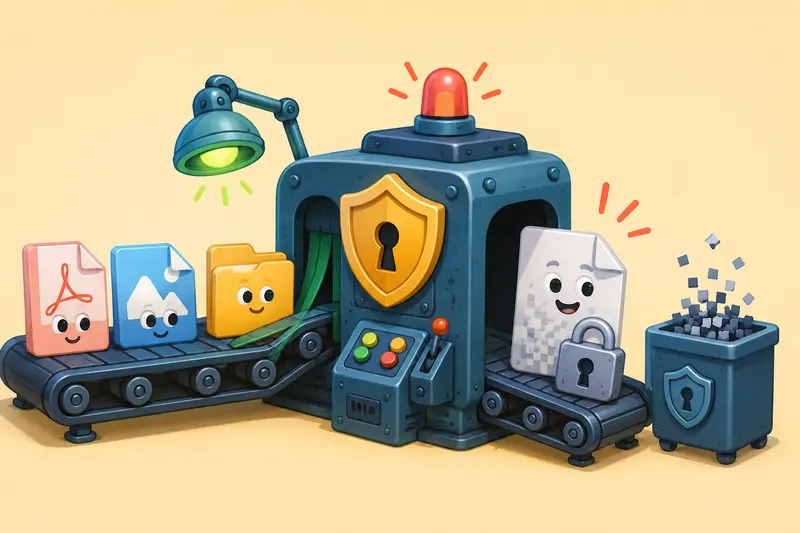
4. Download the Secured File
Once processing finishes, the encrypted file becomes available for download.
The platform uses queued processing and temporary file handling instead of permanent storage retention, which is useful when working with invoices, legal files, or internal business records.
Why Filemazing Fits Mobile-First Business Workflows
Some encryption tools still behave like desktop software awkwardly squeezed into a mobile browser.
Filemazing feels more operationally practical.
The main strength is speed combined with lightweight access. You can encrypt files online directly from a phone browser without dealing with installation prompts, sync clients, or mandatory subscriptions.
A second advantage is transparent token pricing.
Instead of guessing what a task might cost later, operations use a predictable formula tied to factors like:
- file size
- page count
- number of files
- media duration where relevant
For the encrypt-file workflow specifically, token usage remains relatively low compared to heavier operations like PDF rendering or media conversion.
That makes occasional secure sharing manageable for smaller teams that dont want another recurring software bill.
The API support is also valuable for businesses automating repetitive workflows later on, even if they start manually through mobile browsers today.
Real-World Test: Encrypting a Client Packet From an iPhone
To see how practical mobile encryption actually feels, I tested a small client delivery workflow using:
- 1 scanned PDF contract (18 pages)
- 6 JPG product photos
- total upload size: roughly 41 MB
- mobile connection: standard 5G
The process was surprisingly smooth because the browser never felt overloaded.
The larger delay came from the image-heavy PDF itself rather than the encryption stage.
One useful observation: compressing the images beforehand reduced upload time noticeably without affecting readability for client review copies. For mobile users, preprocessing files often matters more than the encryption step itself.
Another detail worth mentioning: Safari handled the workflow cleanly, but older Android browsers struggled slightly with large simultaneous uploads. Splitting very large batches into smaller groups can improve reliability on lower-memory devices.
Nobody enjoys discovering a failed upload after already sending the password separately.
A Non-Obvious Limitation Most People Ignore
Encryption Does Not Remove Metadata
This catches many businesses off guard.
Encrypting a file protects access, but it does not automatically clean hidden metadata already embedded inside the document or image.
Examples include:
- document creator names
- editing timestamps
- GPS image coordinates
- software version history
For sensitive client workflows, especially legal or financial sharing, metadata removal should happen before encryption.
Thats where using a dedicated metadata scrubbing workflow before encryption https://filemazing.com/metadata-scrubber becomes genuinely useful rather than just nice to have.
Its a small extra step that significantly improves privacy hygiene.
Situations Where Mobile File Encryption Helps Most
Different businesses run into different security bottlenecks. Here are common examples where mobile encryption becomes practical instead of theoretical.
Client Approval Documents
Sales teams often send proposals from phones while traveling. Encrypting PDFs protects pricing details and signatures.
Accounting Transfers
Bookkeepers can secure invoice exports before forwarding them to external accountants or clients.
HR Onboarding
Employment agreements and ID scans frequently move through mobile workflows now.
Marketing Asset Sharing
Agencies sending campaign previews or image drafts may need password protection before public release.
Vendor Coordination
Procurement documents sometimes pass through several external parties. Encryption reduces accidental exposure.
Field Operations
Construction, logistics, and maintenance teams increasingly handle operational files directly from tablets and phones.
Where This Saves Time
Browser-based encryption reduces several common delays:
- no app installation
- no desktop dependency
- easier cloud imports
- simpler cross-device workflows
- faster ad hoc secure sharing
For smaller businesses, the biggest gain is operational consistency.
Instead of juggling separate tools for PDFs, images, archives, and secure delivery, Filemazing keeps many workflows inside one browser-based environment.
That reduces context switching more than people expect.
A Real Tradeoff: Convenience vs Advanced Customization
Mobile-first encryption tools prioritize accessibility and speed.
Thats excellent for most business sharing scenarios, but there are tradeoffs.
Highly advanced enterprise encryption systems may offer:
- custom cipher configurations
- certificate management
- deeper compliance tooling
- complex access policies
Browser-based workflows generally favor practical usability instead.
For small businesses, that balance is usually appropriate. The goal is often secure day-to-day sharing rather than enterprise-grade infrastructure management.
Still, its worth understanding the distinction.
Frequently Asked Questions
Can I encrypt files online without installing software?
Yes. Browser-based tools like Filemazing allow encryption directly from mobile or desktop browsers.
Are encrypted files stored permanently?
The platform uses temporary processing and cleanup scheduling rather than long-term storage retention, which helps reduce exposure risk.
Does encrypting affect image or PDF quality?
Encryption itself does not reduce quality because the file contents remain unchanged. Compression tools are what typically affect visual fidelity.
Is mobile encryption slower than desktop encryption?
Usually the bottleneck is upload speed, not encryption speed. Large scanned PDFs and high-resolution image sets take longer mainly because of transfer size.
What file types can be protected?
Common document, image, archive, and media formats are generally supported depending on workflow compatibility.
Should I compress files before encrypting them?
In many cases, yes. Smaller files upload faster and transfer more reliably on mobile networks. If images are particularly large, using an image compression workflow before encryption https://filemazing.com/compress-image can improve the overall process.
Final Thoughts
The fastest way to encrypt files online on mobile is usually the least complicated one: open a browser, upload the file, secure it, and send it safely without depending on desktop software.
For small business owners, the bigger advantage is workflow flexibility. Filemazing combines encryption, compression, metadata cleanup, conversion, and document handling in one lightweight environment, which simplifies routine file operations considerably.
If your business regularly shares contracts, reports, image sets, or client documents from mobile devices, a browser-first workflow is often faster than traditional desktop-heavy approaches and far easier to maintain over time.