Theres a good chance youve run into this at least once: a photo refuses to upload because the format isnt supported, a website rejects oversized PNG files, or a HEIC image from an iPhone wont open correctly on another device.
Thats why many people now prefer to change image format online instead of installing heavyweight desktop software theyll barely use again.
Browser-based tools have improved a lot over the last few years. You can now convert images, handle batches, compress files, and prepare assets for websites directly from a web browser whether youre organizing vacation photos, preparing product images, or just trying to send documents that actually open correctly.
What You Should Know First
Online image format conversion is mainly about compatibility and optimization.
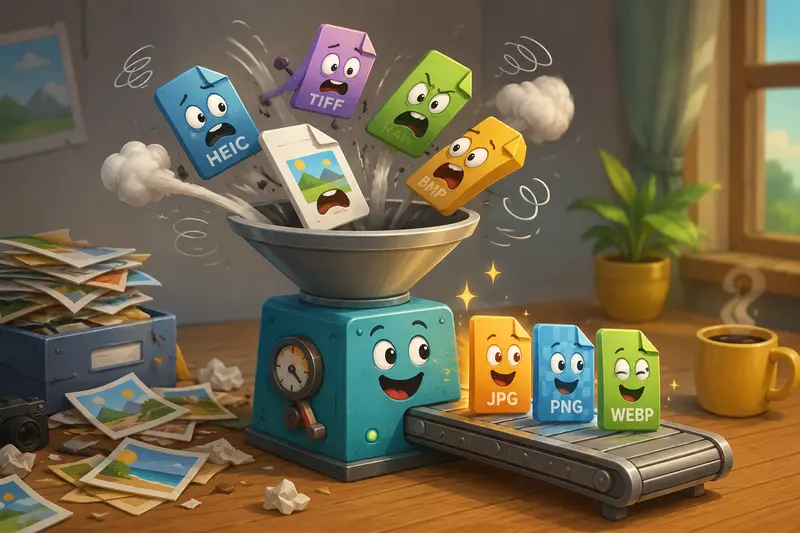
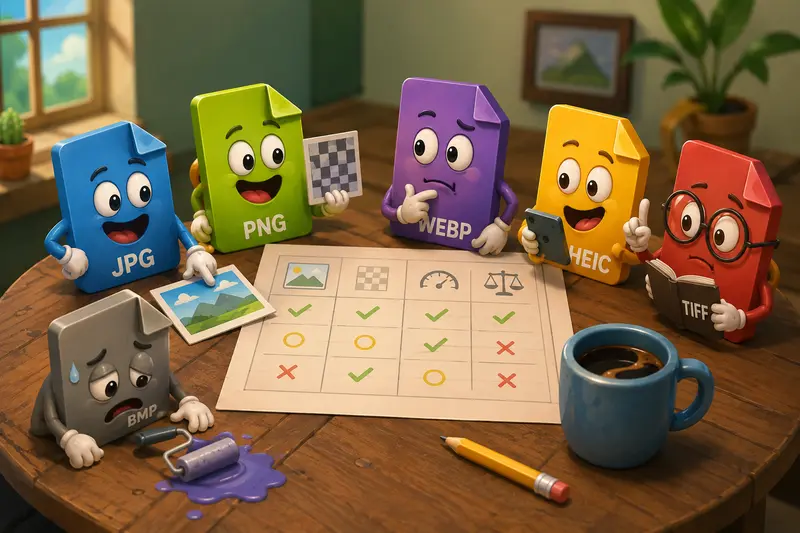
Different formats solve different problems:
- JPG works well for smaller photo file sizes
- PNG preserves transparency and sharper graphics
- WEBP balances quality and lightweight delivery for websites
- HEIC saves storage space on phones but can create sharing issues
- TIFF and BMP are often too large for casual web usage
Using an online converter makes it possible to switch between these formats without local software installation or manual editing workflows.
For users handling multiple files, batch image format conversion can save a surprising amount of time. Nobody enjoys renaming and exporting 80 images one by one right before a deadline.
Why File Formats Cause Problems More Often Than People Expect
Most people only notice image formats when something breaks.
A few common situations include:
| Situation | Better Format Choice |
|---|---|
| Website image uploads | JPG or WEBP |
| Transparent logos | PNG |
| iPhone photo sharing | JPG conversion from HEIC |
| Blog and ecommerce optimization | WEBP |
| Print-quality exports | PNG or TIFF |
One practical issue today is HEIC image conversion. iPhones often save photos as HEIC files because they reduce storage use significantly, but many platforms still dont fully support them.
If you frequently transfer images between phones, laptops, websites, and cloud platforms, converting formats becomes less of a technical task and more of a workflow necessity.
Getting It Done Without Desktop Apps
One browser-based option for this workflow is Filemazing Format Converter https://filemazing.com/format-converter.
Instead of functioning like traditional installed software, Filemazing runs directly in the browser and supports multiple file preparation workflows alongside image conversion.
That matters because format conversion often leads to additional tasks:
- resizing
- compressing
- exporting PDFs into images
- securing files before sharing
- organizing bulk uploads
For example, if converted images are still too large for websites or email attachments, you can also use the image compression tool https://filemazing.com/compress-image to reduce file weight afterward.
The platform focuses heavily on:
- batch operations
- temporary processing
- predictable token pricing
- browser accessibility
- automation support for larger workflows
How the Process Usually Works
Most modern online converters follow a similar workflow, although processing quality and speed vary between tools.
1. Upload Your Files
You can typically upload:
- local images
- cloud files
- zipped image archives
- exported phone photos
Filemazing also supports imports from services like Google Drive and Dropbox, which helps when working across devices.
2. Choose the Output Format
This depends on your goal.
Examples:
- JPG for compatibility
- PNG for transparency
- WEBP for websites
- PDF-to-image workflows for document pages
If youre converting document pages into graphics, the separate PDF to image converter https://filemazing.com/pdf-to-image can export PDF pages into JPG, PNG, or WEBP files.
3. Run the Conversion
The system queues processing jobs rather than freezing the browser while files are being handled. That becomes useful with larger uploads or image-heavy batches.
4. Download the Finished Files
Once processing completes, files become available for download and are later removed automatically instead of being stored permanently.
A Real Test With Mixed Image Files
To see how modern online conversion tools behave in practical use, a mixed batch was tested containing:
- 24 HEIC photos from an iPhone
- 12 PNG screenshots
- 8 large JPG camera exports
- total upload size: roughly 430MB
The goal was straightforward:
- convert HEIC to JPG for compatibility
- convert screenshots to WEBP for web publishing
- reduce overall storage weight
What Happened
The HEIC conversions completed cleanly without obvious color shifts, which can occasionally happen with lower-quality converters.
The PNG-to-WEBP exports reduced file sizes dramatically, especially for website graphics. Some images dropped by more than 60% while remaining visually sharp on standard displays.
One important observation:WEBP worked extremely well for web graphics, but highly compressed photos started losing fine texture detail when aggressive settings were used.
That tradeoff matters.
The goal is smaller files not turning product photos into watercolor paintings.
Practical Takeaway
For most general users:
- JPG remains safest for compatibility
- PNG is still best for transparency-heavy graphics
- WEBP is excellent for websites when balanced carefully
- HEIC should usually be converted before sharing broadly
Where Batch Conversion Saves the Most Time
Single-file conversion is convenient.
Batch processing changes the workflow completely.
Instead of:
- opening files individually
- exporting one at a time
- renaming outputs manually
You can process entire folders in one run.
This becomes especially useful for:
Everyday Use Cases
- preparing ecommerce product images
- converting screenshots for blog publishing
- organizing phone photo backups
- preparing school assignments with image uploads
- optimizing portfolio images
- converting scanned documents into lighter formats
In real workflows, the time savings become obvious once file counts climb past 2030 items.
One Thing Many Users Overlook
Not every conversion should prioritize the smallest possible file size.
That sounds obvious, but its one of the most common mistakes people make when optimizing images for websites or sharing.
Example
A detailed PNG infographic converted aggressively into JPG may:
- lose text sharpness
- blur thin lines
- create visible compression artifacts
Meanwhile:
- photos tolerate JPG compression well
- diagrams and screenshots often do not
A good rule:
- use JPG for photography
- use PNG for graphics with text or transparency
- use WEBP when balancing web delivery and quality
This is especially important for format conversion for web images, where readability affects user experience directly.

Privacy and Temporary Processing
One concern people understandably have with online converters is file handling.
Filemazing positions uploads as temporary processing artifacts rather than long-term storage. Processed files are cleaned on a short retention schedule instead of being stored indefinitely.
That approach makes more sense for:
- sensitive documents
- business media
- temporary collaboration files
- client assets
If converted files contain confidential information, the platform also includes an encrypted file workflow tool https://filemazing.com/encrypt-file for securing files before sharing externally.
Why Browser-Based Conversion Keeps Growing
A few years ago, online conversion tools were mostly emergency utilities.
Now theyre becoming part of regular workflows because they reduce friction:
- no software maintenance
- no installation permissions
- easier cross-device access
- better support for bulk tasks
- simpler sharing workflows
For general users, that convenience matters more than advanced editing features buried inside professional desktop software.
And for larger operations, API endpoints allow developers or teams to automate repetitive conversion pipelines without rebuilding the infrastructure themselves.
Common Questions
Can I convert HEIC images online safely?
Yes, provided the service uses temporary processing and cleanup policies rather than permanent storage. HEIC image conversion is now common for sharing iPhone photos with broader device compatibility.
Does converting PNG to JPG reduce quality?
Usually yes. JPG uses lossy compression, which reduces file size by discarding image data. The difference may be minimal for photos but more noticeable for graphics or screenshots.
Is batch image format conversion faster than desktop tools?
For many casual workflows, yes especially when you dont want to install software or manually export files individually. Large-scale professional editing may still favor dedicated desktop applications.
Which format is best for websites?
WEBP is often the strongest option for balancing quality and file size, although JPG and PNG are still widely used depending on the image type.
Are uploaded files stored permanently?
Privacy-focused services typically process files temporarily and clean them automatically after completion rather than treating uploads as cloud storage.
Can converted files be compressed afterward?
Yes. After conversion, reducing file size further is common for web publishing and email sharing. Tools like the online image compressor https://filemazing.com/compress-image are often used as part of the same workflow.
Final Thoughts
The ability to change image format online has become less about convenience and more about keeping everyday workflows moving without compatibility problems.
Whether youre converting HEIC photos from a phone, preparing optimized web assets, or handling bulk image libraries, browser-based tools now cover most practical needs without requiring installed software.
For general users, the biggest advantages are usually:
- flexible format support
- batch processing
- temporary file handling
- access from any device
- predictable usage costs
And when the workflow expands beyond simple conversion, platforms like Filemazing https://filemazing.com/format-converter can also handle compression, PDF exports, encryption, and automation from the same browser-based environment.