Why This Matters
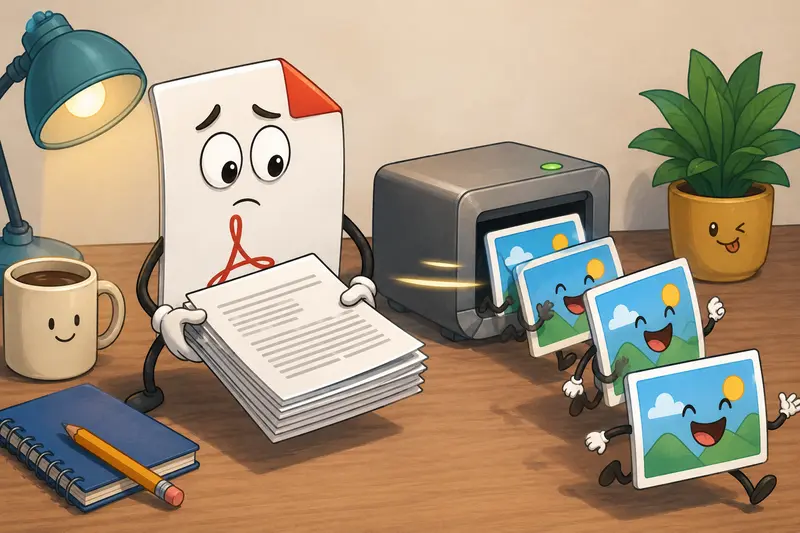
When youre reviewing documents on a phone or tablet, PDFs are not always the most convenient format. Images are easier to preview, share in chat applications, embed into documentation, upload to CMS platforms, and process in automated workflows.
For developers who regularly work with reports, scanned documents, invoices, technical diagrams, or exported application data, the ability to save PDF pages as images can simplify downstream tasks considerably. In many cases, image formats are also easier to integrate into APIs, OCR pipelines, and content delivery systems.
A related consideration is what happens after conversion. If your exported images contain embedded metadata, using a metadata removal tool for image files can help reduce unnecessary information before distribution.
The Bottom Line
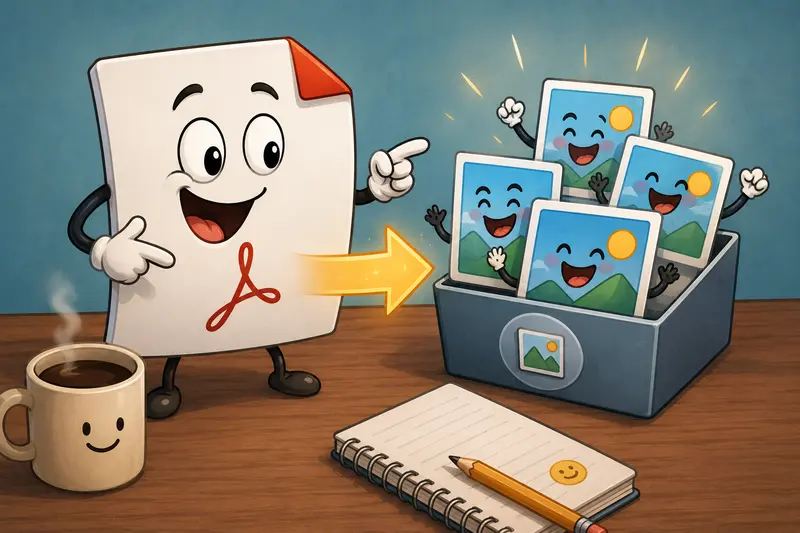
To save PDF pages as images, upload a PDF, choose an image format such as JPG or PNG, and export each page as an individual image file.
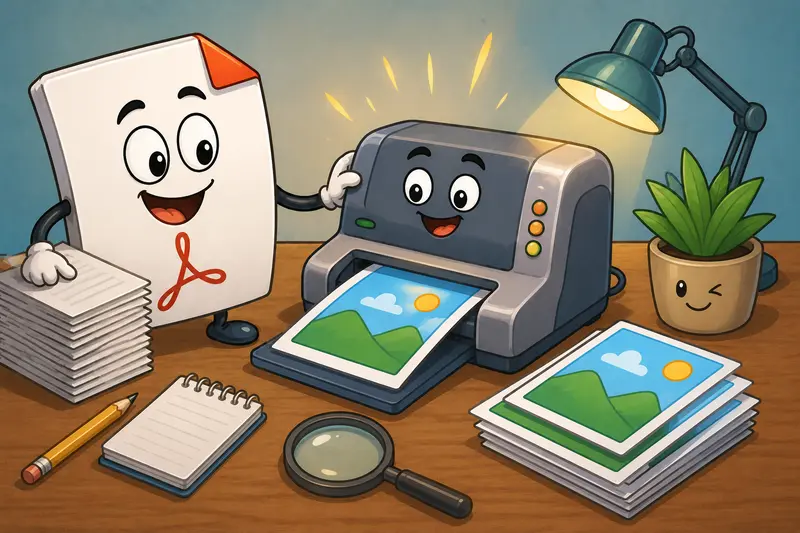
For developers handling larger workloads, batch PDF to image conversion tools provide a faster way to process multi-page documents while maintaining image quality and predictable output.
Recommended Workflow
The process itself is straightforward, but a few decisions can significantly affect output quality.
1. Upload the PDF
Start with the PDF document you want to convert. This can be a scanned document, presentation deck, report, manual, or generated application export.
2. Select an Output Format
Choose between common image formats:
- JPG for smaller file sizes
- PNG for diagrams, screenshots, and text-heavy pages
- WEBP when storage efficiency matters
3. Configure Resolution
Higher resolutions generally produce a high quality PDF to image result, especially for technical diagrams and scanned documents.
4. Export Pages
The conversion process generates one image per page.
5. Download and Organize Results
Store outputs using meaningful filenames if they will be consumed by automated systems or shared with team members.
A Practical Option for Developers
One browser-based approach is the PDF-to-image tool available through Filemazing https://filemazing.com/pdf-to-image.
The platform emphasizes batch processing while remaining lightweight enough for occasional use. Because it runs in the browser, there is no desktop installation requirement, which can be useful when working across multiple devices or temporary environments.
For teams building automation workflows, API access is also available. This allows PDF conversion to become part of larger document-processing pipelines without maintaining additional infrastructure.
Another useful aspect is transparent token pricing. Processing costs are calculated using measurable factors such as page count, file size, and workload complexity, making estimates easier before launching large jobs.
What Happened During Testing
To evaluate performance, a test was performed using:
- 1 scanned PDF
- 48 pages
- Approximately 32 MB file size
- Mixed content including text, diagrams, and photographs
Observed Results
- All pages were exported successfully
- Text remained readable at higher output resolutions
- Technical diagrams preserved line detail well
- Processing completed without requiring local software installation
One interesting observation was that scanned PDFs benefit noticeably from higher export resolutions. Beginners often assume that any conversion setting will produce similar results, but low-resolution exports can make OCR and document review much harder afterward.
For image-heavy reports, JPG worked well. For engineering diagrams and documentation screenshots, PNG produced cleaner results.
Performance Considerations for PDF-to-Image Conversion
Not every PDF behaves the same way.
Several factors influence output quality and processing time:
Large Scanned PDFs
Scanned pages often contain embedded raster images. These files can be large and require more processing resources.
Vector-Based Documents
Technical drawings, exported reports, and CAD-related PDFs typically convert very cleanly because the source graphics scale well.
Extremely Large Documents
Hundreds of pages can generate hundreds of image files. This is where batch PDF to image conversion becomes particularly valuable.
Mobile Device Constraints
Converting large PDFs directly from a mobile browser may consume more memory than smaller jobs. Breaking massive files into smaller batches can improve reliability.
Practical Examples for Business Professionals
Here are common situations where saving PDF pages as images is useful:
- Converting presentation decks into shareable images for stakeholder updates.
- Extracting invoice pages for accounting workflows.
- Turning PDF reports into images for CMS publishing.
- Preparing pages for OCR processing and document indexing.
- Sharing contract excerpts through collaboration tools.
- Exporting technical documentation pages for knowledge bases.
In real environments, these tasks appear frequently and often require a repeatable workflow rather than a one-time conversion.
What You Gain
Better Compatibility
Images can be used across websites, mobile apps, documentation platforms, and APIs.
Faster Content Sharing
Many messaging and collaboration tools preview images more effectively than PDFs.
Flexible Automation
Image outputs integrate well with OCR engines, AI pipelines, and document-processing systems.
Format Flexibility
If output formats need to change later, a multi-format image conversion tool can help convert between JPG, PNG, WEBP, HEIC, and AVIF.
Quality vs File Size: An Important Tradeoff
When aiming for PDF to JPG without losing quality, it helps to understand a common limitation.
JPG uses lossy compression. While file sizes are smaller, repeated compression can introduce artifacts around text and sharp edges.
PNG generally preserves visual fidelity better, especially for:
- Documentation screenshots
- Technical drawings
- Interface captures
- Text-heavy pages
The tradeoff is larger file sizes.
If storage or bandwidth becomes a concern, a tool for compressing converted images can reduce image size after export while maintaining acceptable visual quality.
FAQ
Is it safe to save PDF pages as images online?
Safety depends on the provider. Look for services that treat uploaded files as temporary processing artifacts and remove them after processing rather than storing them indefinitely.
Can I perform batch PDF to image conversion?
Yes. Many modern conversion platforms support multi-page and multi-file processing, making bulk workloads easier to manage.
What format should I choose: JPG or PNG?
JPG is generally better for photographs and smaller file sizes. PNG is often preferable for diagrams, screenshots, and documents containing detailed text.
How can I get a high quality PDF to image result?
Use higher export resolutions and avoid excessive image compression. This is particularly important for scanned documents and technical content.
Will image quality always match the original PDF?
Not necessarily. Quality depends on source document resolution, export settings, and output format. Choosing PNG can help preserve detail in many situations.
What happens to uploaded files after processing?
Privacy-focused platforms typically process files temporarily, provide completed downloads, and remove uploaded data on a short retention schedule rather than using it as long-term storage.
Final Thoughts
For developers and technical teams, the ability to save PDF pages as images is often less about viewing documents and more about enabling downstream workflows.
Whether youre preparing content for OCR, publishing documentation, integrating image assets into applications, or handling large-scale document processing, converting PDFs into image formats creates additional flexibility. A browser-based solution with batch capabilities, predictable pricing, temporary file handling, and API support can make that process easier without introducing unnecessary operational overhead.