Designers often need to convert PDF to JPG when preparing mockups, extracting artwork, sharing visual proofs, or repurposing document pages for presentations and marketing assets. The challenge is maintaining image quality while avoiding bloated file sizes or unnecessary software installations.
A practical approach is to use a browser-based conversion workflow that preserves visual fidelity, supports multiple pages, and keeps file handling straightforward.
What You Need to Know First
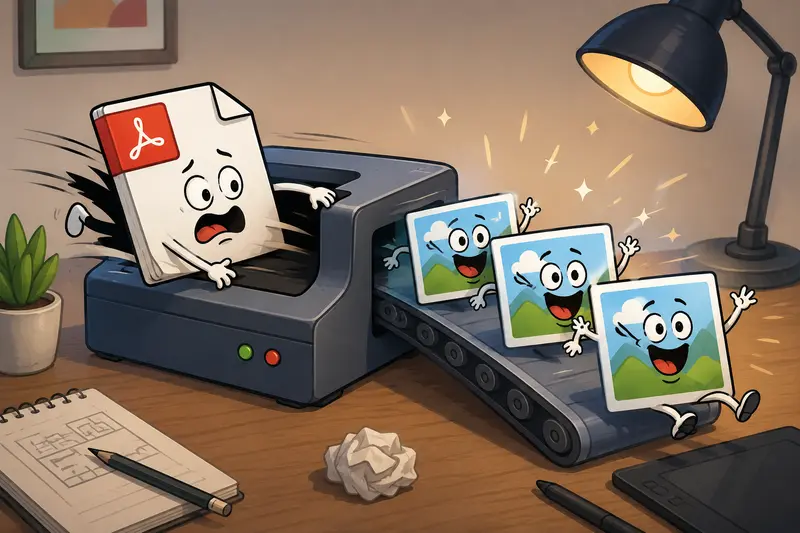
If your goal is to convert PDF pages into shareable image files, JPG is usually the most convenient format because it works across nearly every device, browser, and design workflow.
For designers managing large documents, a tool that supports batch PDF to image conversion can save substantial time compared to exporting pages individually.
Why Designers Frequently Export PDFs as Images
Design projects rarely stay inside one file format.
A PDF might contain:
- Client presentation pages
- Portfolio samples
- Product sheets
- Social media graphics
- Print-ready artwork
- Visual references
Converting selected pages into JPG images makes those assets easier to upload, annotate, share, or integrate into other creative tools.
How the Workflow Typically Works
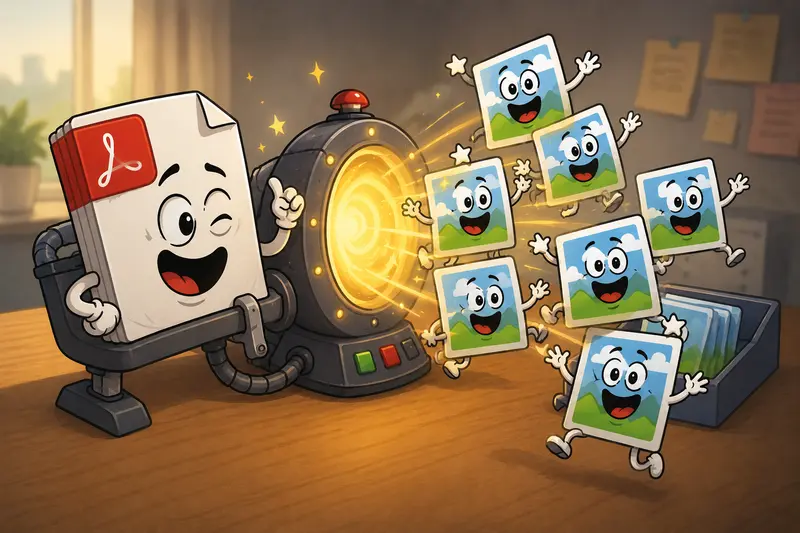
A well-organized PDF-to-image process usually follows these stages:
1. Upload the Source PDF
Choose the document from your computer, cloud storage, or project folder.
2. Select Image Output
Choose JPG when compatibility and sharing convenience matter most.
3. Configure Conversion Options
Depending on the project, you may prioritize:
- Higher image quality
- Faster processing
- Smaller output size
- Full-document export
- Selected-page export
4. Run the Conversion
The system processes each page and generates image files.
5. Review and Download
Inspect the exported JPGs before delivering them to clients or importing them into design software.
If youre working with several separate documents, it can be helpful to first combine them using the PDF merge tool so the entire project can be processed in a single conversion job.
A Practical Tool for PDF-to-JPG Conversion
One option worth considering is Filemazing PDF to Image:
https://filemazing.com/pdf-to-image
For designers, the biggest advantage is its emphasis on batch processing. Instead of handling pages one by one, multiple-page documents can be converted efficiently through a browser-based workflow.
Additional characteristics that stand out include:
- Browser-based operation with no desktop software installation
- Support for larger conversion jobs through queued processing
- Predictable token-based pricing
- Import options from local storage, URLs, Google Drive, and Dropbox
- API availability for automated workflows
- Temporary file handling rather than long-term storage
The transparent token model also makes estimating costs easier before processing larger design archives or client deliverables.
Real-World Test: Converting a Design Review Package
To evaluate a realistic designer workflow, a test was performed using:
- 1 PDF document
- 42 pages
- Approximately 28 MB total size
- Mixed content including vector graphics, typography, and embedded images
Observations
The conversion produced individual JPG files for each page while preserving overall layout consistency and visual clarity.
Typography remained readable at normal viewing sizes, and image-heavy pages retained sufficient detail for presentation and review purposes.
Key Takeaway
For design review workflows, converting an entire PDF at once is significantly more efficient than exporting pages manually from desktop design software.
This becomes even more noticeable when handling recurring client revisions.
Quality vs. Efficiency Considerations
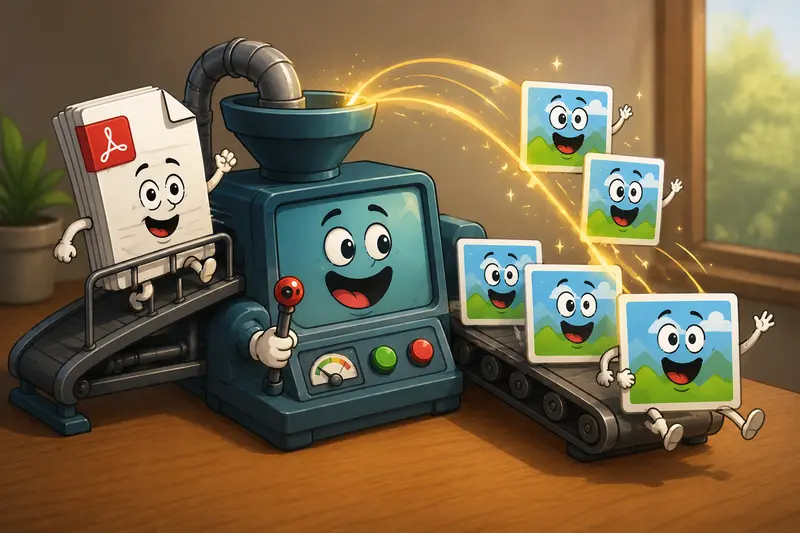
One tradeoff designers regularly face is choosing between maximum image quality and manageable file sizes.
Higher Quality Settings
Advantages:
- Better detail retention
- Cleaner typography
- Improved zoom performance
Potential downside:
- Larger JPG files
More Compressed Outputs
Advantages:
- Faster uploads
- Easier sharing
- Reduced storage requirements
Potential downside:
- Minor compression artifacts may appear in image-heavy pages
A useful follow-up step is using an image compression tool after conversion if delivery size becomes more important than pixel-perfect fidelity.
Use Cases for Designers
Here are several situations where converting PDFs into JPG files is particularly useful:
- Creating image-based portfolio samples from presentation PDFs
- Exporting product catalog pages for e-commerce listings
- Extracting visual concepts from client review documents
- Preparing social media graphics from design proposals
- Generating image previews for stakeholder approval workflows
- Building mood boards from multi-page creative documents
A Useful Tip Many People Miss
When working with image-rich PDFs, dont automatically convert at the highest possible quality setting.
For many design review and approval workflows, moderate quality settings produce files that look visually identical on-screen while reducing storage requirements considerably.
Testing a small subset of pages first can prevent unnecessary processing costs on large projects.
What Makes This Approach Attractive
Several practical advantages stand out:
- Efficient handling of multi-page documents
- Strong compatibility through JPG output
- Browser-based access from virtually any device
- Support for automation through API endpoints
- Transparent pricing model
- Temporary processing rather than long-term file retention
- Suitable for both occasional and frequent conversion needs
Design teams that regularly handle document assets often appreciate having a single environment that can manage multiple file-processing tasks.
For example, after converting pages to JPG, the format conversion tool can be used to move between JPG, PNG, WEBP, HEIC, and AVIF formats depending on project requirements.
Frequently Asked Questions
Does converting a PDF to JPG reduce quality?
It can, depending on the export settings used. Higher-quality settings generally preserve more visual detail while increasing file size.
What is the best PDF to JPG converter for designers?
The best PDF to JPG converter depends on your priorities. Designers often value output quality, batch processing capabilities, privacy practices, and workflow efficiency over simply having the most settings.
Can I convert an entire PDF at once?
Yes. Many modern tools support batch PDF to image conversion, allowing every page in a document to be exported automatically.
Is JPG always the best format?
Not necessarily. JPG is excellent for sharing and compatibility, while PNG may be preferable for graphics requiring lossless quality. If format flexibility is important, using a dedicated image format conversion workflow can help.
Are uploaded files stored permanently?
Privacy-focused platforms typically treat uploads as temporary processing artifacts and remove them on a short retention schedule rather than storing them indefinitely.
Can large PDFs be converted?
Generally yes. Processing systems that use queues and job tracking are often better suited for larger workloads because they prevent the interface from becoming unresponsive during conversion.
Final Thoughts
When designers need to convert PDF to JPG, the most effective workflow balances image quality, processing speed, and operational simplicity. A browser-based solution such as Filemazing can streamline both small projects and larger document conversion tasks while offering batch processing, transparent costs, and privacy-conscious handling of uploaded files.
If PDF pages regularly become part of your design workflow, its worth testing a dedicated conversion process and seeing how much time it can save across future projects.