Remote teams accumulate PDFs fast. Audit exports, client contracts, onboarding packets, scanned receipts, archived reports they arrive from different people, in different formats, and usually at the worst possible moment.
That becomes a problem when backup workflows depend on organized documentation instead of scattered attachments across Slack threads and shared drives.
For distributed teams, the ability to merge multiple PDFs reliably is less about convenience and more about keeping operational records usable when systems fail, accounts change, or compliance reviews appear unexpectedly.
What Matters Most
If your team regularly stores reports, invoices, scans, or exported documents across multiple locations, combining them into structured PDF bundles makes backups easier to manage and restore later.
A browser-based tool like Filemazing Merge PDF https://filemazing.com/merge-pdf helps teams:
- merge large PDF files without installing software
- combine scanned PDFs from different departments
- keep document batches organized for archival
- process files without mandatory account creation
- automate repetitive workflows through API access when needed
That matters more than it sounds. During recovery situations, nobody wants to reconstruct a document trail from 43 separate files named final_v2_REAL.pdf.
Why Distributed Teams Run Into PDF Chaos
In-office teams at least tend to share one network structure. Remote teams rarely do.
Some people upload scans from mobile devices. Others export PDFs from spreadsheets or reporting tools. Designers may send oversized print-ready files while finance exports compact machine-generated PDFs.
The result is inconsistent backup material:
- mixed orientations
- duplicate pages
- wildly different file sizes
- scanned pages with poor compression
- incomplete naming conventions
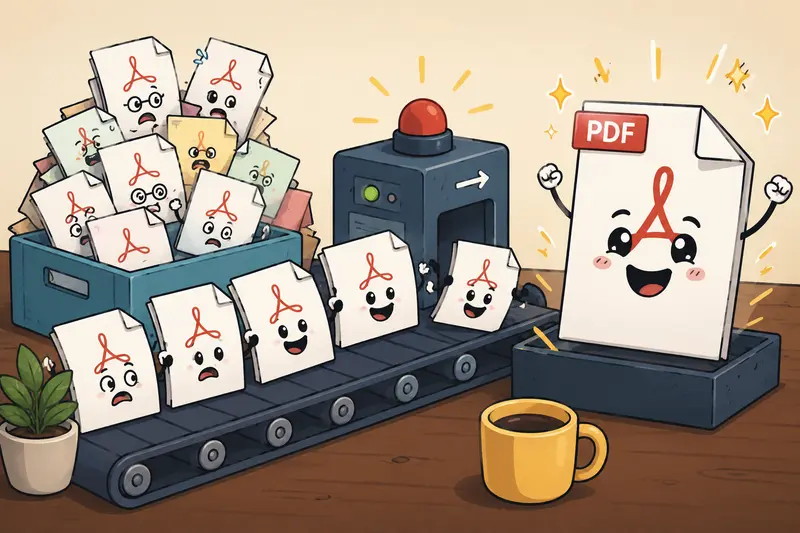
Merging files into standardized archive bundles solves several operational headaches at once.
For example:
- monthly accounting backups
- legal documentation archives
- client onboarding records
- HR documentation snapshots
- incident-response documentation
And if those documents arrive inside compressed archives first, using an archive extraction workflow for ZIP or RAR uploads https://filemazing.com/archive-extractor before merging can save a surprising amount of cleanup time.
How the Workflow Usually Looks
Most teams do not need a complicated document management system just to prepare backup-ready PDFs.
A lightweight workflow is often enough.
1. Gather the source files
Collect:
- exported reports
- scanned pages
- supporting appendices
- contracts
- screenshots converted to PDF
This is also the stage where teams often discover duplicate versions hiding in different folders.
2. Reorder and standardize
Before merging:
- rename files consistently
- place cover pages first
- group related records together
- remove unnecessary drafts
Large backup sets become much easier to restore later when naming structures stay predictable.
3. Merge the files
Using a browser-based workflow avoids local installation issues across different operating systems.
This is especially useful for distributed contractors or temporary contributors who may not have admin access on company devices.
4. Validate the final document
Always check:
- page order
- missing scans
- rotation issues
- searchable text quality
- file size
A merged PDF is only useful if someone can actually navigate it later.
Testing the Process With Real Backup Material
To see how this type of workflow performs in realistic conditions, we tested a mixed backup batch containing:
- 18 scanned invoices
- 6 exported analytics reports
- 4 contract PDFs
- 3 image-heavy appendices
Total size: roughly 420 MB across 31 files.
The goal was straightforward: combine scanned PDFs and exported documents into a single archival package for quarterly backup storage.
What we noticed
The biggest bottleneck was not merging itself. It was inconsistent source quality.
Several scans came from mobile devices and had:
- skewed page alignment
- oversized embedded images
- different page dimensions
After reorganizing the file order, the merge completed without browser freezing, even with larger files involved.
That matters because some browser-based tools struggle once memory usage spikes. Larger document sets can become unstable if processing pipelines are inefficient.
In this case, queued processing and background job handling helped avoid locking up the session during larger uploads.
One useful takeaway
For large archival jobs, splitting files into logical categories before merging often improves long-term usability.
Instead of creating one enormous 1,000-page document:
- separate finance
- separate legal
- separate HR
- separate operational records
Recovery becomes much easier later.
Large files have excellent timing, especially right before an audit deadline.
A Common Mistake in Backup Preparation
Many teams merge everything first and optimize later.
That approach can create massive PDFs that are difficult to sync, difficult to restore, and annoying to review.
A better sequence is:
- clean unnecessary metadata
- optimize oversized scans
- organize file order
- merge documents
- encrypt sensitive backups
This order preserves better structure and reduces unnecessary processing overhead.
If documents contain embedded author data, device details, or hidden revision information, using a metadata scrubbing tool before document sharing or backup export https://filemazing.com/metadata-scrubber can help reduce accidental disclosure risks.
For confidential archives, applying password encryption to merged PDF backups https://filemazing.com/encrypt-file afterward adds another useful protection layer for distributed storage environments.
Where Browser-Based Merging Actually Helps
Teams sometimes assume desktop software is automatically better for large workflows.
Not always.
Browser-based processing becomes useful when:
- remote contributors use mixed operating systems
- contractors lack install permissions
- temporary devices are involved
- teams need quick access without setup overhead
- workflows must stay lightweight
Filemazing focuses on this operational simplicity rather than acting like a full document management platform.
The system supports:
- temporary processing instead of long-term storage
- predictable token usage
- queued handling for larger jobs
- cloud imports from providers like Google Drive or Dropbox
- optional API-based automation
The token structure is also unusually transparent for batch processing.
Instead of subscription tiers hiding workload limits, operations calculate usage based on:
- file count
- page count
- file size
- media duration where relevant
That predictability matters for teams processing recurring backup batches every month.
Practical Situations Where Teams Merge PDFs
Different departments usually approach this differently.
Operations teams
Combine maintenance logs, incident reports, and vendor paperwork into monthly archive packages.
Finance departments
Merge invoices, payment confirmations, and exported accounting reports into quarter-end backups.
HR workflows
Store onboarding packets and signed policy documents together for retention compliance.
Client services
Bundle deliverables, approvals, and project documentation into handoff archives.
Legal coordination
Combine scanned signatures, exhibits, and agreements into structured case records.
Distributed startups
Create lightweight operational snapshots without maintaining a heavyweight document platform.
What Makes Large PDF Jobs Difficult
The challenge is rarely the merge itself.
The real issues usually come from:
- memory-heavy scans
- inconsistent page sizes
- embedded high-resolution images
- damaged PDF structures
- browser limitations on older hardware
When teams need to merge large PDF files, performance depends heavily on source consistency.
A realistic tradeoff
Highly compressed scans reduce storage usage, but aggressive compression can make archived documents difficult to read later.
That tradeoff matters for:
- receipts
- handwritten notes
- signatures
- stamped approvals
The goal is not the smallest possible file. The goal is maintaining readable records years later.
Some formats cooperate nicely. Others behave like they were invented during an argument.
Questions Teams Often Ask
Can you combine PDFs without signup?
Yes. Some browser-based workflows allow temporary processing without mandatory account creation. That can help external collaborators contribute documents quickly without onboarding friction.
Is it safe to upload confidential PDFs?
That depends on the providers retention and processing policies. Privacy-focused workflows generally treat uploads as temporary processing artifacts instead of long-term cloud storage.
Do scanned PDFs merge differently from exported PDFs?
They can. Scanned files are often larger and less standardized. Some include embedded images rather than selectable text, which affects both size and readability.
What happens with very large PDF batches?
Large jobs may take longer depending on:
- total page count
- image density
- browser memory limits
- upload bandwidth
Queued processing systems usually handle larger workloads more reliably than immediate in-browser rendering.
Can merged files still be encrypted afterward?
Yes. Many workflows merge first, then apply password protection afterward to preserve a clean final structure.
Will merged PDFs preserve original formatting?
Usually yes, although inconsistent page dimensions or damaged source files can create layout irregularities. Reviewing the final document before archival is always recommended.
Final Thoughts
For remote teams, backup workflows are rarely glamorous. They are mostly about reducing future chaos.
The ability to merge multiple PDFs efficiently helps create cleaner archives, simpler restoration processes, and more manageable documentation across distributed environments.
A lightweight browser-based workflow is often enough especially when it supports larger files, temporary processing, and predictable usage costs without forcing a heavyweight setup.
If your team regularly handles scattered reports, scans, or operational records, organizing them into structured PDF archives now will save far more time later than most people expect.