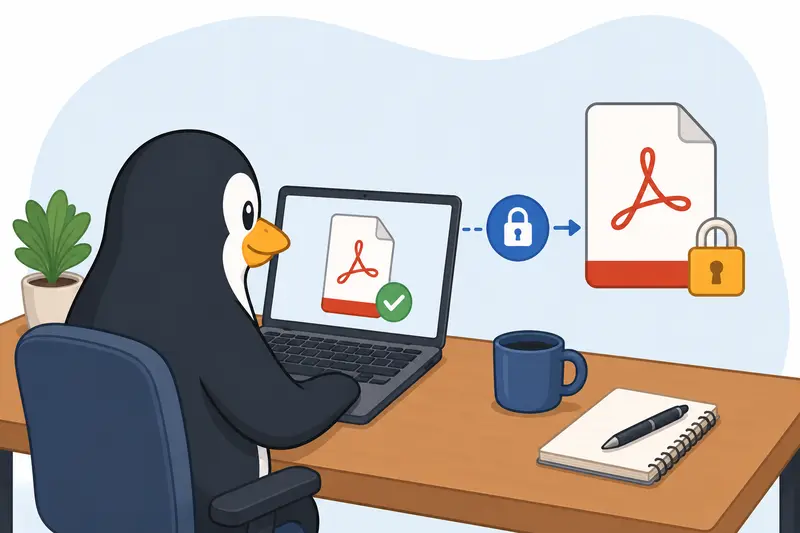
Linux users tend to discover PDF merging at inconvenient times: sending coursework, combining scanned contracts, preparing reports, or stitching together exported invoices from three different systems that absolutely refuse to cooperate.
The good news is that you can merge PDF files on Linux without installing heavyweight desktop software or wrestling with command-line utilities unless you want to.
For many everyday workflows, a browser-based tool like Filemazing Merge PDF https://filemazing.com/merge-pdf handles the job cleanly, especially when youre working across multiple devices or dealing with larger document batches.
What You Need to Know First
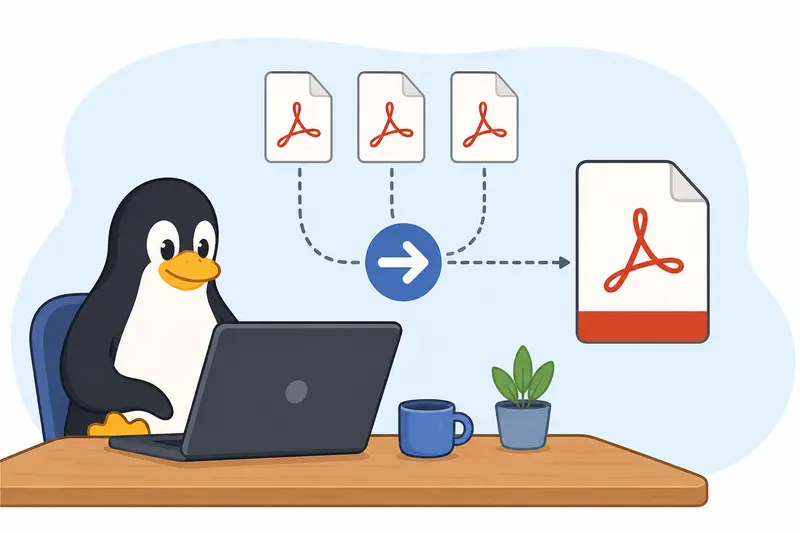
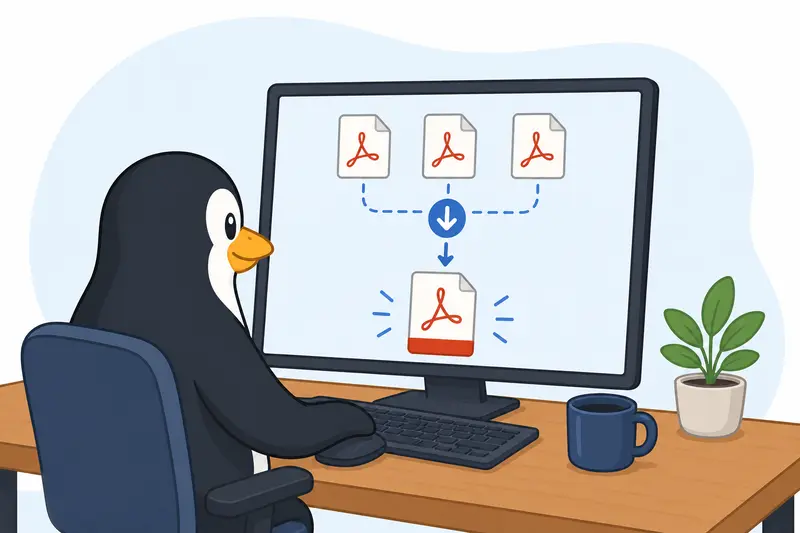
If your goal is simply to combine several PDFs into one document, Linux gives you three common paths:
- command-line tools like
pdfuniteor Ghostscript - desktop editors such as LibreOffice Draw
- browser-based tools for faster manual workflows
For general users, browser-based merging is often the least frustrating option because it avoids package dependencies, broken fonts, and inconsistent export behavior across distributions.
That matters more than people expect when deadlines are involved.
Why Many Linux Users Prefer Browser-Based PDF Merging
Traditional Linux PDF workflows work well until they dont.
A typical scenario looks like this:
- one scanned PDF
- two exported presentation handouts
- a contract downloaded from email
- inconsistent page sizes
- one file with embedded metadata you forgot existed
Using a dedicated online workflow avoids juggling separate utilities for every step.
Filemazing runs entirely in the browser and supports queued processing for larger jobs, which is useful when you need to merge large PDF files without locking up your session or waiting for desktop rendering tools to catch up.
Another practical advantage is flexibility. If your supporting documents arrive compressed, you can first unpack them using the archive extraction tool https://filemazing.com/archive-extractor before combining the PDFs.
How the Process Works
Heres a straightforward Linux-friendly workflow for combining documents.
1. Gather and order your files
Place the PDFs in the order you want them merged.
This sounds obvious, but page ordering mistakes are still the most common issue when handling batch document sets.
For example:
- cover sheet
- invoice bundle
- appendices
- scanned signatures
If filenames are messy, rename them before uploading. Linux file managers usually sort alphabetically, so prefixes like 01-, 02-, and 03- save time later.
2. Upload the PDFs
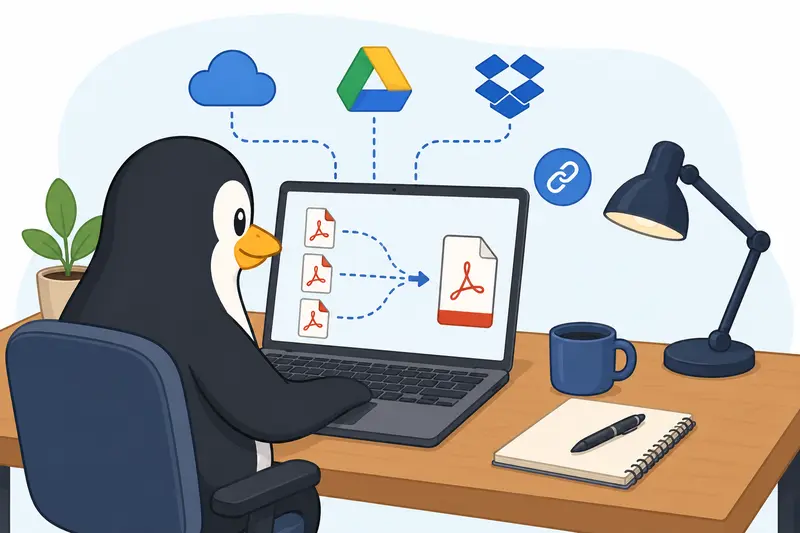
Open Filemazing Merge PDF https://filemazing.com/merge-pdf in your browser.
You can upload from:
- local storage
- Google Drive
- Dropbox
- direct URLs
This is especially handy on Linux laptops where documents often end up scattered between Downloads, synced cloud folders, and external drives.
3. Rearrange and merge
Drag files into the correct order and start the merge operation.
For larger workloads, Filemazing processes jobs through a queued system instead of forcing everything through the browser tab itself. That makes the experience more stable when handling dozens of documents or high-page-count scans.
4. Download the final PDF
Once processing completes, download the merged file.
If the document contains sensitive information, you can immediately add protection using the PDF encryption workflow https://filemazing.com/encrypt-file to apply password-based access control before sharing it externally.
A Real-World Test With Large Files
To see how well the workflow handled heavier documents, I tested a merge involving:
- 18 scanned PDFs
- approximately 420 pages total
- mixed file sizes between 6MB and 48MB
- a combined workload slightly above 300MB
The scans included monochrome paperwork, color diagrams, and presentation exports generated from LibreOffice Impress.
The merge completed successfully without page corruption or reordered sections. More importantly, embedded fonts and scanned page alignment remained intact after export something that occasionally breaks with older Linux desktop utilities.
One useful takeaway: merging already-compressed scans was noticeably faster than combining unoptimized image-heavy PDFs. Large files tend to become painfully inefficient when every page contains oversized embedded images.
Nobody plans to deal with a 300MB PDF five minutes before a submission deadline, but it happens remarkably often.
One Mistake That Creates Bloated Merged PDFs
Heres the non-obvious problem many users run into:
Merging PDFs does not automatically optimize them.
If you combine:
- multiple scanned image PDFs
- exported slide decks
- duplicated embedded fonts
- oversized PNG pages
the final document can become dramatically larger than expected.
A merged file containing ten 20MB scans does not magically shrink into a tidy 25MB report.
In some workflows, the final size can actually increase.
A better approach for large document sets
Before running a batch PDF merge:
- compress image-heavy pages first
- avoid repeatedly exporting documents through different editors
- standardize page dimensions when possible
- flatten problematic annotation layers
This matters most for:
- university submissions
- legal paperwork
- email attachment limits
- archival storage
The tradeoff is straightforward:
- higher image quality preserves readability for scans
- lower image quality improves transfer speed and storage efficiency
Theres no perfect universal setting. Financial records and engineering drawings usually need more clarity than internal meeting notes.
Where Batch PDF Merge Becomes Useful
A single merged file is easier to archive, share, and search than fifteen disconnected attachments.
Common Linux-friendly use cases include:
Students
Combining:
- lecture scans
- assignment appendices
- signed forms
- exported research references
Small business workflows
Creating consolidated:
- invoices
- onboarding packets
- procurement records
- monthly reporting bundles
Everyday administration
Merging:
- insurance paperwork
- apartment documents
- travel confirmations
- tax-related exports
Marketing and client delivery
Assembling:
- campaign reports
- exported analytics PDFs
- proposal appendices
- presentation handouts
Privacy Matters More Than Most People Think
PDF files frequently contain hidden metadata:
- author names
- software details
- timestamps
- embedded editing history
Before sharing merged documents externally, it can be smart to remove unnecessary metadata using the metadata cleanup tool https://filemazing.com/metadata-scrubber.
Filemazing also treats uploads as temporary processing artifacts rather than long-term cloud storage. Files are cleaned on a short retention schedule instead of sitting indefinitely on remote servers.
For privacy-conscious Linux users, thats a meaningful distinction.
Why This Workflow Fits Linux Particularly Well
Linux users often prioritize:
- lightweight tooling
- avoiding unnecessary installations
- cross-device flexibility
- automation compatibility
Filemazing aligns fairly naturally with that mindset because it supports both manual browser workflows and API-based automation.
For occasional users, the browser interface is enough.
For recurring document operations, the API can automate repetitive merge tasks without maintaining separate desktop utilities across systems.
The token-based pricing model is also predictable compared to subscription-heavy SaaS platforms. Operations calculate cost based on factors like page count, file count, and size rather than vague premium usage rules.
Common Questions About Merging PDFs on Linux
Can Linux merge PDF files without installing software?
Yes. Browser-based tools can combine PDFs directly without local installation, which is often simpler for casual or infrequent use.
Does merging PDFs reduce quality?
Usually no. Standard PDF merging combines files without recompressing content. However, if the source PDFs already contain low-quality scans, merging wont improve them either.
Whats the best PDF merger for large files?
It depends on the workflow. Command-line tools work well for scripting, while browser-based systems with queued processing are often easier for handling mixed document batches manually.
Is batch PDF merge safe for sensitive documents?
You should still use caution with confidential material, but temporary processing and short retention policies are safer than permanent storage systems. Adding password protection afterward also helps secure shared files.
Why do some merged PDFs become huge?
Large embedded images, duplicated fonts, and repeated scan layers can dramatically increase output size. Optimizing files before merging often helps more than compressing afterward.
Can merged PDFs still be edited later?
Usually yes, although editable elements depend on how the original PDFs were generated. Scanned documents behave differently from digitally created PDFs.
Final Thoughts
If you regularly need to merge PDF files on Linux, the best workflow is usually the one that removes friction rather than adding more tooling to maintain.
For quick document assembly, browser-based processing is often easier than juggling desktop utilities across distributions and package managers. And when workloads grow larger, features like queued processing, cloud imports, and automation support become genuinely useful instead of feeling like marketing extras.
Filemazing Merge PDF https://filemazing.com/merge-pdf offers a practical middle ground: lightweight operation, transparent usage costs, temporary file handling, and enough flexibility for both casual users and recurring document workflows.