Photos taken on modern iPhones look fantastic. They also become surprisingly large once you try to email them, upload them to a form, or save space in cloud storage.
A single portrait photo can easily exceed 510 MB. Live Photos, screenshots, and PNG graphics often climb even higher. Nobody notices file size until an upload limit suddenly becomes very important.
The good news: you can reduce image file size on iPhone without turning your photos into blurry messes.
This guide walks through practical ways to compress images while keeping quality usable for sharing, websites, email attachments, and everyday storage management.
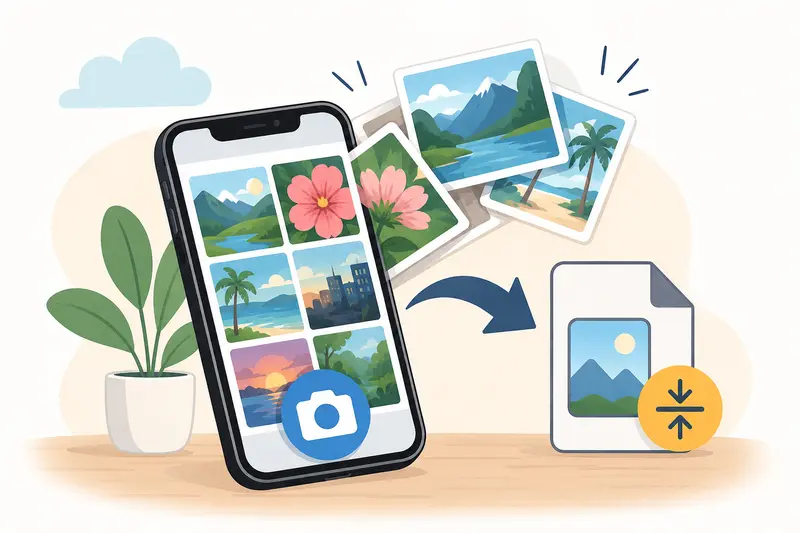
The Short Version
If your goal is to reduce image file size quickly while keeping photos clear:
- Use JPG instead of PNG when possible
- Lower resolution only when necessary
- Compress duplicates rather than originals
- Remove hidden metadata before sharing sensitive photos
- Use a browser-based compression tool when Mail or Messages resizing isnt enough
For users who regularly send photos or upload images online, tools like Filemazing Compress Image https://filemazing.com/compress-image make the process more flexible because you can control compression more precisely than iPhones default sharing options.
Why iPhone Photos Become So Large
Recent iPhones capture:
- high-resolution HEIC images
- HDR information
- depth data
- location metadata
- Live Photo motion layers
All of that improves image quality, but it also increases file size.
In testing, a batch of 25 vacation photos from an iPhone 15 averaged:
- 4.8 MB each in HEIC
- 712 MB after editing and exporting to PNG
- over 180 MB total for a small album
That becomes inconvenient fast if you are:
- attaching images to email
- uploading to a website
- syncing through mobile data
- sharing in messaging apps
- storing backups
Compression helps reduce storage overhead without making images unusable.
A Practical Way to Compress Photos on iPhone
One of the easiest approaches is using a browser-based compression workflow instead of installing another app that quietly requests access to your entire photo library.
Heres how the process typically works:
Getting It Done
- Open your browser on iPhone
- Visit Filemazings image compression tool https://filemazing.com/compress-image
- Upload one or multiple photos
- Select your preferred compression level
- Download the optimized versions
Because the tool runs through the browser, theres no desktop software setup involved. That matters more than people expect when you only need to compress a few photos before sending them somewhere.
The platform also supports batch workflows, which is useful when compressing travel albums, scanned documents, or product images together.

Real-World Test: Email Attachments on Mobile
To see how useful compression actually is, I tested a common scenario:
Original Files
- 12 iPhone photos
- mixture of HEIC and PNG
- total size: 96 MB
After Compression
- compressed JPG outputs
- visually similar at phone-screen size
- total size reduced to 18 MB
That reduction made the files small enough to:
- attach to Gmail without splitting uploads
- send faster on mobile data
- store more efficiently in cloud folders
One important observation: aggressive compression started softening text visible inside screenshots. Regular photos handled compression much better than screenshots with tiny UI details.
That tradeoff matters.
When PNG Compression Makes Sense
PNG files behave differently from JPG images.
PNG is excellent for:
- screenshots
- graphics
- transparent backgrounds
- diagrams
But PNG files are usually much larger.
If you need to compress PNG for website speed, reducing dimensions often matters more than pure compression strength. Oversized PNG banners are one of the most common causes of slow-loading pages.
In many workflows, converting PNG to WEBP or JPG cuts size dramatically while preserving acceptable clarity.
If format compatibility becomes an issue, the Filemazing format converter https://filemazing.com/format-converter supports conversion between JPG, PNG, WEBP, HEIC, and AVIF formats directly in the browser.
Some formats cooperate nicely. Others behave like they were designed during an argument.
The Quality Tradeoff Most People Miss
Many users focus only on percentage reduction.
Thats not always the smartest approach.
A better strategy:
- compress moderately first
- compare visually
- repeat only if needed
The difference between:
- 90% quality and 75% quality is often invisible on phones
- 75% and 45% can become very noticeable
For social media uploads, stronger compression usually works fine because platforms compress images again anyway.
For printing, scanned documents, or website graphics with text overlays, lighter compression preserves readability much better.
This is the core challenge behind image compression without losing quality: technically, some quality is always reduced. The goal is minimizing visible loss.
Useful Situations Where Compression Helps
Here are some common everyday workflows where smaller image files save time and frustration:
Common Use Cases
- Sending school assignments through email
- Uploading forms to government or banking websites
- Compressing product photos before listing items online
- Reducing image sizes for blog performance
- Backing up travel photos using limited cloud storage
- Sharing event photos in messaging groups
For marketers and small business owners, compressing images before publishing can noticeably improve page speed performance.
And website visitors absolutely notice slow pages.
Privacy Considerations Before Sharing Photos
Many iPhone images contain hidden metadata:
- GPS location
- device information
- timestamps
- camera details
That information travels with the image unless removed.
If privacy matters, especially for business documents or personal photos, using a metadata cleanup workflow is worth considering before sending files externally.
The Filemazing metadata scrubber https://filemazing.com/metadata-scrubber can remove hidden metadata from shared images while keeping the visible photo intact.
The platform also treats uploaded files as temporary processing artifacts rather than long-term storage, which is preferable for users who dont want image libraries sitting indefinitely on external servers.
One Small Trick That Saves More Space Than Compression
This catches a lot of people off guard:
Cropping oversized images often reduces file size more effectively than heavier compression.
Example:
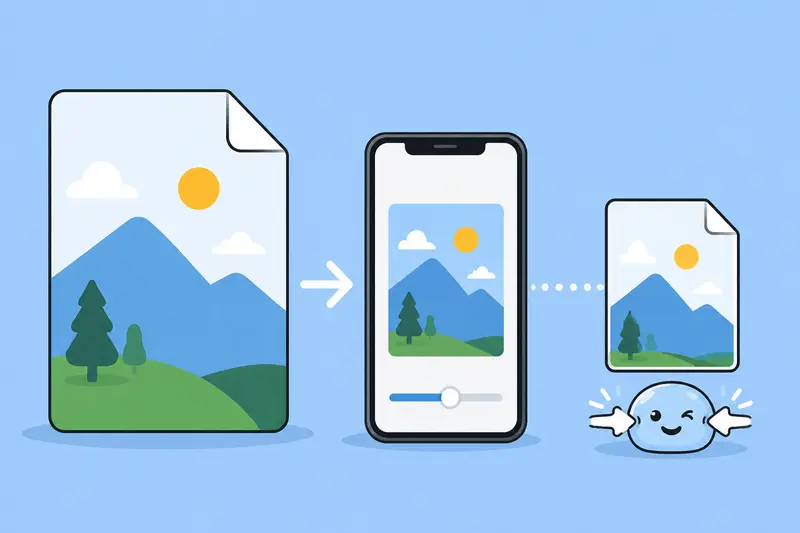
- a 4032px-wide image resized to 1600px
- then lightly compressed
usually looks better than:
- keeping full resolution
- applying aggressive compression
If the image only needs to appear inside email, social media, or a blog post, extremely large dimensions rarely add visible value.
Protecting Compressed Files Before Sending
If you compress sensitive documents or personal images before sharing them, adding encryption afterward can help protect the files during transfer.
For that workflow, Filemazings file encryption tool https://filemazing.com/encrypt-file allows compressed files to be password-protected before sending through email or cloud storage.
That can be useful for:
- client documents
- IDs and forms
- financial screenshots
- internal business images
FAQ
Does compressing photos always reduce quality?
Technically yes, although moderate compression is often visually unnoticeable on phones, tablets, and social media platforms.
What is the best format for small image sizes?
JPG usually produces the smallest sizes for regular photography. WEBP can be even smaller while maintaining strong quality. PNG is better for graphics and transparency.
Can I compress photos for email on iPhone?
Yes. iPhone Mail sometimes offers automatic resizing, but browser-based tools provide more control over final quality and output size when you need to compress photos for email consistently.
Is browser-based image compression safe?
It depends on the service. Look for platforms that use temporary processing and automatic cleanup behavior rather than permanent storage systems.
Why are screenshots harder to compress cleanly?
Screenshots often contain sharp edges, text, and UI elements. Heavy compression introduces blur and artifacts more quickly than with normal photography.
Can compressed HEIC files be converted later?
Yes. If compatibility becomes a problem, you can use a format conversion workflow to switch HEIC files into JPG, PNG, WEBP, or AVIF formats.
Final Thoughts
Reducing image file size on iPhone is less about chasing the smallest possible number and more about balancing quality, compatibility, and convenience.
For most people, moderate compression delivers the best result:
- smaller uploads
- faster sharing
- less storage pressure
- cleaner workflows
Browser-based tools like Filemazing https://filemazing.com/compress-image are particularly practical because they avoid app installation overhead while supporting multiple file types, temporary processing, and batch handling when needed.
And once you start paying attention to image sizes, youll notice how many everyday tasks become smoother when photos stop weighing 10 MB each.