Remote teams accumulate PDFs faster than most people realize. Contracts, onboarding packets, scanned receipts, meeting notes, exported reports eventually someone ends up dragging six separate files into Slack with the message: Sorry, these should probably have been one document.
Thats usually the point where merging PDFs becomes part of the workflow instead of an occasional task.
On macOS, there are a few ways to combine documents, but the best option depends on what kind of files youre handling, whether youre working with scanned pages, and how much setup youre willing to tolerate.
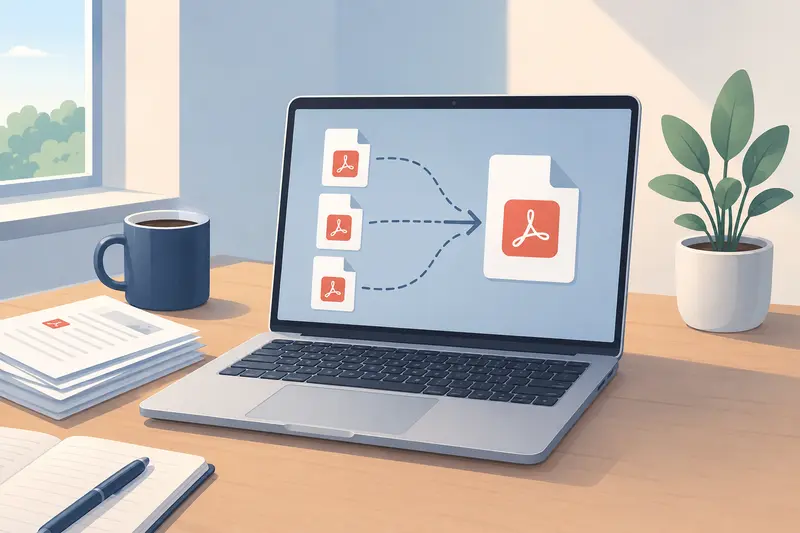
Heres the Core Idea
If you only merge PDFs occasionally, macOS Preview can handle basic combinations.
But for distributed teams dealing with:
- large scanned files
- repeated document preparation
- shared cloud storage
- mixed file batches
- privacy-sensitive documents
a browser-based workflow tends to scale better.
Thats where tools like Filemazing Merge PDF Tool https://filemazing.com/merge-pdf become useful. Instead of installing desktop software, you upload documents directly in the browser, arrange them, merge them, and download the final file when processing finishes.
The lightweight approach matters more than people expect especially on managed company laptops where installing extra utilities becomes its own support ticket.
Using Preview on Mac: Still Useful for Small Jobs
macOS Preview deserves credit because it works reasonably well for quick combinations.
A simple workflow looks like this:
- Open one PDF in Preview
- Enable thumbnail view
- Drag additional PDFs into the sidebar
- Rearrange pages if needed
- Export the final combined document
For short reports or a handful of invoices, thats often enough.
The limitation appears when:
- files become large
- scans contain hundreds of pages
- teammates send inconsistent formats
- you need repeatable workflows
- multiple people need the same process
Preview also becomes awkward with image-heavy scanned PDFs. Dragging around 200-page scans is not exactly a relaxing afternoon activity.
A More Practical Workflow for Remote Teams
In real remote workflows, PDF merging is rarely isolated.
Usually the sequence looks more like this:
- unpack files from a ZIP archive
- clean metadata
- merge documents
- export pages for presentations or reviews
- share the finalized version
That broader process is where browser-based tools become more efficient.
For example, if teammates send compressed folders from different regions or departments, using the archive extraction tool https://filemazing.com/archive-extractor first can simplify collecting supporting documents before combining everything into a single PDF package.
And before external sharing, many organizations remove author names, editing traces, and hidden metadata using the metadata scrubbing workflow https://filemazing.com/metadata-scrubber to avoid leaking unnecessary information.
Those steps sound minor until someone accidentally shares internal revision history with a client.
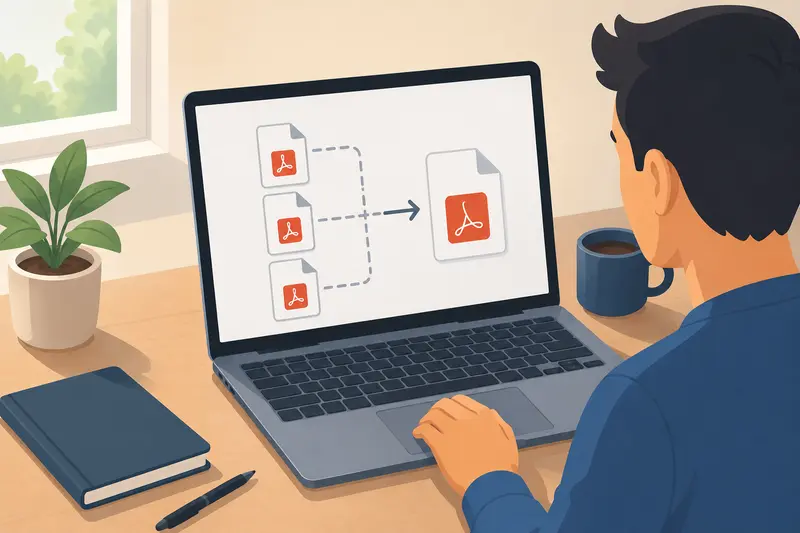
How the Browser-Based Merge Process Works
The actual merge process is straightforward:
- Upload PDFs from your Mac, cloud storage, or shared links
- Arrange files in the preferred order
- Start processing
- Download the merged output
What makes the workflow practical is the surrounding infrastructure:
- queued processing for larger jobs
- temporary handling rather than permanent storage
- support for cloud imports like Google Drive and Dropbox
- predictable token-based usage instead of subscriptions
For remote teams, that last point is surprisingly valuable. One person may process three PDFs a week while another handles hundreds of onboarding packets. Usage-based pricing avoids paying for oversized software licenses that mostly sit idle.
Filemazing also allows anonymous use with free daily tokens, which helps when contractors or temporary collaborators need occasional document processing without creating accounts first.
Testing With Large Scanned PDFs
To evaluate how well the workflow handled real-world files, I tested a combination of:
- 7 scanned contracts
- 3 exported reports
- 2 image-heavy onboarding PDFs
Total size:
- roughly 186MB
- around 420 combined pages
The scans included mixed resolutions because some pages came from mobile scanners while others were exported from office multifunction printers.
Observed results:
- merge completion remained stable even with larger batches
- page ordering stayed intact
- scanned text quality remained visually consistent
- no obvious rendering corruption appeared in charts or signatures
One detail worth noting: image-heavy scanned PDFs naturally produce larger merged outputs. That isnt a flaw in the merge process itself its simply how embedded image compression behaves inside PDFs.
If smaller final size matters more than pristine scan clarity, compressing or optimizing files beforehand can help.
The tradeoff is predictable:
- lower file size
- slightly softer scanned text and images
Theres no magic way around physics here.
One Non-Obvious Tip for Cleaner Combined PDFs
Many users merge files in whatever order they arrive.
That sounds harmless, but inconsistent scan dimensions create surprisingly messy final documents.
A better approach:
- standardize page orientation first
- keep scan resolutions reasonably consistent
- avoid mixing extremely compressed scans with ultra-high-resolution exports
Why?
Because wildly inconsistent source documents often create:
- uneven page scaling
- oversized outputs
- awkward reading flow on tablets and laptops
For remote teams reviewing documents asynchronously, consistency matters more than people think.
Especially when people are opening PDFs during calls with questionable hotel Wi-Fi.
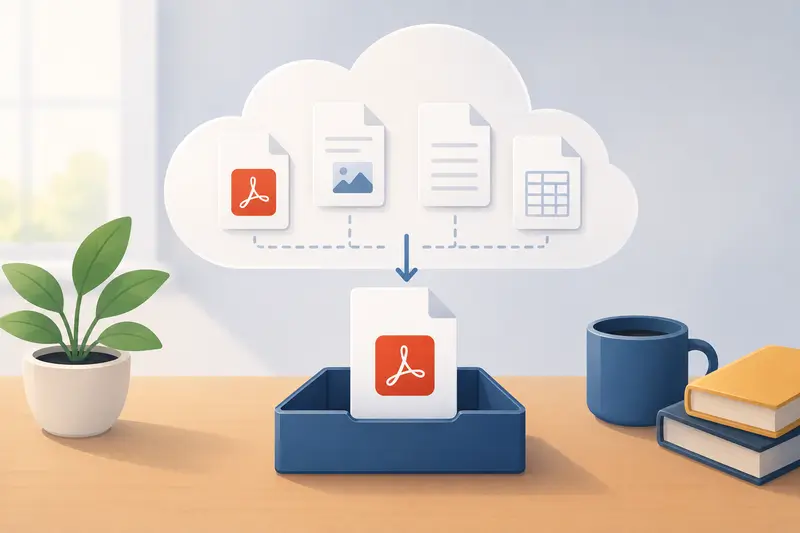
Combining Scanned PDFs Without Losing Readability
Scanned documents behave differently from digitally generated PDFs.
When users try to combine scanned PDFs without signup requirements, they often encounter:
- slow uploads
- oversized files
- blurry text after processing
- broken page order
A practical workaround is batching similar scans together:
- monochrome documents in one group
- photo-heavy scans in another
- exported digital reports separately
This keeps rendering behavior more predictable.
Another useful habit is rotating pages before merging rather than afterward. Correcting orientation early prevents accidental quality degradation from repeated exports.
Why Browser-Based Tools Work Well for Distributed Teams
Desktop PDF applications are powerful, but they introduce friction:
- installations
- version mismatches
- licensing issues
- OS compatibility concerns
A browser-based workflow avoids most of that.
For remote teams specifically, it creates a shared process that behaves similarly across:
- MacBooks
- Windows laptops
- managed workstations
- temporary contractor devices
The consistency becomes more valuable as teams grow.
And because processing artifacts are treated as temporary rather than permanent storage, privacy handling feels more aligned with short-term document operations instead of long-term file hosting.
That distinction matters for organizations working with contracts, HR paperwork, or internal reports.
Turning Final PDFs Into Shareable Visuals
Sometimes the merged PDF is only the intermediate step.
Teams often need:
- slide-ready pages
- preview thumbnails
- visual snippets for documentation
- images for knowledge bases
In those cases, converting merged pages into image files can streamline sharing. The PDF to image conversion workflow https://filemazing.com/pdf-to-image is useful when individual pages need to become PNG or JPG assets for presentations or asynchronous collaboration.
This is especially practical for remote onboarding guides and internal SOP documentation.
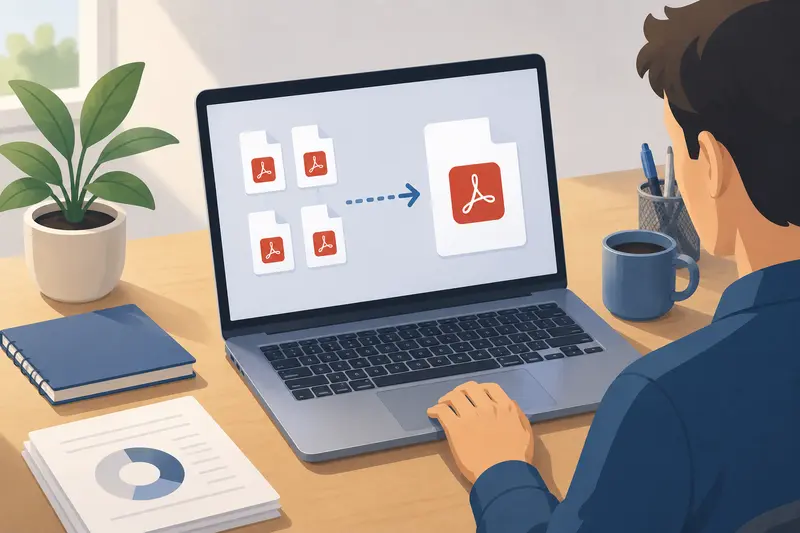
Things Users Often Ask
Can I merge PDF online free on Mac?
Yes. Several browser-based tools support free usage tiers, including Filemazing through daily free tokens. That allows occasional merging without committing to subscriptions.
Is it possible to combine PDFs without signup?
Yes. Anonymous workflows are supported for lighter usage scenarios, which is convenient for temporary collaboration or one-off document tasks.
Will merging scanned PDFs reduce quality?
Usually not during merging alone. Quality changes happen more often during compression or re-exporting. The original scan quality still matters most.
Is Preview enough for most Mac users?
For small jobs, definitely.
For larger remote workflows involving repeated document handling, browser-based processing tends to be more flexible and easier to standardize across teams.
Are uploaded files stored permanently?
Filemazing treats uploads as temporary processing artifacts and removes them on a short retention schedule rather than functioning as long-term cloud storage.
Final Thoughts
Merging PDFs on Mac is easy when the task stays small.
The challenge appears when document handling becomes repetitive, collaborative, or operationally important. Thats where workflow quality matters more than individual features.
For remote teams especially, the winning approach is usually:
- minimal setup
- predictable processing
- temporary file handling
- shared browser-based access
- support for both manual work and automation later
Filemazings merge PDF workflow https://filemazing.com/merge-pdf fits that model well because it stays lightweight while still handling larger document batches and scanned files reliably.
And perhaps most importantly, it reduces the number of Which PDF version are we using? messages floating around your team chat.