Deadlines and incompatible audio files tend to appear together. A lecture recording arrives in WAV format, your editing app only accepts MP3, and suddenly youre hunting for an audio format converter online instead of finishing your assignment.
For students juggling recorded lectures, podcasts, language exercises, presentations, and media projects, browser-based conversion tools can remove a surprising amount of friction. You upload a file, convert it into the format you need, and move on without installing another desktop app that will probably be forgotten after finals week.
Thats where Filemazing fits particularly well. Its browser-based workflow is designed for practical file tasks that need to happen fast without turning into a technical project.
The Short Version
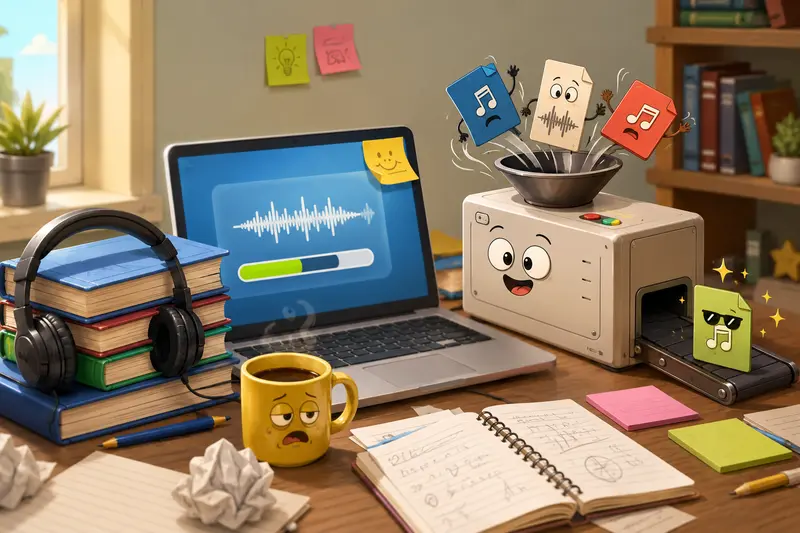
If you need high quality audio conversion without downloading software, a browser-based tool like Filemazing Audio Converter is one of the more practical options for student workflows.
It supports multiple formats, runs entirely online, and handles temporary processing rather than long-term file storage. That matters when youre working with lecture recordings, interview audio, or presentation narration that shouldnt sit permanently on random servers.
Where Online Audio Conversion Actually Helps Students
Audio conversion sounds like a niche task until semester pressure kicks in.
A few common situations:
- Converting large WAV lecture recordings into smaller MP3 files for phone storage
- Preparing AAC audio for presentation software compatibility
- Turning voice notes into shareable formats for group projects
- Reducing upload issues on learning platforms with strict file limits
- Making podcast assignments compatible with editing apps
- Standardizing mixed audio formats from different classmates
Some formats cooperate nicely. Others behave like they were invented during an office argument in 2004.
A Practical Walkthrough
Using an audio format converter online is straightforward, but a few choices make a noticeable difference in output quality.
1. Upload the source audio
Import your file directly from your computer or cloud storage providers like Google Drive or Dropbox.
If your audio files are packed inside ZIP or RAR folders from a shared class project, you can first use the archive extraction tool to unpack them before conversion.
2. Choose the output format
The best format depends on what you need:
- MP3 smaller size, broad compatibility
- WAV maximum quality, larger files
- AAC efficient compression for mobile playback
- FLAC lossless preservation for editing workflows
3. Adjust quality preferences
Higher bitrate settings preserve more detail but increase file size. For spoken lectures or study recordings, medium bitrates often sound perfectly fine while saving storage space.
4. Process the file
Filemazing uses queued processing so larger audio jobs dont freeze the browser session while conversion runs.
5. Download and organize
Once completed, download the converted file and store it where you actually remember to find it later. Future-you will appreciate this.
What We Tested
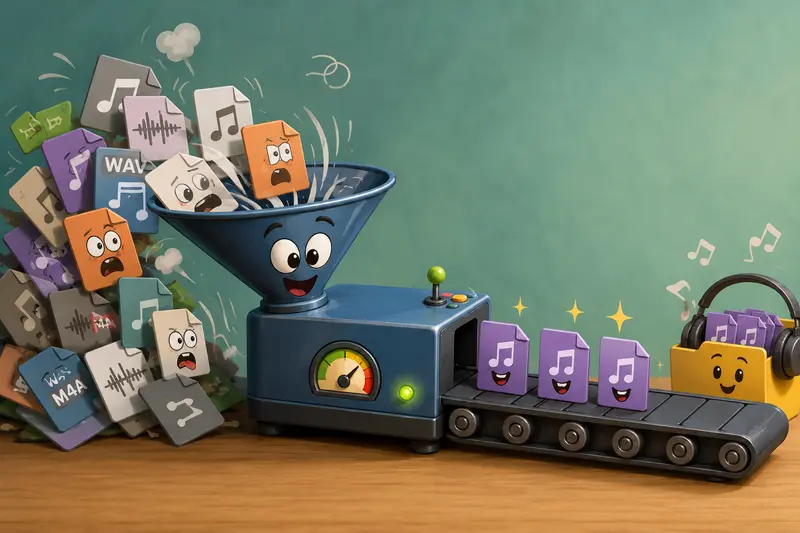
To evaluate real-world usefulness, we tested Filemazing with a fairly typical student media workload:
- 12 lecture recordings
- Mixed WAV and M4A formats
- Total batch size: roughly 1.8 GB
- Average recording length: 4570 minutes
The goal was converting everything into compressed MP3 files suitable for mobile playback and cloud syncing.
Observed results
- Conversion stayed consistent across mixed input formats
- Spoken-word clarity remained strong at moderate bitrate settings
- Output file sizes dropped significantly compared to WAV originals
- Batch handling was smoother than manually converting files one-by-one with desktop freeware
One practical takeaway stood out: for speech-heavy recordings, pushing bitrate excessively high rarely improved perceived quality enough to justify the larger storage footprint. Students managing limited laptop space or cloud quotas will probably prefer balanced settings instead.
What Makes the Biggest Difference in Audio Quality
This is where many students accidentally lose quality during conversion.
Avoid repeated conversions
Every lossy conversion introduces degradation. Converting MP3 MP3 multiple times can gradually reduce clarity.
A better approach:
- Keep one higher-quality original
- Export smaller versions only when needed
- Use lossless formats during editing stages
Match format to purpose
Not every assignment needs studio-grade audio.
| Use Case | Recommended Format |
|---|---|
| Lecture playback | MP3 |
| Audio editing | WAV or FLAC |
| Presentation narration | AAC |
| Archival storage | FLAC |
Bitrate matters more than people think
For voice recordings:
- 96128 kbps is often sufficient
For music-heavy projects:
- 192 kbps or higher usually sounds cleaner
Theres always a tradeoff between file size and fidelity. High quality audio conversion doesnt automatically mean selecting the largest possible settings.
Why Browser-Based Tools Fit Student Workflows
Installing desktop software can feel excessive when you only need occasional conversion work.
Browser-based processing has a few practical advantages:
- Works across shared or school computers
- No updates or maintenance
- Faster access during deadline pressure
- Easier for collaborative projects
- No device-specific setup problems
Filemazing also uses transparent token pricing instead of locking basic workflows behind subscriptions. For students who only process files occasionally, that model tends to be easier to predict financially.
Anonymous users can start with free daily tokens before deciding whether heavier usage is necessary.
Privacy Considerations Matter More Than You Think
Students sometimes upload interview recordings, research audio, or internal presentation drafts containing sensitive information.
Filemazing treats uploaded files as temporary processing artifacts rather than permanent cloud storage. Processed files are cleaned automatically on a short retention schedule rather than sitting indefinitely on servers.
For additional protection before sharing completed audio externally, you can also use the file encryption tool to password-protect converted recordings.
If youre preparing public-facing media, its also smart to remove embedded metadata beforehand using the metadata scrubbing tool. Audio files occasionally carry creator details, device info, or editing history that students dont realize is still attached.
Situations Where This Tool Fits Especially Well
Students tend to use online audio conversion in surprisingly varied ways:
- Converting recorded seminars for offline phone listening
- Preparing podcast submissions for media classes
- Compressing interview recordings before cloud upload
- Standardizing audio formats across group project contributors
- Creating smaller files for email attachments
- Exporting presentation narration into LMS-compatible formats
The flexibility becomes more noticeable once multiple file types start entering the same workflow.
A Few Limitations Worth Knowing
No tool is perfect, and realistic expectations matter.
Large files still take time
Long recordings naturally require more processing time and upload bandwidth, especially on weaker campus Wi-Fi.
Lossy formats have limits
Converting a poor-quality recording into another format will not magically improve the source audio.
Browser workflows depend on internet stability
If your connection drops constantly, desktop software may still be preferable for extremely large media batches.
That said, for everyday student use, browser-based conversion is usually more convenient than maintaining another installed application.
Common Questions
Is an audio format converter online safe for academic recordings?
It depends on the provider. Filemazing uses temporary processing and cleanup behavior instead of permanent storage-oriented workflows, which reduces long-term exposure of uploaded files.
Which audio format is best for students?
MP3 remains the most universally compatible option for lectures, presentations, and study recordings. WAV or FLAC are better for editing and preservation.
Can I convert audio without installing software?
Yes. Thats one of the main advantages of browser-based platforms like Filemazing. The conversion process runs online rather than through local desktop tools.
Does converting audio reduce quality?
Sometimes. Lossy formats like MP3 compress data to reduce file size, so repeated conversions can gradually affect audio clarity.
Is batch conversion possible?
Yes. Batch workflows are particularly useful when handling multiple lecture recordings or collaborative project files.
Can converted files be protected before sharing?
Yes. If you need secure distribution for interviews or private coursework, using encrypted delivery after conversion is a good practice.
Final Thoughts
A reliable audio format converter online saves more time than most students expect, especially once projects start involving recordings from multiple devices and apps.
Filemazing works well because it focuses on practical workflows instead of unnecessary complexity: browser-based access, temporary processing, predictable pricing, and support for real-world file handling needs.
Whether youre converting lecture recordings for easier playback, preparing podcast assignments, or organizing media files for group projects, having one dependable conversion workflow available online can remove a lot of avoidable friction during busy academic schedules.