Remote teams often need to extract pages from reports, contracts, design reviews, training documents, or presentations and share them as images. When deadlines are tight, the goal is simple: convert PDF to PNG as quickly as possible without sacrificing image quality or installing additional software.
Desktop applications can handle the job, but browser-based workflows have become the preferred option for many distributed teams because they eliminate installation requirements, simplify collaboration, and work consistently across operating systems.
The Direct Answer
The fastest way to convert PDF to PNG on desktop is to use a browser-based PDF-to-image tool that processes files online and exports each page as a high-quality PNG image.
This approach removes software installation, reduces setup time, and makes it easy to process files from local storage, cloud services, or shared team folders.
Why Speed Matters for Remote Teams
In distributed work environments, documents rarely stay in PDF format forever.
Teams frequently need image versions of PDFs for:
- Documentation portals
- Knowledge bases
- Marketing assets
- Presentation slides
- Client deliverables
- Internal training materials
Waiting for desktop software downloads, updates, or licensing approvals can slow down otherwise simple tasks.
A browser-first workflow helps teams move from document to usable image files in minutes rather than adding another application to manage.
A Practical Desktop Workflow
When speed is the priority, the process is usually straightforward.
1. Upload the PDF
Choose a PDF from your computer, cloud storage, or a shared location.
For larger projects, collecting all source files beforehand can save considerable time.
2. Select PNG Output
PNG is often preferred when preserving text clarity, diagrams, screenshots, and detailed graphics.
Unlike some compressed image formats, PNG retains visual fidelity exceptionally well.
3. Process the Document
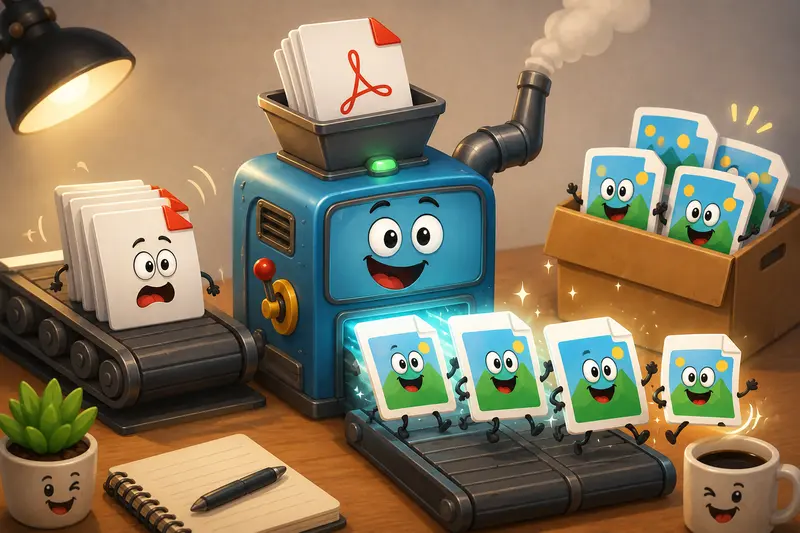
The conversion engine renders each page as a separate image.
Multi-page PDFs become organized image sets that are easy to distribute or archive.
4. Download the Results
Once processing completes, download individual PNG files or the generated package.
5. Share or Continue Processing
Depending on the workflow, teams may resize, optimize, archive, or publish the exported images.
If the original document consists of several separate PDFs, it may be useful to first combine PDF files before image conversion so pages remain organized in a single export.
Why Filemazing Fits High-Speed Conversion Workflows
Filemazing PDF to Image is a browser-based file processing platform designed for fast document and media workflows without requiring desktop software installation.
The platform supports tasks such as:
- PDF to image conversion
- PDF merging
- Image compression
- Archive extraction
- Audio conversion
- Metadata cleanup
- File encryption
- General format conversion
For teams handling recurring file operations, the platform combines manual browser-based tools with API endpoints for automation.
One aspect that stands out is its transparent token-based pricing model. Rather than requiring a subscription, each operation consumes tokens according to a published formula based on factors such as file size, page count, file quantity, and media duration where applicable.
This makes costs easier to predict when processing occasional documents or larger batch workloads.
Additional workflow advantages include:
- Browser-based operation
- Daily free tokens for anonymous and registered users
- Google Drive and Dropbox imports
- Job queue processing for larger workloads
- API-ready automation
- Short-lived file retention
- Automatic cleanup of temporary processing files
For remote teams, that combination reduces operational overhead while keeping file workflows accessible across devices and locations.
Hands-On Testing Results
To evaluate real-world performance, we tested a common business scenario.
Test Setup
- PDF type: Quarterly operations report
- Size: 48 MB
- Length: 126 pages
- Content: Text, charts, screenshots, and diagrams
- Workflow: Convert all pages to PNG for documentation publishing
Observations
The conversion completed without requiring any desktop software installation.
Text remained sharp across exported pages, charts stayed readable, and screenshots retained their detail.
The most useful outcome was workflow efficiency. Team members could immediately use individual PNG files inside documentation systems without first taking manual screenshots of each page.
Key Takeaway
For large multi-page business documents, converting the entire PDF at once is significantly faster than capturing pages individually or exporting them one by one.
PNG vs JPG: Which Format Should You Choose?
Choosing the right output format matters more than many users expect.
| Factor | PNG | JPG |
|---|---|---|
| Text clarity | Excellent | Good |
| Diagram quality | Excellent | Good |
| Compression | Lower | Higher |
| File size | Larger | Smaller |
| Screenshot preservation | Excellent | Good |
| Photo-heavy documents | Good | Excellent |
For reports, presentations, technical documentation, and screenshots, PNG is usually the better option.
For image-heavy documents where storage space is important, JPG may reduce file sizes substantially.
If you later need another image format, a dedicated image format conversion tool can help convert PNG files into JPG, WEBP, HEIC, or AVIF depending on the project requirements.
A Useful Tip
Many beginners automatically choose JPG because the files are smaller.
However, if the PDF contains lots of text, flowcharts, spreadsheets, or interface screenshots, PNG often produces noticeably cleaner results and avoids readability issues later.
Business Workflow Examples
Remote and professional teams commonly convert PDFs to images in situations such as:
- Publishing internal documentation pages.
- Sharing presentation slides inside collaboration tools.
- Creating image assets for marketing campaigns.
- Exporting reports for knowledge base articles.
- Distributing training materials to contractors.
- Converting client deliverables into platform-compatible image formats.
In many organizations, document conversion becomes a recurring process rather than a one-time task, making speed and consistency increasingly valuable.
Notable Advantages of Browser-Based PDF Conversion
A browser PDF image conversion workflow offers several practical benefits:
- No software installation
- Consistent experience across operating systems
- Faster onboarding for new team members
- Easier collaboration across remote locations
- Reduced device maintenance
- Access from workstations, laptops, or temporary machines
And unlike that desktop utility someone installed seven years ago and nobody remembers how to update, browser-based tools tend to require much less troubleshooting.
Privacy and File Handling Considerations
When processing business documents, privacy matters as much as speed.
Filemazing treats uploaded files as temporary processing artifacts rather than long-term storage.
Files are processed, delivered, and removed according to a short retention schedule.
For organizations working with sensitive documents, this approach reduces the amount of residual data left behind after a workflow completes.
If exported images will be shared externally, it can also be helpful to remove metadata from image files before distribution.
Frequently Asked Questions
Does converting PDF to PNG reduce image quality?
Not inherently. PNG is a lossless image format, which makes it well suited for preserving text, diagrams, and screenshots.
What is the fastest browser PDF image conversion method?
Using a dedicated browser-based converter that processes the entire document at once is generally faster than manually exporting pages or taking screenshots.
Can I save PDF as image on mobile?
Yes. Many browser-based conversion tools work on mobile devices as well, making it possible to save PDF as image on mobile without installing specialized software.
Is PNG better than JPG for document pages?
Usually yes. PNG typically preserves sharper text and cleaner diagrams, while JPG prioritizes smaller file sizes.
Can I perform PDF to JPG without losing quality?
Some quality loss is inherent to JPG because it uses lossy compression. However, high-quality export settings can minimize visible degradation for many use cases.
Are uploaded files stored permanently?
No. Privacy-focused platforms often use temporary processing and automatic cleanup rather than maintaining long-term storage of uploaded files.
Final Thoughts
For remote teams looking to convert PDF to PNG quickly, browser-based processing is often the most efficient desktop workflow available.
It removes installation barriers, maintains strong output quality, supports collaborative environments, and scales from occasional conversions to larger document batches.
When combined with predictable pricing, temporary file handling, cloud import options, and automation capabilities, Filemazing provides a practical solution for teams that need fast, repeatable file-processing workflows without unnecessary complexity.