Photo metadata can reveal more than most people expect. A single image may carry GPS coordinates, timestamps, device details, camera settings, editing software information, and creator fields even when the image itself looks harmless.
Short answer: To remove metadata from photos before sharing, strip EXIF and related hidden data from a copy of the image. On iPhone or iPad, built-in sharing controls can help with location privacy. On Windows, you can remove many properties from the file details panel. For broader cross-platform cleanup, use Filemazing Metadata Scrubber and share the cleaned copy instead of the original.
If you only remember one rule, make it this: remove metadata first, then compress or convert only if the next platform requires it.
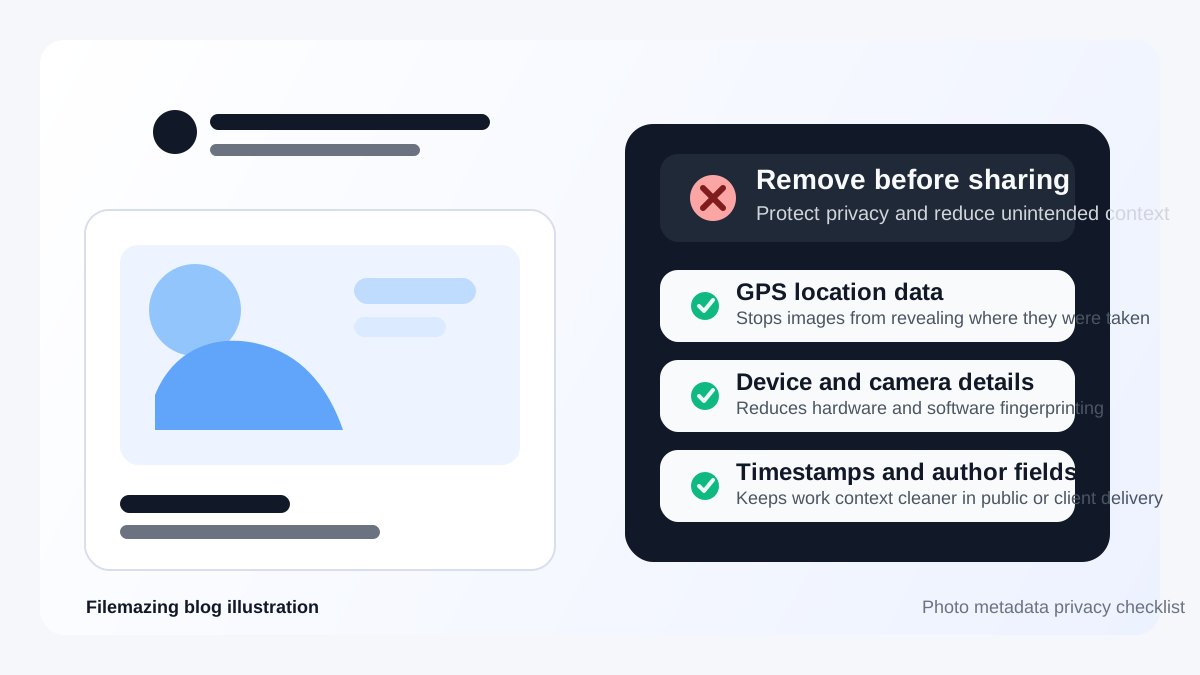
What photo metadata can include
Photo metadata is hidden information stored inside the file. The most common categories include:
- GPS location
- Date and time captured
- Phone or camera make and model
- Lens and camera settings
- Editing software history
- Copyright, author, or creator fields
Not every file includes all of that data, but many phone photos and exported images contain more hidden information than people realize.
Why removing metadata matters before sharing
Metadata becomes a real issue when the image leaves a trusted environment. That can happen in client work, public posting, support tickets, marketplace uploads, event coverage, or internal files that later get forwarded outside the team.
The biggest privacy risk is usually location data. A geotagged image can expose where you live, work, travel, or store equipment. Device and timestamp data can also reveal more workflow context than you intended.
Best methods at a glance
| Method | Best for | What it removes | Main limitation |
|---|---|---|---|
| Built-in iPhone or Android sharing controls | Quick mobile privacy cleanup | Usually location-related fields first | May not remove every EXIF or hidden field |
| Windows file properties | One-off desktop cleanup | Many file properties and personal details | Less consistent for mixed file sources and batches |
| Filemazing Metadata Scrubber | Cross-platform, repeatable cleanup | Broad hidden metadata removal | Still separate from compression and format changes |
How to remove metadata from photos on each device
iPhone or iPad
If your main concern is location privacy, built-in Photos sharing controls are a good first step. That helps when your main concern is GPS metadata, but it may not remove every other hidden field in the file.
For a more focused guide, read How to Remove Location Data From Photos on iPhone Before Sharing.
Android
Android behavior varies by device brand and photo app. In general, you can either remove location-sharing data inside the share flow if your app supports it, or clean the file before upload with a metadata-removal workflow. If you need consistency across devices, browser-based cleanup is usually simpler.
Windows
Windows gives you a built-in method for removing many properties from an image file. Right-click the file, open Properties, use the Details tab, and choose Remove Properties and Personal Information. This is a practical quick method, but not always the most complete choice for mixed file sources or repeated batch workflows.
Mac
macOS makes it easy to inspect image information in Preview, but full metadata cleanup is less straightforward as a built-in everyday workflow. For Mac users who want a repeatable method, browser-based cleanup is often the simplest route.
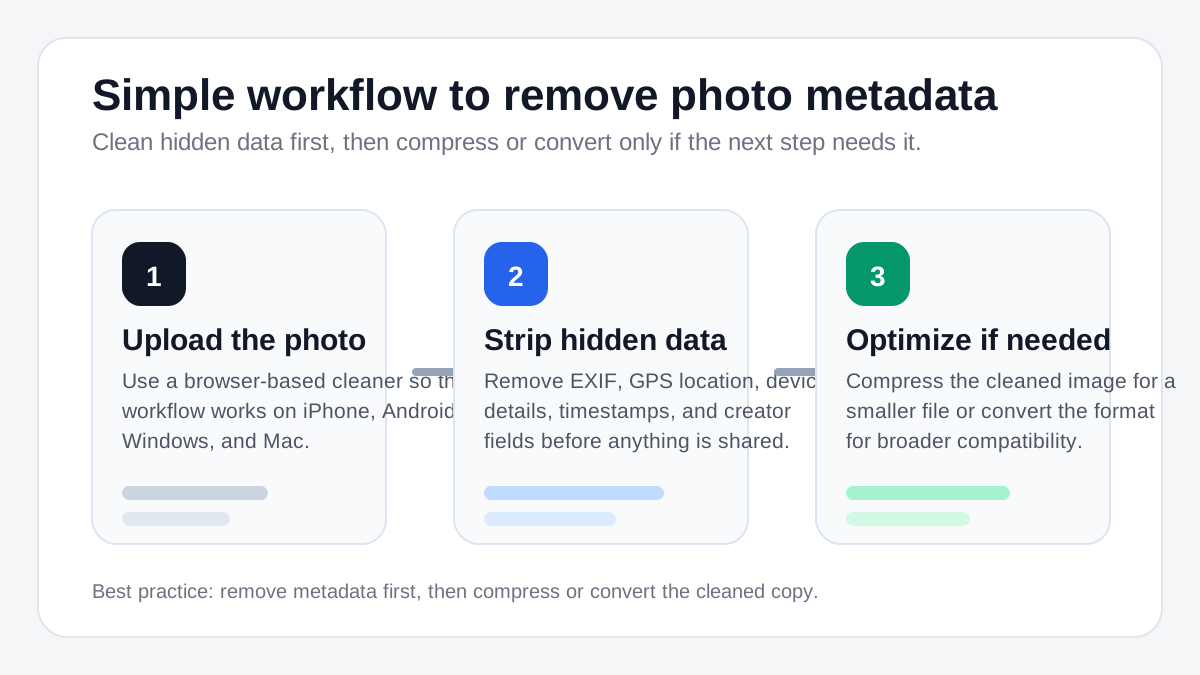
Recommended workflow before uploading or sending images
- Remove hidden data with Metadata Scrubber.
- Reduce file size with Compress Image if upload limits or page speed matter.
- Convert WEBP, HEIC, AVIF, JPG, or PNG with Format Converter if the destination platform requires a different format.
- Share the final cleaned output, not the original export.
This sequence keeps privacy cleanup separate from performance and compatibility decisions.
What to remove first if you are in a hurry
- GPS or location data
- Device make and model
- Timestamps
- Software or editing history
- Author or copyright fields you do not want attached to the file
If you are sending sensitive work, it is usually safer to remove all unnecessary metadata rather than editing fields one by one.
Common mistakes people make
Cleaning the wrong copy
People often remove metadata from one version, then accidentally upload the original. Rename or move the cleaned file immediately so it becomes the obvious sharing copy.
Assuming social platforms will handle it
Some platforms strip some metadata. Some do not. Some strip location but preserve other fields. Clean the file before upload instead of assuming the platform will do it for you.
Ignoring file size after cleanup
Removing metadata protects privacy, but it does not always reduce file size enough for uploads. After cleanup, use Compress Image if the image is still too heavy.
Reintroducing metadata later
Teams often clean a file, then later export a fresh version from design software and accidentally reintroduce metadata. Make metadata removal part of the final publishing checklist, not an early optional step.
Related guides on Filemazing
- How to Remove Location Data From Photos on iPhone Before Sharing
- What EXIF Data Is in a Photo and Why It Matters for Privacy
- How to Prepare Client Images for Upload: Remove Metadata, Compress, and Convert
- Encrypt File if the cleaned image still needs password-based protection before handoff
- API documentation if you want to automate recurring image-prep workflows
FAQ
Does removing metadata change the appearance of the photo?
Usually not. Metadata removal targets hidden file information rather than visible pixels. The image should look the same unless you also compress or re-export it in another format.
What metadata is most important to remove before sharing?
Location data is usually the top priority, followed by device details, timestamps, software history, and creator fields you do not want attached to the file.
Can I remove metadata from multiple photos at once?
Yes. Batch cleanup is often the best choice if you are preparing many files for publishing, client delivery, or external sharing.
Is removing location data enough?
Not always. Removing location is a strong first step, but other metadata fields can still reveal device details, timestamps, editing tools, or creator information.
Is it better to remove metadata before or after compressing the image?
Before is usually cleaner as a workflow. Remove metadata first, then compress the cleaned copy if you also need a smaller file.
Final takeaway
If you only need a quick privacy fix, removing location data through your device's built-in tools may be enough for casual sharing. If you want a more reliable cross-platform method, especially for uploads, client work, public posting, or batches, it is better to clean the image fully before it leaves your hands.
Start with Filemazing Metadata Scrubber, then use Compress Image or Format Converter only if the next step in your workflow requires it.