Remote teams rarely struggle with creating PDFs. The real friction starts afterward.
A design team exports product sheets as PDFs, marketing needs JPG previews for landing pages, and support teams want lightweight image files for knowledge bases or CMS uploads. Suddenly, someone is taking screenshots page by page or sending oversized files through Slack.
If you regularly need to turn PDF into JPG for website uploads, documentation, or shared assets, the workflow matters more than most teams expect. Output quality, file size, batch handling, and privacy all affect how smoothly distributed teams collaborate.
One practical option is Filemazing PDF to Image tool https://filemazing.com/pdf-to-image, which runs entirely in the browser and supports both manual conversions and automated workflows.
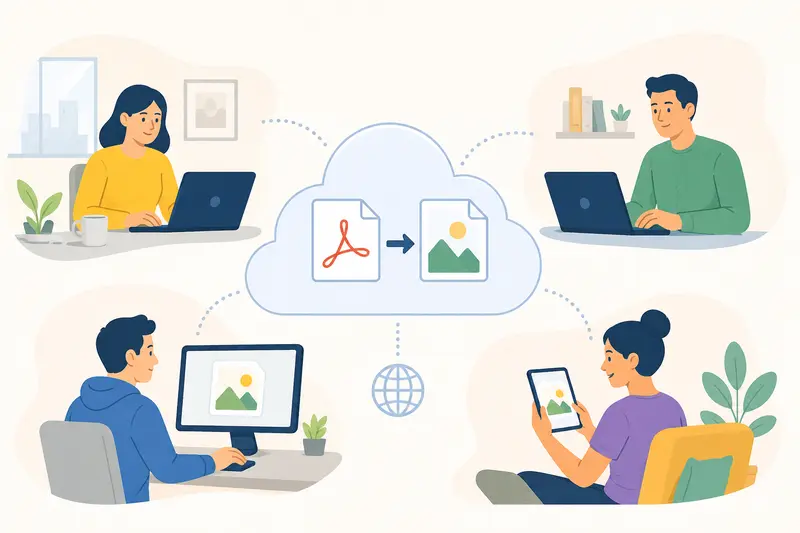
The Fastest Way to Handle PDF-to-Image Workflows
For most remote teams, the ideal process looks like this:
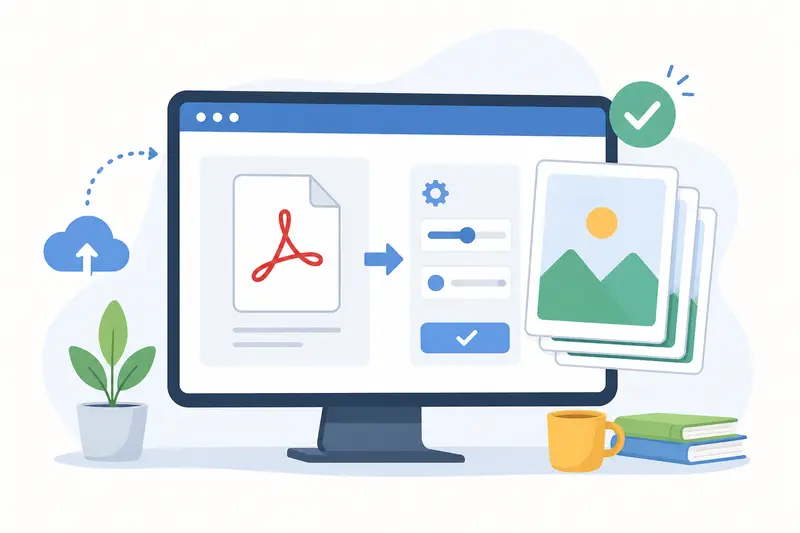
- upload the PDF
- export pages as JPG files
- optimize images for web delivery
- share or publish immediately
The challenge is preserving readability while keeping image sizes manageable. That becomes especially important when working with:
- scanned contracts
- slide decks
- product catalogs
- onboarding documents
- visual reports
A reliable best PDF to JPG converter should preserve text sharpness without generating bloated image files that slow down websites or internal portals.
Filemazing leans into that balance with browser-based processing, predictable token pricing, and support for larger queued jobs that dont freeze the interface during conversion.
How the Workflow Actually Plays Out
Most teams dont convert a single PDF once. They repeat the process dozens of times per week.
Heres a realistic workflow that worked well during testing.
1. Gather and prepare the source PDFs
If multiple documents belong together, it helps to combine them first using the Filemazing merge PDF tool https://filemazing.com/merge-pdf before exporting images.
That avoids mismatched naming and duplicate uploads later.
2. Upload the files
The tool accepts local uploads and cloud imports from providers like Google Drive and Dropbox, which is useful for distributed teams already working inside shared folders.
3. Choose image output settings
For website uploads, JPG usually makes sense because:
- files stay smaller
- loading times improve
- CMS platforms handle JPG well
PNG may still be better for diagrams or screenshots with sharp UI lines.
This is one of the main tradeoffs people overlook.
4. Export and review the pages
Once processing finishes, each PDF page becomes an individual image.
Teams can immediately:
- upload assets to a CMS
- add previews to documentation
- share image sets with contractors
- attach visuals to project tickets
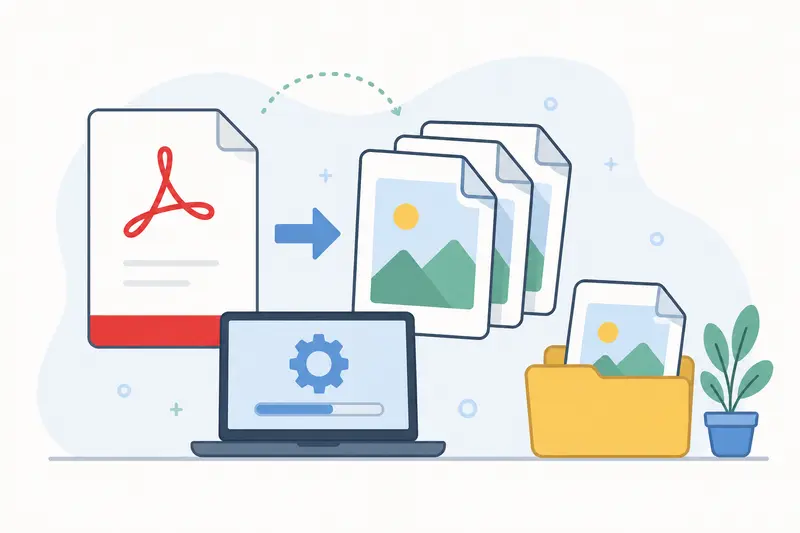
What We Tested
To see how practical the workflow felt for remote collaboration, we tested several document types:
| File Type | Size | Pages |
|---|---|---|
| Scanned onboarding packet | 18 MB | 42 |
| Product presentation PDF | 11 MB | 26 |
| Mixed invoice archive | 33 MB | 97 |
Observations
- Text readability stayed strong even after JPG conversion
- Large batches processed without locking the browser tab
- Scanned pages retained acceptable sharpness for web uploads
- File sizes dropped substantially compared to PNG exports
One especially useful finding: documents with large photographic elements compressed very efficiently as JPG, while technical diagrams benefited from higher-quality export settings.
That distinction matters when trying to create PDF to JPG without losing quality in real business workflows.
A Non-Obvious Optimization Most Teams Miss
When exporting PDFs for website uploads, many teams use unnecessarily high image resolution.
That creates heavier pages without improving readability.
A better approach:
- use moderate JPG quality for reports and slide decks
- reserve higher resolution only for zoom-heavy assets
- compress afterward if needed
If your exported images still feel oversized, the Filemazing format converter https://filemazing.com/format-converter can help convert between JPG, PNG, WEBP, HEIC, and AVIF depending on where the images will be published.
Modern web formats like WEBP often reduce payload size further for remote-first platforms.
Why Distributed Teams Tend to Prefer Browser-Based Conversion
Desktop converters still exist, but browser workflows solve several collaboration problems:
Easier onboarding
Contractors and external collaborators dont need software installation approvals.
Consistent outputs
Everyone uses the same conversion process instead of random local tools.
Better for mixed-device teams
Mac, Windows, Linux, and Chromebook users can follow the same workflow.
Automation options later
Teams that scale document operations can integrate API-based processing instead of rebuilding workflows later.
That flexibility becomes important once conversion stops being an occasional task and turns into a recurring operational process.
Privacy Matters More Than Convenience
A surprising number of free converters retain uploaded files longer than expected.
For remote teams handling contracts, HR packets, internal reports, or customer documents, temporary processing matters.
Filemazing positions uploads as short-lived processing artifacts rather than long-term cloud storage. Files are cleaned on a short retention schedule instead of remaining permanently accessible.
That setup fits teams that need conversion capability without creating another unmanaged document repository.
Practical Use Cases for Remote Teams
Here are the situations where PDF-to-JPG conversion consistently saves time:
Marketing teams
Convert PDF brochures into lightweight preview images for landing pages.
Support departments
Export troubleshooting guides as images for knowledge-base articles.
HR operations
Prepare onboarding pages as shareable JPGs for internal portals.
Sales enablement
Transform proposal PDFs into presentation-ready visuals for chat platforms.
Product teams
Convert annotated documentation into image snippets for tickets and sprint boards.
Agencies
Batch-process client PDFs before uploading assets into CMS systems.
Where JPG Can Be the Wrong Choice
Not every PDF should become a JPG.
This is especially true for:
- architectural drawings
- pixel-precise UI mockups
- transparent graphics
- documents requiring deep zoom
In those cases, PNG often preserves edges and fine detail better.
The downside is noticeably larger file sizes.
A lot of remote teams end up using both formats depending on the destination:
- JPG for websites and previews
- PNG for design-sensitive assets
That balance usually works better than forcing one format everywhere.
Mobile Uploads Are Increasingly Common
Many distributed teams now process documents from phones and tablets, especially during travel or field work.
If you need to save PDF as image on mobile, browser-based tools are often more reliable than app-store converters overloaded with ads or forced subscriptions.
A mobile-friendly workflow becomes useful when:
- approving contracts from a phone
- converting receipts while traveling
- uploading images directly into a CMS
- sharing pages quickly in messaging apps
Because processing happens in the browser, the experience stays relatively consistent across devices.
Small Details That Improve Team Workflows
A few habits make PDF-to-image conversion much cleaner at scale:
- standardize output naming conventions
- keep source PDFs archived separately
- avoid repeatedly re-exporting compressed JPGs
- export at the final intended size whenever possible
Another overlooked step: removing embedded metadata before sharing externally.
If exported images contain location or author metadata, the Filemazing metadata scrubber https://filemazing.com/metadata-scrubber can remove unnecessary metadata from image files before publication or client delivery.
Common Questions
Does converting PDF to JPG reduce quality?
It can, depending on compression settings and export resolution. JPG is lossy by design, so aggressive compression may soften text or introduce artifacts.
For most web uploads, moderate compression gives a good balance between readability and smaller file sizes.
Is JPG or PNG better for exported PDF pages?
JPG is usually better for:
- presentations
- scanned documents
- marketing visuals
- website previews
PNG works better for:
- diagrams
- interface mockups
- sharp line art
- transparency support
Can large PDF batches be processed together?
Yes. Batch conversion is especially useful for remote teams handling recurring documentation workflows or multi-page archives.
Queued processing also helps prevent browser slowdowns during larger jobs.
Is there a way to automate PDF-to-image conversion?
Yes. Filemazing supports API-driven workflows for teams that want to integrate conversion into internal systems, upload pipelines, or document automation tasks.
What happens to uploaded files after processing?
The platform treats uploads as temporary processing files rather than permanent storage. Files are cleaned on a short retention cycle after processing completes.
Can I use the workflow from a phone or tablet?
Yes. Browser-based conversion works well for teams that need to save PDF as image on mobile while traveling or working remotely.
Final Thoughts
For distributed teams, converting PDFs into images isnt just a formatting task anymore. Its part of publishing, collaboration, onboarding, and documentation workflows.
The right tool should handle:
- consistent output quality
- larger batches
- lightweight browser access
- privacy-conscious processing
- scalable workflows when volume increases
Filemazing PDF to Image https://filemazing.com/pdf-to-image is particularly useful for teams that want one streamlined environment for both occasional conversions and higher-volume document processing without adding heavyweight desktop software into the mix.