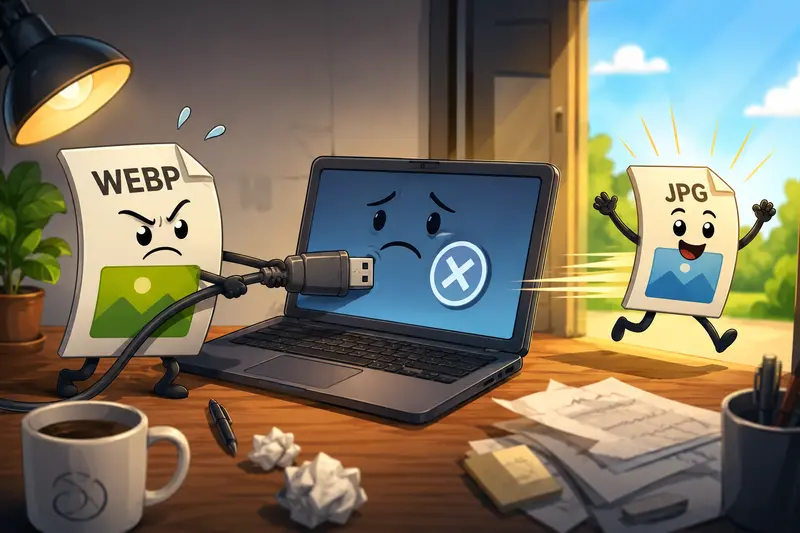
Remote teams deal with image compatibility problems more often than most people expect. A designer uploads WEBP screenshots into a shared workspace, a client downloads them on an older system, and suddenly nobody can open the files correctly before a deadline.
Thats where a reliable WEBP to JPG converter becomes useful especially when teams work across different operating systems, browsers, and collaboration tools.
Instead of installing desktop software across multiple devices, browser-based workflows make conversion easier to standardize. Teams can convert files from anywhere, keep formatting consistent, and avoid wasting time troubleshooting unsupported image formats.
Why Teams Still Convert WEBP Files to JPG
WEBP is efficient. File sizes are usually smaller, and websites benefit from faster loading times.
But compatibility is still uneven in business workflows.
Some internal tools, email systems, presentation software, and CMS platforms continue to behave better with JPG files. Marketing departments often run into this issue when preparing campaign assets for multiple channels at once.
A distributed team may also receive files from:
- freelancers
- clients
- mobile apps
- AI image tools
- automated exports
And not all of them use the same standards.
Converting WEBP files into JPG format keeps image handling predictable across shared environments.
A Browser Workflow That Fits Remote Collaboration
Using Filemazing Format Converter https://filemazing.com/format-converter removes the need for desktop installs or local configuration.
That matters more than it sounds.
In remote environments, people work on:
- company laptops
- temporary contractor devices
- shared virtual machines
- Chromebooks
- locked-down corporate systems
A browser-based workflow avoids most compatibility headaches.
The platform supports:
- drag-and-drop uploads
- cloud imports from Google Drive or Dropbox
- batch image format conversion
- queued processing for large workloads
- API-based automation for repeat tasks
Because processing runs through the browser, onboarding new team members becomes much simpler. Nobody has to explain installation steps at 9 PM over Slack.
What Happened During Real Testing
To see how practical the workflow actually feels, a batch of 120 WEBP product images was converted into JPG format during testing.
The files came from:
- exported ecommerce assets
- browser screenshots
- compressed marketing banners
Total upload size: roughly 430 MB.
The conversion process remained responsive even while multiple files were queued. The browser interface didnt freeze during upload, which is important when teams process large batches under time pressure.
The resulting JPG files maintained solid visual quality with:
- accurate colors
- minimal visible artifacts
- good text readability in screenshots
There was a noticeable size increase compared to WEBP originals, though that tradeoff is expected. JPG prioritizes compatibility more than aggressive compression efficiency.
For teams that later need smaller delivery assets, the related image compression workflow https://filemazing.com/compress-image helps reduce converted image sizes for websites, documentation portals, or email attachments.
The Quality Tradeoff Most Teams Ignore
A lot of people assume conversion quality depends only on the converter itself.
Thats only partially true.
The original WEBP file matters just as much.
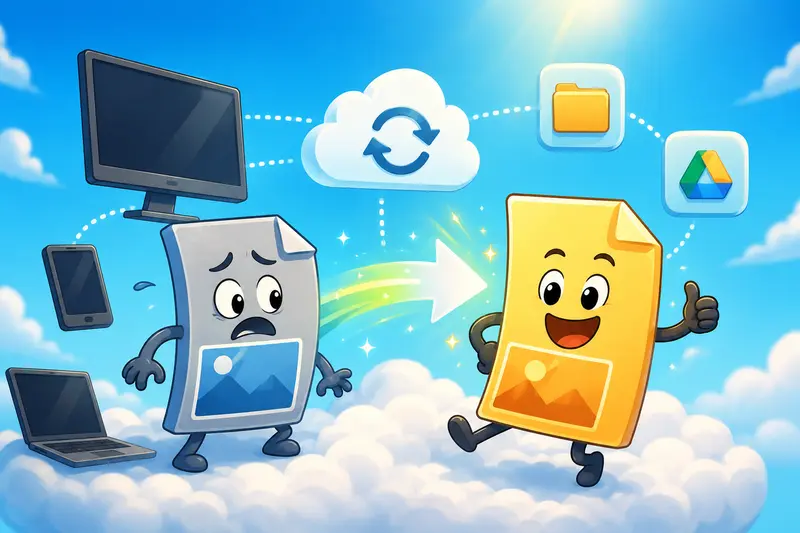
If a WEBP image was already heavily compressed before conversion, exporting it into JPG can amplify existing artifacts:
- blurry edges
- banding
- soft text rendering
- color smearing
This becomes especially visible in:
- UI screenshots
- diagrams
- marketing graphics with typography
One useful optimization tip is to avoid repeatedly converting the same file between formats. Every additional lossy conversion introduces more degradation.
A better workflow is:
- keep the original WEBP archive
- export JPG copies only for compatibility needs
- generate compressed delivery variants separately if needed
That preserves higher-quality source material for future reuse.
Where Browser-Based Conversion Helps Most
Different remote teams benefit in different ways.
Marketing Teams
Campaign managers often need fast compatibility fixes before publishing assets into:
- newsletters
- ad managers
- landing pages
- social scheduling tools
Some platforms still process JPG files more reliably than WEBP uploads.
Developers
Engineering teams frequently automate media preparation pipelines.
Because Filemazing also supports API workflows, repetitive image preparation tasks can run automatically instead of manually converting assets every week.
Operations and Documentation Teams
Internal documentation often contains screenshots from various operating systems and browsers.
Converting everything into JPG keeps exports consistent across:
- PDFs
- knowledge bases
- onboarding materials
If documentation later needs image extraction from reports, the PDF to image conversion tool https://filemazing.com/pdf-to-image can export PDF pages as JPG, PNG, or WEBP formats.
Privacy Matters More Than Convenience
Image conversion tools sometimes become accidental storage systems.
That creates unnecessary risk for remote organizations handling:
- client screenshots
- invoices
- product mockups
- internal dashboards
Filemazing treats uploads as temporary processing artifacts instead of long-term storage.
Files are processed, delivered, and cleaned automatically on a short retention schedule. For distributed teams handling sensitive material, that lightweight approach reduces exposure compared to keeping files permanently stored in random third-party workspaces.
For additional protection before external sharing, teams can also use the file encryption tool https://filemazing.com/encrypt-file to secure converted files.

Token Pricing Without Guesswork
One practical detail that stands out is the transparent token system.
Instead of vague unlimited plans with hidden throttling, processing costs are calculated based on workload characteristics like:
- file size
- file count
- complexity
For format conversion workflows, the pricing formula includes:
- base token cost
- per-MB calculation
- per-file calculation
That makes batch planning easier for teams handling recurring workloads.
Smaller groups can rely on daily free tokens, while larger organizations can scale with higher-volume token packs without changing workflows or infrastructure.
A Few Situations Where JPG Is Still the Better Choice
WEBP has advantages, but JPG remains practical when:
- older enterprise systems are involved
- clients use inconsistent software
- universal compatibility matters more than compression ratios
- teams exchange assets through email regularly
JPG files also preview more reliably in many older document systems and DAM platforms.
That reliability matters in real operations. Especially during launches, migrations, or client deliveries where nobody wants to explain why an image works on my machine.
FAQ
Does converting WEBP to JPG reduce image quality?
Potentially, yes. JPG uses lossy compression, so some detail may be lost during conversion. In practical workflows, high-quality source images usually retain strong visual clarity if exported correctly.
Can teams process multiple images at once?
Yes. Batch image format conversion is supported, which is useful for shared marketing assets, exported screenshots, or large documentation libraries.
Is browser-based conversion safe for internal files?
The workflow is designed around temporary processing rather than permanent storage. Uploaded files are automatically cleaned after processing instead of being retained indefinitely.
Do remote teams need to install software?
No. The entire workflow runs in the browser, which helps distributed teams avoid installation restrictions across different operating systems.
What file formats are supported besides WEBP and JPG?
The platform supports multiple file processing workflows, including image conversion, PDF tools, compression, archive extraction, and media conversion features.
Can converted JPG files be optimized for websites afterward?
Yes. After conversion, teams can use the image compression tool https://filemazing.com/compress-image to reduce file sizes for faster website performance and easier sharing.

Final Thoughts
A dependable WEBP to JPG converter solves more than a format issue for distributed teams. It helps standardize collaboration, reduce compatibility problems, and simplify image handling across different environments.
Browser-based processing also removes much of the friction that slows remote workflows down in the first place.
For teams balancing speed, compatibility, and privacy-conscious handling, lightweight conversion workflows often end up being more valuable than overly complex desktop software stacks.