Freelancers often end up dealing with audio files in inconvenient formats. A client sends a WAV voiceover recorded in a studio, but your Android phone struggles to upload the oversized file to messaging apps, freelance platforms, or cloud storage. Thats where a reliable WAV to MP3 converter becomes genuinely useful.
The challenge is balancing file size, speed, and audio quality without installing bloated desktop software or exposing sensitive client recordings to questionable apps.
What You Should Know First
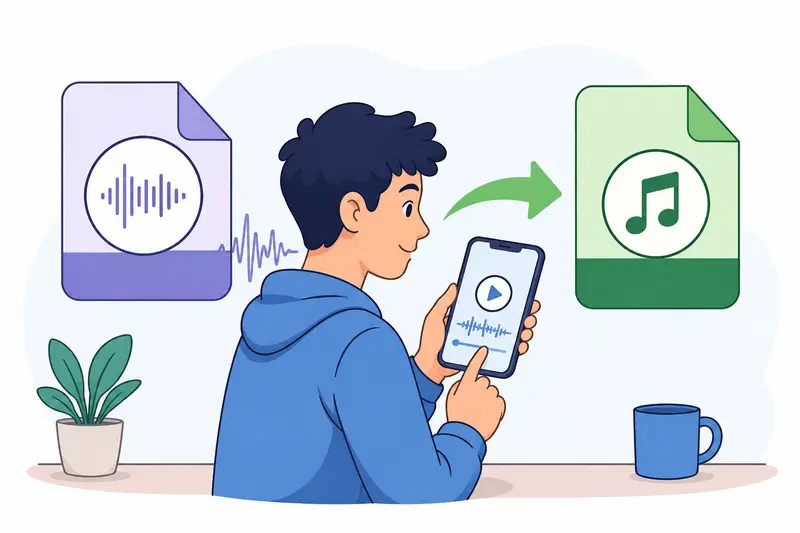
If you need to convert WAV files on Android, a browser-based tool like Filemazing Audio Converter https://filemazing.com/audio-converter is one of the most flexible approaches. It works directly from the browser, avoids device-heavy processing, and supports high quality audio conversion without requiring desktop software.
For freelancers handling recurring client assets, this matters more than convenience alone. It reduces workflow friction when moving between mobile edits, uploads, and delivery.
Why WAV Files Become a Problem on Android
WAV is excellent for preserving raw audio quality, but the format is huge compared to MP3.
A 12-minute uncompressed WAV podcast intro can easily exceed 120150 MB depending on recording settings. On Android devices, that creates practical issues:
- slower uploads over mobile networks
- storage pressure on older devices
- failed transfers through messaging apps
- delays when attaching files to freelance submissions
- syncing issues with cloud storage
MP3 reduces file size dramatically while remaining compatible with nearly every platform.
In real workflows, most freelancers dont need archival studio-quality WAV files once editing is complete. They need portable audio that clients can preview instantly.
How the Process Works
Using a browser-based WAV to MP3 converter on Android is fairly straightforward, but there are a few details worth paying attention to.
1. Upload the WAV File
Open the converter in your Android browser and upload the recording from local storage, Google Drive, Dropbox, or a URL source.
If your client sent multiple recordings inside compressed folders, you can first use Filemazing Archive Extractor https://filemazing.com/archive-extractor to unpack ZIP or RAR audio deliveries before conversion.
2. Choose MP3 Output
Select MP3 as the target format.
For voice recordings, 128 kbps or 192 kbps is usually sufficient. Music-heavy projects may benefit from higher bitrates.
3. Start the Conversion
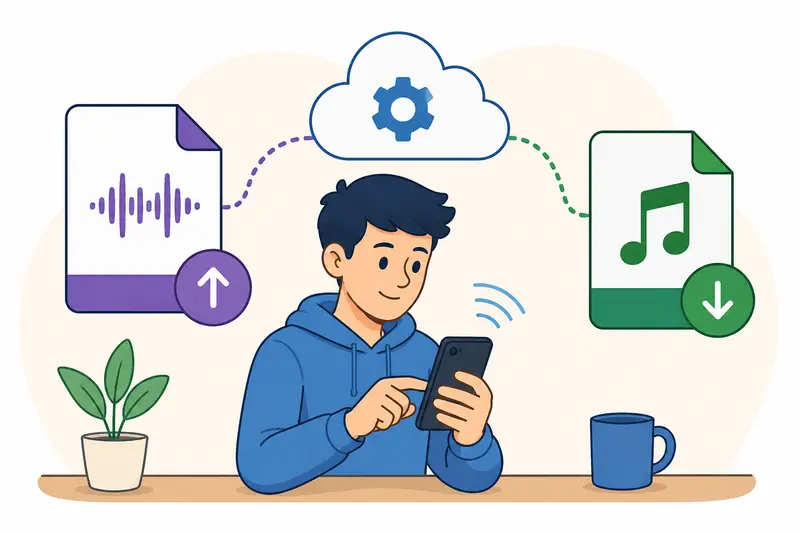
The audio gets processed through queued cloud handling instead of consuming heavy local device resources.
This is especially useful on mid-range Android phones where long audio exports can drain battery life quickly.
4. Download the Converted File
Once processing finishes, download the MP3 directly to your device.
If youre delivering sensitive client interviews or private recordings, you can additionally use Filemazing Encrypt File Tool https://filemazing.com/encrypt-file to password-protect the converted audio before sharing it externally.
A Real Test on Mobile Data
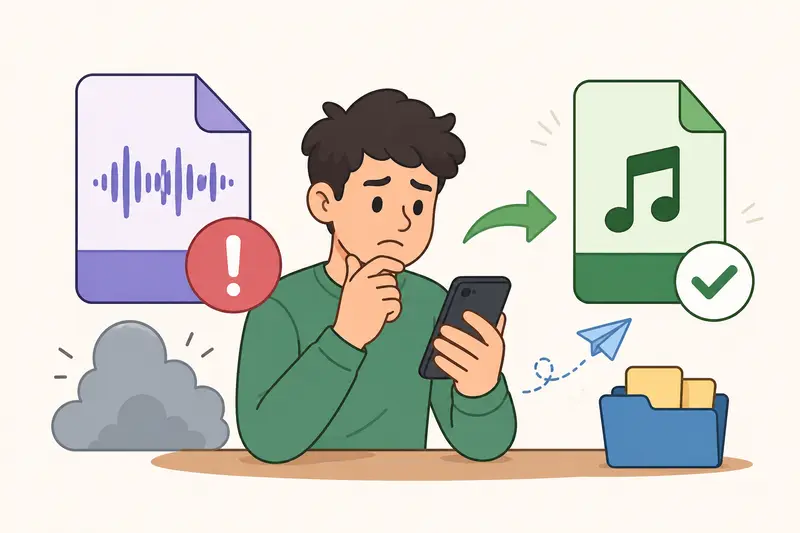
To see how practical the workflow actually feels on Android, I tested a 94 MB WAV interview recording captured through an external microphone app.
Test Setup
- Device: mid-range Android phone
- Network: 4G mobile connection
- Source file: 18-minute WAV interview
- Goal: smaller upload-ready MP3
What Happened
The upload took longer than the conversion itself, which is fairly typical with large WAV files.
After processing:
- final MP3 size dropped to around 16 MB
- speech clarity stayed strong
- background room tone remained acceptable
- playback worked smoothly across messaging apps and cloud previews
One practical observation stood out: reducing bitrate too aggressively made spoken consonants sound slightly brittle. Staying around 192 kbps produced a noticeably better result without creating oversized files.
That quality-versus-size tradeoff matters when clients review spoken content professionally.
Where Browser-Based Conversion Helps Most
Android apps for audio conversion often introduce annoyances:
- ads during exports
- storage permissions
- forced installs
- inconsistent quality presets
- aggressive background battery usage
A browser-focused workflow avoids most of those issues.
With Filemazing https://filemazing.com, processing happens through a lightweight interface rather than a heavyweight mobile editor. The platform also uses temporary processing and cleanup handling instead of acting as permanent cloud storage, which is useful for privacy-conscious freelance work.
For recurring workflows, transparent token pricing is also easier to estimate compared to unpredictable subscription apps.
One Mistake That Hurts MP3 Quality
A surprisingly common mistake is converting already compressed audio multiple times.
For example:
- WAV MP3
- MP3 edited in mobile app
- exported again as MP3
- compressed again before upload
Each generation can introduce audible degradation.
If you plan to make edits later, keep the original WAV archived and only create MP3 versions for sharing or delivery. That preserves editing flexibility while avoiding cumulative quality loss.
This becomes especially important for:
- podcast intros
- voice acting samples
- paid narration work
- interview recordings
- client revisions
Useful Freelancer Scenarios
Different freelance workflows benefit from WAV to MP3 conversion in different ways.
- Sending podcast previews to clients without massive attachments
- Compressing recorded interview files before cloud upload
- Delivering voiceover drafts through freelance marketplaces
- Converting webinar recordings for easier mobile playback
- Preparing social media audio snippets for marketing campaigns
- Reducing storage usage on Android devices during travel work
If your workflow also includes visual assets alongside audio projects, the Filemazing Format Converter https://filemazing.com/format-converter can help standardize supporting image files in the same browser-based workflow.
What Makes a Good WAV to MP3 Converter?
Not every converter handles audio equally well.
The better tools typically balance:
- stable audio quality
- reasonable processing speed
- privacy handling
- broad format compatibility
- predictable pricing
For freelancers specifically, reliability often matters more than flashy editing features.
A practical converter should:
- work on mobile browsers consistently
- avoid unnecessary app installs
- support large files
- maintain acceptable voice clarity
- process files without long queue delays
FAQ
Does converting WAV to MP3 reduce audio quality?
Yes, MP3 uses lossy compression. However, high bitrate settings can preserve excellent listening quality for voice recordings, podcasts, and most freelance delivery work.
Is online audio conversion safe?
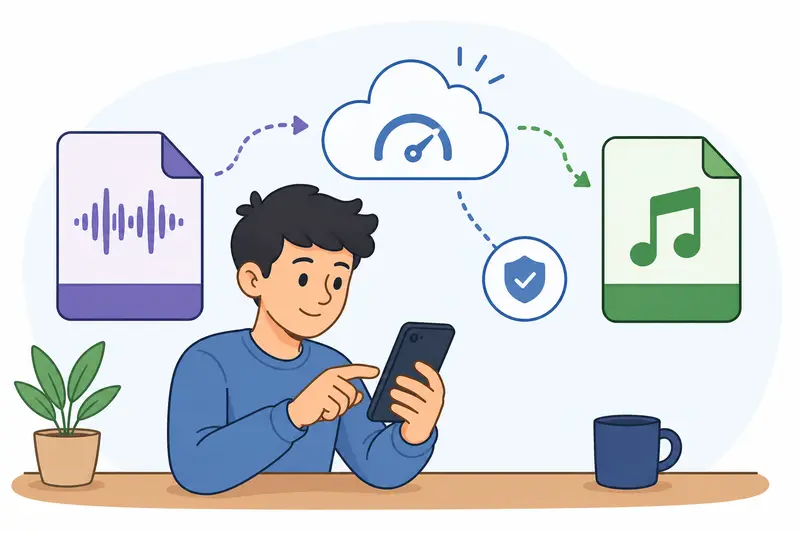
It depends on the platform. Privacy-conscious services that use temporary processing and automatic cleanup are generally safer than tools that permanently store uploads.
Can Android phones handle large WAV files?
Modern Android devices can open large WAV files, but uploads and transfers may become slow due to file size. MP3 conversion reduces that burden significantly.
What bitrate works best for spoken audio?
For interviews and voiceovers, 128192 kbps usually provides a good balance between size and clarity.
Do browser-based converters support bulk processing?
Some do. Filemazing supports queued processing workflows, which helps when handling multiple client files or recurring freelance tasks.
Can I convert other file types too?
Yes. Besides audio conversion, browser-based file tools can also process archives, images, and document formats depending on the platform capabilities.
Final Thoughts
A dependable WAV to MP3 converter on Android can save freelancers a surprising amount of time, bandwidth, and storage frustration.
The best approach usually isnt installing another heavy mobile editing app. Instead, lightweight browser-based workflows tend to work better for fast delivery, cross-device flexibility, and cleaner file management.
If your freelance work regularly involves recordings, interviews, podcasts, or client media assets, trying Filemazing Audio Converter https://filemazing.com/audio-converter is a practical way to simplify the process while maintaining solid audio quality and predictable handling.