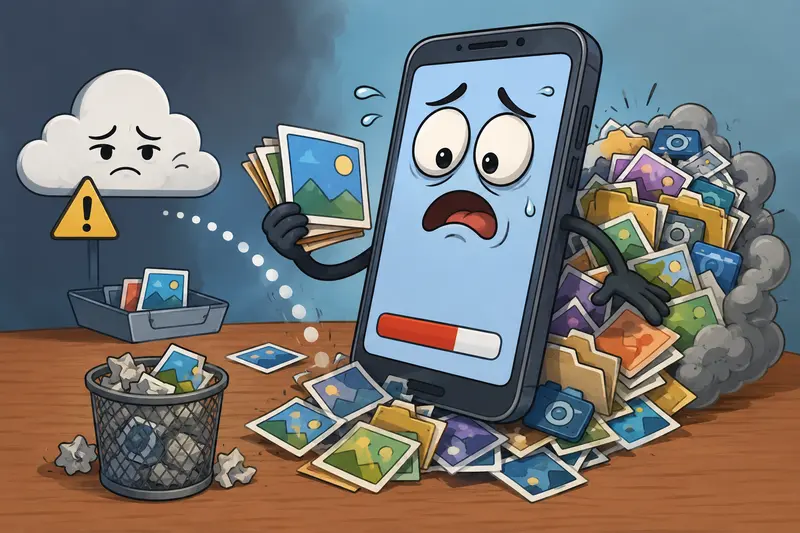
Phone storage fills up faster than most people expect. A few screenshots, edited photos, scanned receipts, and suddenly you are staring at an upload limit while trying to send a file before a deadline. That is usually when people start looking for ways to compress PNG files without turning their images into blurry messes.
Mobile users face an extra challenge: many desktop tools are too heavy, require installation, or simply do not work well on smaller screens. Browser-based tools have become a more practical option because they work across Android, iPhone, tablets, and laptops without changing workflows.
One option that fits everyday use particularly well is Filemazing image compression tool https://filemazing.com/compress-image, which runs entirely in the browser and focuses on lightweight file processing rather than complicated editing software.
The Short Version
If your PNG files are too large for messaging apps, email attachments, websites, or cloud uploads, image compression reduces the file size while trying to preserve visual quality.
For most people, the best approach is using a browser-based compressor that supports mobile uploads, temporary processing, and batch handling. That avoids installing apps that often add watermarks, ads, or unnecessary permissions.
Why PNG Files Become So Large
PNG is designed for image quality and transparency support. That makes it useful for:
- screenshots
- logos
- graphics with text
- edited mobile photos
- UI mockups
- scanned documents
The downside is size.
A screenshot from a modern phone can easily exceed 5MB, especially on high-resolution devices. Multiple PNGs inside a chat thread or project folder quickly become difficult to upload or organize.
In practice, PNG files usually stay larger than JPG files because PNG prioritizes lossless storage. If you eventually need smaller photo-oriented files instead, Filemazing also includes a multi-format image converter https://filemazing.com/format-converter that can convert PNG into JPG, WEBP, HEIC, or AVIF formats.
What Actually Happens During Compression
Many users assume compression always ruins image quality. That is not entirely true.
Modern image compression tools usually combine techniques such as:
- removing unnecessary metadata
- optimizing color storage
- restructuring image data
- reducing redundant pixel information
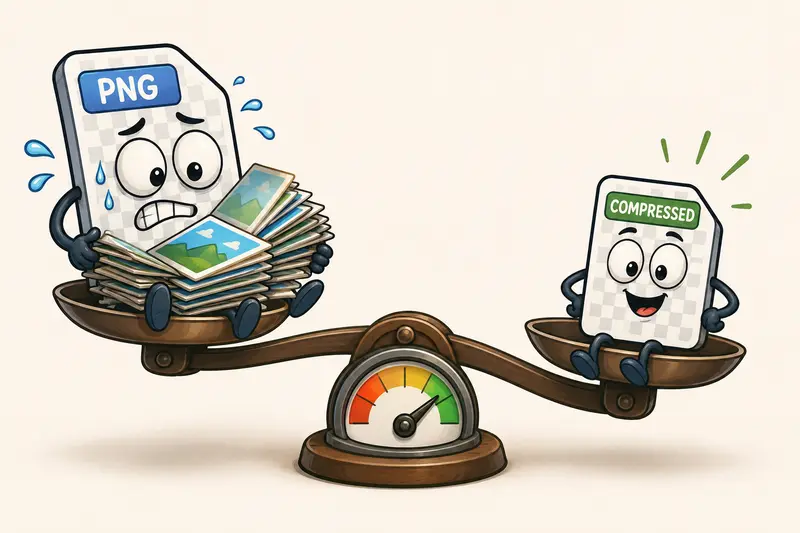
Some compression methods are lossless. Others are visually optimized, meaning tiny details may change slightly to achieve dramatic size reduction.
The practical tradeoff looks like this:
| Goal | Best Approach |
|---|---|
| Preserve sharp text/screenshots | PNG optimization |
| Maximum size reduction | JPG or WEBP conversion |
| Transparency support | PNG |
| Fast web uploads | Compressed JPG/WEBP |
That balance matters more on mobile networks where upload speed becomes the hidden bottleneck. A file that shrinks from 18MB to 3MB often uploads noticeably faster on cellular connections.
A Mobile Workflow That Feels Less Frustrating
A lot of mobile compression apps create unnecessary friction:
- forced downloads
- account walls
- aggressive ads
- exported watermarks
- background sync permissions nobody asked for
Browser-based workflows avoid most of that.
With Filemazing Compress Image https://filemazing.com/compress-image, the process is straightforward:
- Upload PNG images directly from your phone
- Let the browser-based processor optimize the files
- Download compressed versions individually or in batches
The platform also supports imports from Google Drive and Dropbox, which helps when files are already stored in cloud folders.
One detail that stands out is the transparent token pricing model. Instead of unclear subscription limits, operations consume tokens based on workload characteristics like file size and quantity. For image compression specifically, the pricing formula includes base cost plus file size calculations, making larger jobs predictable before processing starts.
That matters more than people think. Nobody enjoys guessing whether uploading 200 screenshots will suddenly trigger a hidden paywall halfway through the process.
Real-World Compression Test on Mobile
To see how practical mobile compression actually feels, we tested several everyday PNG files using a phone browser:
| File Type | Original Size | Compressed Size | Observed Result |
|---|---|---|---|
| Phone screenshot | 6.2MB | 1.8MB | Text remained sharp |
| App UI capture | 8.4MB | 2.5MB | Minimal visible change |
| Transparent logo | 3.1MB | 1.2MB | Transparency preserved |
| Scanned receipt | 12MB | 3.9MB | Readable after compression |
The most noticeable improvement was upload speed rather than visual quality.
A practical takeaway many users overlook: screenshots compress differently than photos. PNG works very well for text-heavy screenshots, but camera images usually shrink much more aggressively if converted into JPG or WEBP instead.
If you regularly handle mixed image formats, combining compression with the image format conversion workflow https://filemazing.com/format-converter can reduce storage usage even further.
One Mistake People Make With PNG Compression
Here is the unusual part most casual guides skip.
Many users repeatedly compress the same PNG file multiple times.
That creates unnecessary degradation over time, especially if the tool applies lossy optimization. Instead:
- keep the original untouched
- create one optimized export
- share the optimized version only
This becomes especially important for:
- scanned paperwork
- digital signatures
- presentation graphics
- screenshots with tiny text
Repeated optimization can gradually soften edges and reduce readability.
Another overlooked issue involves hidden metadata. Screenshots and exported images sometimes contain embedded device or editing information. Before sharing files publicly, using a metadata scrubbing tool for images https://filemazing.com/metadata-scrubber adds an extra privacy layer by removing hidden metadata from files.
Where This Helps in Everyday Use
For general users, compression is rarely about optimization in the abstract. It is usually tied to a specific annoyance.
Common scenarios include:
- sending apartment documents through messaging apps
- uploading assignment screenshots to school portals
- sharing design drafts in group chats
- reducing image size before posting on websites
- storing scanned receipts without filling phone storage
- attaching multiple PNGs to email threads
Large files somehow appear exactly when upload limits become a problem.
The batch handling support becomes particularly useful when cleaning up photo folders or exporting many screenshots at once instead of compressing images individually.
Privacy Matters More Than People Realize
Image files often contain more information than users expect.
Browser-based processing platforms like Filemazing are useful partly because uploaded files are treated as temporary processing artifacts rather than long-term storage. Completed jobs are cleaned automatically on short retention schedules instead of remaining permanently stored.
That approach matters for:
- personal documents
- scanned IDs
- invoices
- screenshots containing account details
- private work files
For users uncomfortable uploading sensitive files into random mobile apps, temporary processing behavior is a meaningful trust signal.
Additional File Workflows That Pair Well With Compression
Compression usually becomes part of a larger workflow.
For example:
- scanned PDFs often need conversion into images first
- compressed screenshots may later need format conversion
- shared files may require metadata cleanup before publishing
If you work with scanned documents on mobile, the PDF to image conversion tool https://filemazing.com/pdf-to-image can turn PDF pages into PNG or JPG images before compression.
That combination is surprisingly useful for receipts, forms, presentations, and archived paperwork.
Questions People Often Ask
Does compressing PNG files always reduce quality?
Not always. Lossless optimization can reduce size without visible changes. More aggressive compression may slightly affect image precision, especially around tiny text or gradients.
Is PNG better than JPG?
It depends on the image type. PNG is usually better for screenshots, graphics, and transparency. JPG works better for photos where smaller file sizes matter more than pixel-perfect detail.
Can I compress multiple PNG files together?
Yes. Batch processing is one of the most useful features for mobile users handling folders full of screenshots or exported graphics.
Do browser-based compression tools work on iPhone and Android?
Most modern browser-based tools work across mobile browsers without requiring installation. Compatibility generally depends more on browser version than device type.
Is image compression safe for sensitive files?
Safety depends on the platform. Tools that use temporary processing and automatic cleanup are generally preferable over apps that permanently store uploads.
Can compressed PNG files still be edited later?
Yes, although keeping an untouched original copy is strongly recommended if you may need future edits or high-quality exports.
Final Thoughts
For everyday users, the goal is not advanced optimization. It is getting files small enough to share, upload, store, or organize without creating extra hassle.
That is why browser-based workflows make sense on mobile. They remove the overhead of desktop software while still handling practical tasks like batch uploads, format conversion, metadata cleanup, and image compression without losing quality.
If your phone gallery is packed with oversized screenshots, scanned paperwork, or exported graphics, using Filemazing Compress Image https://filemazing.com/compress-image is a practical way to reduce file sizes while keeping the process lightweight and manageable.