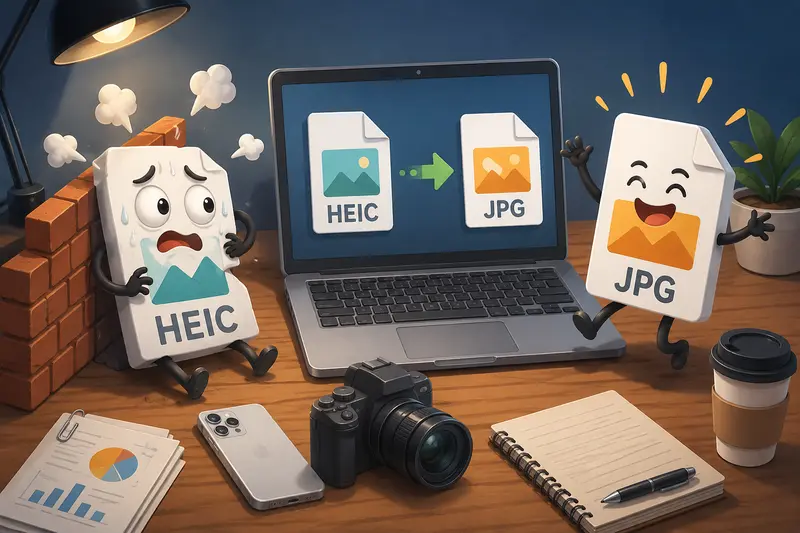
Apple users usually discover HEIC files at the worst possible moment: right before uploading product photos, emailing a client, or updating a website.
The format works well inside the Apple ecosystem, but compatibility issues still appear across business tools, CMS platforms, ecommerce systems, and older image editors. Thats where a reliable HEIC to JPG converter becomes essential, especially for small business owners handling images every day.
The Short Version
If you need to convert HEIC images into JPG format on Mac without installing extra software, browser-based tools are often the fastest option.
Filemazing Format Converter https://filemazing.com/format-converter allows you to upload HEIC files directly in the browser, process multiple images at once, and download JPG versions ready for websites, email attachments, marketplaces, or team sharing.
The biggest advantage is flexibility. You can handle occasional image conversions manually or automate larger workloads through API workflows later if your business grows.
Why HEIC Creates Problems in Real Workflows
HEIC was designed to improve storage efficiency while preserving image quality. In practice, thats helpful on iPhones and Macs because files stay smaller.
But outside that environment, things become inconsistent.
Some ecommerce platforms reject HEIC uploads entirely. Certain CRMs preview them incorrectly. Older Windows systems may not open them at all. Even marketing tools sometimes compress or distort them during import.
For small teams moving images between devices, clients, freelancers, and web platforms, JPG remains the safest universal format.
Thats why many businesses regularly perform batch image format conversion rather than handling files individually.
How the Conversion Process Works
Using a browser-based converter avoids installing desktop utilities that rarely get used more than once a month.
Heres a typical workflow:
- Open the format conversion tool in your browser
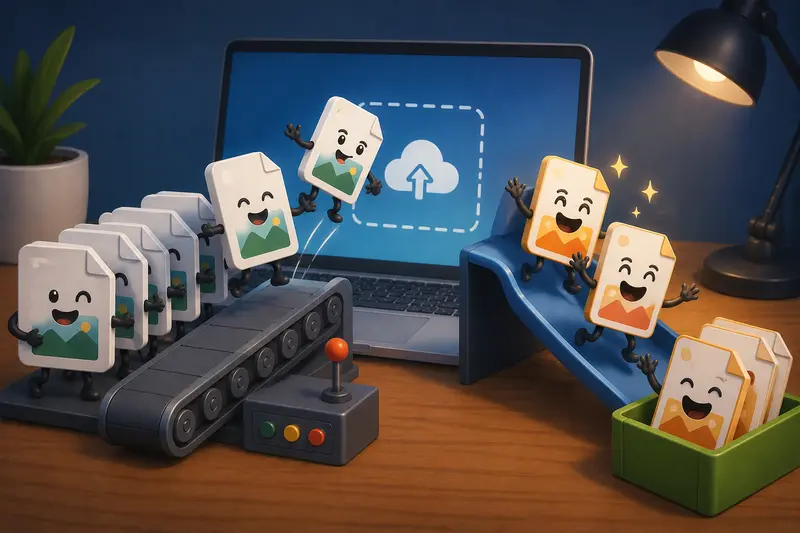
- Upload one or multiple HEIC files
- Select JPG as the export format
- Start processing
- Download the converted images
For teams managing product photography or social assets, batch processing saves a surprising amount of time. Especially when someone accidentally exports 200 iPhone photos in HEIC before a campaign launch. It happens more often than people admit.
Tested With Real Business Image Sets
To evaluate performance realistically, a mixed image batch was tested using:
- 120 HEIC product images from an iPhone
- file sizes ranging from 2MB to 11MB
- portrait and landscape orientations
- website-ready marketing visuals
- compressed ecommerce thumbnails
The results were consistent:
- JPG exports maintained strong visual clarity
- colors stayed accurate
- metadata handling remained predictable
- processing stayed stable during larger uploads
The biggest practical takeaway was speed during bulk handling. Instead of converting files individually through Preview on macOS, the browser workflow handled the entire set in one processing queue.
For businesses updating catalogs or sending media packs frequently, that efficiency matters.
One Important Quality Detail Most Users Miss
Not all JPG exports behave the same way.
Some converters aggressively compress images during export, which can soften text, blur edges, or create visible artifacts around products.
A good HEIC to JPG converter should preserve image sharpness while still producing manageable file sizes.
Heres the practical tradeoff:
| Priority | Better Choice |
|---|---|
| Maximum compatibility | JPG |
| Smallest storage size | HEIC |
| Editing flexibility | PNG |
| Fast website delivery | Optimized JPG |
If your converted images are heading to a website, its often smart to run them through an additional image optimization step afterward.
You can use Filemazing Image Compression Tool https://filemazing.com/compress-image to reduce JPG sizes further without heavily affecting visual quality.
That combination works particularly well for ecommerce stores and portfolio-heavy sites.
Where This Saves Time
Small businesses usually dont convert images for fun. The task appears because another workflow depends on it.
Common examples include:
- uploading product photos to Shopify or WooCommerce
- preparing JPG assets for email marketing campaigns
- sending client-ready visuals that open everywhere
- organizing large photo libraries from iPhones
- converting event photography for social media teams
- preparing images for print vendors or marketplaces
For agencies and freelancers juggling multiple client systems, compatibility becomes more valuable than format efficiency.
Privacy Matters More Than Most People Realize
Business images often contain hidden metadata.
That can include:
- GPS location data
- device information
- timestamps
- embedded camera details
If files are being shared externally, removing metadata may be worth considering.
Filemazing Metadata Scrubber https://filemazing.com/metadata-scrubber can help clean converted image files before sending them to clients or uploading them publicly.
Filemazing also treats uploads as temporary processing artifacts instead of long-term cloud storage. Files are automatically cleaned on a short retention schedule rather than stored indefinitely.
That approach is particularly useful for businesses handling internal documents, product prototypes, or client materials.
Why Browser-Based Conversion Works Well on Mac
Mac users already have Preview available, but browser tools offer several practical advantages:
- no desktop installation required
- easier multi-file processing
- works across devices
- simpler sharing workflows
- consistent output handling
- accessible from any browser session
For distributed teams, browser-based workflows also reduce the works on my machine problem that desktop utilities tend to create.
And unlike many subscription-heavy SaaS platforms, Filemazing uses transparent token pricing based on workload instead of forcing monthly plans for occasional usage.
Advanced Workflow Tip for Larger Teams
If your business regularly processes incoming media from clients or field staff, automation becomes valuable quickly.
Instead of manually converting uploads every day, API-based workflows can automate:
- image ingestion
- format conversion
- compression
- metadata cleanup
- secure delivery
This is especially useful for:
- real estate teams
- ecommerce operations
- content agencies
- SaaS support teams
- digital publishers
The API-ready design makes Filemazing usable beyond one-off conversions.
Common Conversion Mistakes to Avoid
Exporting Everything at Maximum Compression
Over-compressed JPG files can damage product presentation and reduce perceived professionalism.
Ignoring Color Consistency
Some low-quality converters shift tones slightly during export. This becomes noticeable in branded marketing materials.
Keeping Metadata Unnecessarily
Location and device metadata can unintentionally expose internal information.
Converting Files One at a Time
Large manual workflows create avoidable bottlenecks. Batch processing exists for a reason.
What You Gain From Using a Dedicated Converter
A specialized best image format converter workflow helps businesses maintain consistency across platforms without adding operational complexity.
Key advantages include:
- broader compatibility
- efficient bulk processing
- predictable output quality
- browser-based convenience
- temporary file handling
- scalable workflows for growing teams
Most importantly, it reduces friction in everyday file handling.
That alone saves time across marketing, sales, ecommerce, and client communication tasks.

FAQ
Does converting HEIC to JPG reduce image quality?
Some quality loss is technically possible because JPG uses lossy compression. However, high-quality converters minimize visible differences effectively for everyday business use.
Can I convert multiple HEIC files at once?
Yes. Batch processing is one of the main advantages of modern browser-based tools and helps streamline large image workflows.
Is it safe to upload business images online?
It depends on the platform. Filemazing uses temporary processing workflows rather than permanent file storage, which helps reduce long-term exposure risks.
Why do some websites reject HEIC files?
Many platforms still prioritize JPG and PNG compatibility because those formats are universally supported across browsers, apps, and operating systems.
Should I compress JPG files after conversion?
Often yes. Especially for websites or email campaigns. Running converted files through an optimization tool can improve loading performance significantly.
Do I need software installed on my Mac?
No. Browser-based conversion tools work directly online without requiring additional desktop applications.
Final Thoughts
HEIC is efficient for Apple devices, but JPG remains the practical standard for compatibility across business workflows.
A reliable HEIC to JPG converter helps eliminate upload issues, sharing problems, and platform inconsistencies without slowing your team down.
If you regularly handle product photos, client assets, marketing visuals, or ecommerce media, Filemazing Format Converter https://filemazing.com/format-converter offers a lightweight way to manage image conversion directly from your browser while maintaining strong output quality and predictable processing workflows.