Design projects rarely stay inside a single document. Mood boards, client presentations, exported layouts, scanned contracts, annotated proofs they all tend to arrive as separate PDFs right when deadlines get tight.
If you need the fastest way to join PDFs into one file on Mac without installing heavy desktop software, browser-based tools have become the most practical option. Especially for designers working across multiple apps and file formats throughout the day.
Filemazing offers a lightweight workflow for merging PDFs directly in the browser while keeping processing temporary and predictable. That matters when youre handling large presentation exports or client documents you dont want permanently stored online.
The Short Version
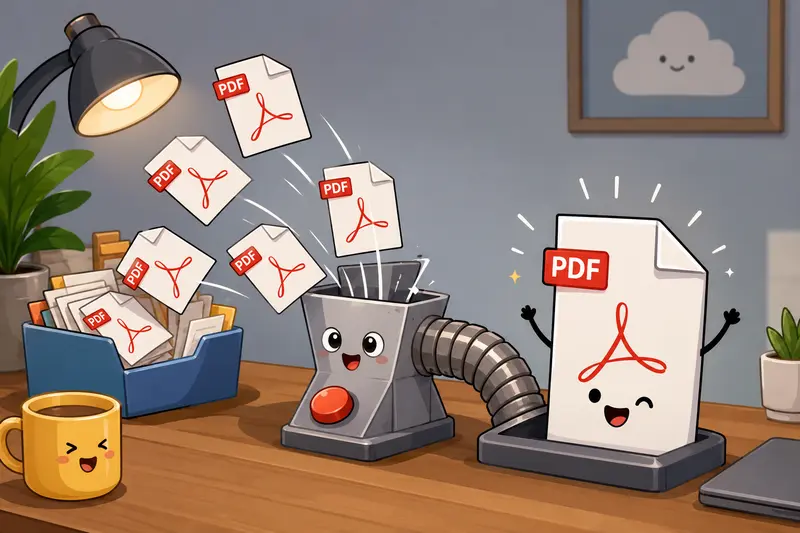
For most Mac users, the quickest workflow looks like this:
- Open the Filemazing PDF merge tool
- Drag in your PDF files
- Rearrange pages if needed
- Merge and download the final document
You can access the tool here:
Filemazing Merge PDF Tool https://filemazing.com/merge-pdf
Because the tool runs in the browser, theres no app installation, no Finder plugin setup, and no need to export through Preview repeatedly.
That last part becomes important once projects move beyond two or three files.
Why Designers Often Need Batch PDF Merging
Designers rarely merge PDFs for a single reason.
Sometimes its:
- combining presentation exports from Figma and InDesign
- packaging client deliverables
- joining scanned approval sheets
- assembling portfolios
- merging contracts with visual references
- creating printable review decks
And occasionally its simply because a client sends 17 separate PDFs named things like final_v2_FINAL_real.pdf.
A dedicated batch PDF merge workflow prevents constant re-exporting and avoids quality loss from repeated conversions.
Filemazing is especially useful here because it handles queued processing instead of locking the browser during larger tasks.
How the Workflow Actually Feels in Practice
A realistic example:
A branding designer exports:
- a 42-page presentation deck
- 6 scanned signed approval pages
- 3 PDF spec sheets from suppliers
The total upload size ends up around 180MB.
Instead of reopening everything in Preview and manually dragging pages between documents, the files can be uploaded together and merged in one processing step.
The merged output stays visually consistent because the PDFs are combined directly rather than flattened into images first.
That distinction matters.
Some older merge tools effectively rebuild pages from rasterized previews, which can soften typography or increase file size unnecessarily.
Follow These Steps on Mac
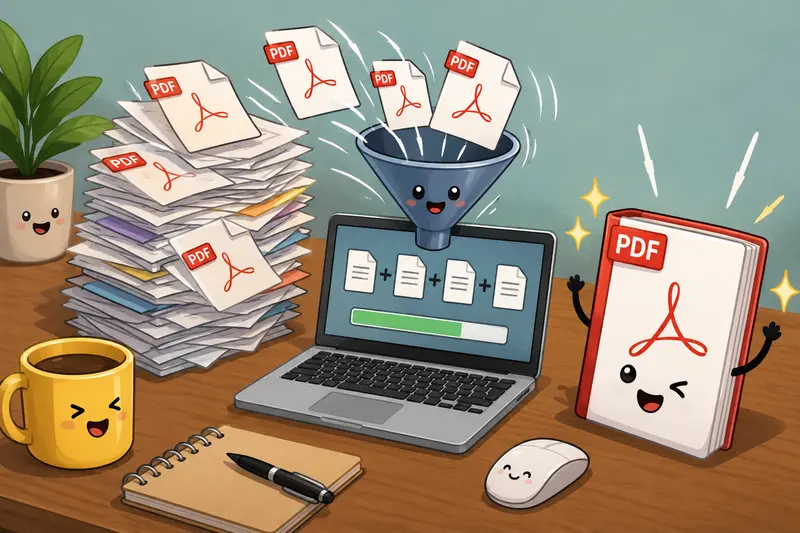
1. Gather Your PDFs First
Before uploading, place all source files into one folder.
This sounds obvious, but it avoids one of the most common slowdowns:uploading the wrong export version halfway through a merge session.
If youre working with scans, organize them in reading order before upload.
2. Upload Everything Together
The merge tool supports multiple PDFs in a single session.
That includes:
- exported design decks
- scanned PDFs
- print-ready proofs
- compressed documents
- presentation handouts
If your files came from ZIP or RAR packages, you can first use the archive extraction tool https://filemazing.com/archive-extractor to unpack client deliverables before merging.
3. Arrange File Order Carefully
This is where mistakes usually happen.
Merged PDFs follow the upload sequence unless reordered manually.
For portfolio reviews or pitch decks, double-check:
- cover page placement
- appendix sections
- page numbering continuity
- orientation consistency
One sideways landscape page can make a polished deck suddenly feel chaotic.
4. Merge and Download
After processing finishes, download the combined PDF immediately.
Filemazing treats uploads as temporary processing artifacts rather than long-term cloud storage, which is preferable when handling client-sensitive material.
A Useful Trick Most People Miss
If you need to combine scanned PDFs, compress oversized scans before merging them.
Why?
Because merging several high-resolution scans into one document can create enormous final files that become difficult to email or preview on mobile devices.
In real workflows, scanned signatures and printed forms are often much larger than the design presentation itself.
Optimizing early usually produces:
- faster uploads
- lower processing cost
- smoother downloads
- better sharing performance afterward
The tradeoff is that aggressive compression can slightly soften small text inside scans, especially at low DPI settings.
For approval forms and contracts, moderate compression is usually the safer balance.
Browser-Based Tools vs Native Mac Preview
Mac Preview can merge PDFs, and for very small jobs it still works reasonably well.
But there are limitations once projects become larger or more repetitive.
Preview works well when:
- merging two or three small files
- quickly rearranging pages
- handling lightweight personal documents
Browser-based merging becomes better when:
- working with large batches
- combining scanned PDFs
- collaborating across devices
- processing files from cloud storage
- automating repetitive workflows
Filemazing also supports imports from services like Google Drive and Dropbox, which helps when clients share materials through multiple platforms.
Where Token Pricing Actually Helps
Most SaaS tools hide usage behind vague upload limits or subscription tiers.
Filemazing uses transparent token-based processing instead.
For the merge PDF workflow, token usage considers:
- base processing cost
- file size
- total page count
- number of uploaded files
That makes budgeting easier for agencies or freelance designers processing document-heavy projects every week.
Smaller merges consume very little, while larger production workloads scale more predictably.
For occasional users, the daily free token allocation is often enough for standard merging tasks.
Handling Sensitive Client Documents
Designers frequently merge:
- signed contracts
- brand strategy documents
- unpublished campaign concepts
- internal presentations
Privacy matters more than most people expect.
Filemazing processes uploads temporarily and removes them on a short cleanup schedule rather than keeping them as permanent storage.
For additional protection before sending deliverables externally, you can also use the PDF encryption workflow https://filemazing.com/encrypt-file to password-protect merged files.
And if exported design PDFs contain hidden metadata from editing software, the metadata scrubbing tool https://filemazing.com/metadata-scrubber can help remove embedded author or software information before sharing.
Performance Considerations Designers Should Know
Large visual PDFs behave differently from text-heavy documents.
A 12-page pitch deck with full-bleed imagery may outweigh a 200-page text contract.
That affects:
- upload time
- processing speed
- download size
- browser responsiveness
Some practical observations from heavier workflows:
| Situation | Better Approach |
|---|---|
| Multiple image-heavy exports | Compress first, then merge |
| Mixed portrait and landscape pages | Standardize orientation beforehand |
| Scanned documents from different devices | Normalize scan resolution |
| Frequent recurring merges | Use API automation |
| Massive archive deliveries | Extract archives before upload |
This is one area where browser-based processing has improved dramatically over older desktop-only workflows.
API Workflows for Production Teams
Although many designers use the visual interface, Filemazing also exposes API endpoints for automated pipelines.
That becomes useful when:
- generating recurring client reports
- assembling exported assets nightly
- automating approval document packaging
- processing uploads from internal systems
For indie studios or SaaS teams handling constant file preparation, automating repetitive merge tasks can remove a surprising amount of operational friction.
Especially the boring kind.
Questions People Usually Ask
Does merging PDFs reduce quality?
Normally, no.
A proper PDF merge combines existing document structures rather than re-exporting pages as images. However, if source PDFs were already compressed aggressively, the merged output will preserve those limitations.
Can I combine scanned PDFs from different scanners?
Yes. Mixed scanned PDFs generally merge without issues.
The only common problem is inconsistent page orientation or wildly different resolutions between scans.
Is there a file limit for batch PDF merge tasks?
Large workloads are supported, but processing time naturally increases with:
- page count
- file size
- number of uploads
Image-heavy presentation decks usually take longer than plain text PDFs.
Do merged files stay stored online permanently?
No.
Filemazing uses temporary processing and cleanup scheduling rather than acting as long-term document storage.
Thats useful for client-sensitive work and short-term production workflows.
Is Preview still worth using on Mac?
For tiny merge jobs, yes.
But once you regularly handle presentation exports, scans, and multi-file workflows, a dedicated best PDF merger tool tends to save more time and reduce manual page handling.
Can I automate PDF merging for recurring projects?
Yes. Filemazing supports API-based workflows in addition to browser uploads, which helps teams automate repetitive document preparation tasks.
Final Thoughts
The fastest way to join PDFs into one file on Mac is usually the method that removes unnecessary steps.
Not the method with the most menus.
For designers juggling exports, scans, revisions, and client deliverables, browser-based merging keeps the workflow lighter while avoiding repeated desktop exports and manual page shuffling.
Filemazing works particularly well when you need:
- batch PDF merging
- temporary processing
- predictable usage costs
- cloud import flexibility
- privacy-conscious handling
And importantly, it does all of that without turning PDF management into a full-time side quest.