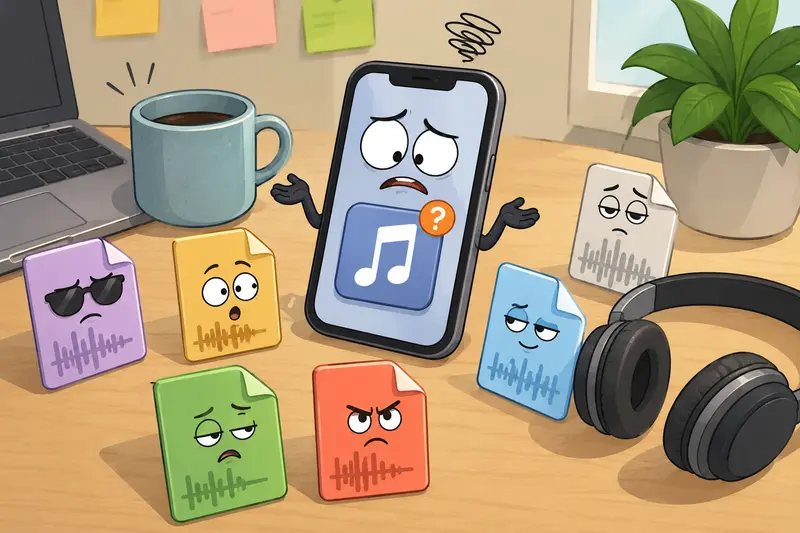
Running a small business from an iPhone sounds convenient until someone sends you an audio file your apps refuse to open.
A podcast clip arrives in WAV format. A customer voicemail exports as M4A. Your social scheduler wants MP3. Suddenly, finding a reliable audio format converter online becomes part of your workday.
For business owners handling content, client uploads, interviews, voice notes, or social media assets, mobile-friendly audio conversion matters more than most people expect. And if youre trying to avoid desktop software installs, browser-based workflows are usually the fastest route.
Thats where tools like Filemazing Audio Converter https://filemazing.com/audio-converter fit naturally into the process.
What Actually Works on iPhone
Many convert audio online free tools technically run on mobile but struggle with larger uploads, unsupported formats, or batch jobs.
A more practical workflow is:
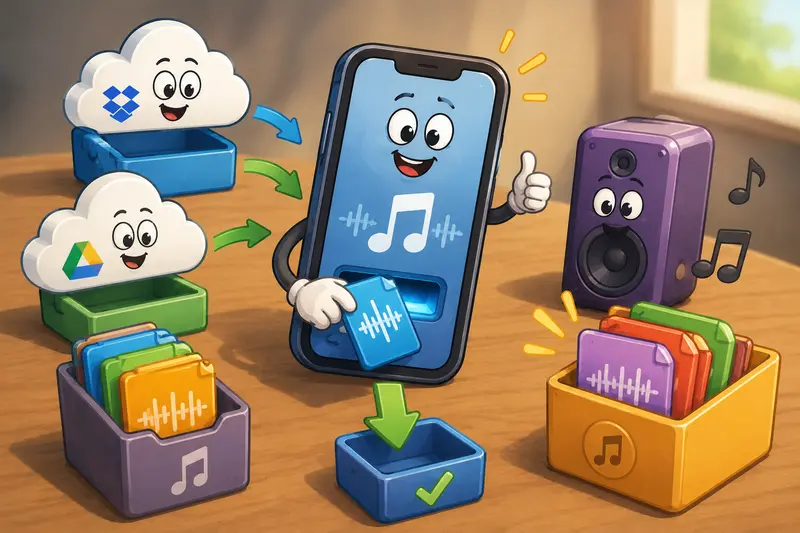
- Import audio from iPhone storage, Dropbox, or Google Drive
- Convert to a compatible output format
- Download the processed file directly back to the device
- Reuse it for email, podcast hosting, social uploads, or messaging apps
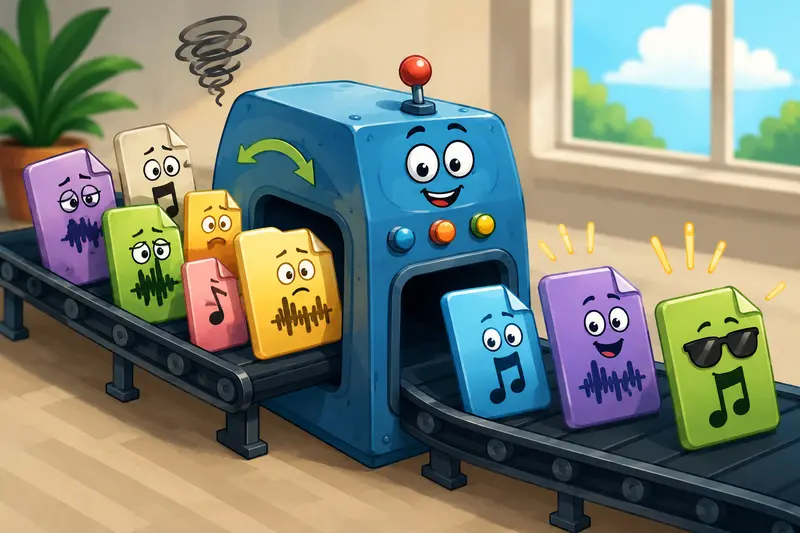
Browser-based conversion removes the need for desktop software while still supporting multiple formats and larger workloads.
For teams already managing media assets online, this becomes much easier when your workflow tools stay in one place. For example, if audio files arrive packed inside ZIP folders, you can first use the archive extraction workflow https://filemazing.com/archive-extractor before converting the audio itself.
A Mobile Workflow That Doesnt Fight You
The biggest friction with iPhone audio handling usually isnt the conversion itself.
Its compatibility.
Some apps prefer AAC. Others require MP3. Certain transcription platforms accept WAV but reject compressed mobile formats. And messaging platforms sometimes reduce audio quality automatically after upload.
Heres a workflow that works well for small business content tasks.
Follow This Workflow
1. Upload the original audio
Open the browser tool on your iPhone and upload:
- voice memos
- WAV interviews
- M4A recordings
- MP3 podcast clips
- audio exported from video apps
Cloud import support helps if files already live in Dropbox or Google Drive.
2. Choose the output format carefully
Different formats solve different problems:
- MP3 broad compatibility and smaller size
- WAV editing and production quality
- AAC/M4A strong mobile playback efficiency
- FLAC archival or higher-quality storage
Choosing the wrong output format is one of the easiest ways to create unnecessary quality loss later.
3. Convert and review playback
After conversion, test playback immediately on:
- iPhone speakers
- AirPods
- social upload previews
- messaging apps
Some platforms recompress audio aggressively. Checking early prevents unpleasant surprises later.
4. Store only what you need
Temporary processing is useful here. Tools that clean uploaded files after processing reduce long-term exposure of client recordings or internal media assets.
Why This Setup Fits Small Business Workflows
Desktop audio software still has its place, but many business owners simply need reliable format conversion without turning file prep into a project.
Filemazing https://filemazing.com/audio-converter focuses heavily on browser-based processing and practical throughput rather than complicated editing features.
That matters when:
- your team works remotely
- you switch between Mac, Windows, and iPhone
- contractors send inconsistent file types
- you need occasional bulk processing
- you want predictable processing costs
The token pricing model is also easier to estimate than traditional subscriptions for infrequent usage. Audio conversion costs are calculated transparently based on workload factors like file size and duration instead of vague unlimited plans with hidden restrictions.
And for growing operations, API support allows developers to automate recurring media preparation tasks later on.
Real Usage Test: Converting Event Audio From iPhone
One practical test involved preparing short interview clips recorded during a local business event.
The batch included:
- 14 M4A recordings
- average duration: 36 minutes
- total upload size: roughly 280MB
- final export target: MP3 for social scheduling and email distribution
The interesting part wasnt speed alone.
It was consistency.
Playback remained stable across:
- iPhone Messages
- Slack uploads
- Instagram draft imports
- email attachments
- browser previews
A useful takeaway emerged during testing: exporting everything to extremely high bitrate MP3 wasnt necessary for spoken-word content. Medium bitrate settings reduced storage size noticeably while preserving clear voice quality.
Nobody misses oversized audio files clogging cloud storage five minutes before a client delivery.
One Mistake That Causes Unnecessary Audio Quality Loss
This is where many mobile workflows quietly fail.
Repeated conversion between compressed formats gradually damages audio clarity.
For example:
- MP3 AAC MP3
- M4A MP3 OGG
Every additional lossy conversion introduces another quality hit.
If you expect future editing, archive a higher-quality original first before creating compressed versions for publishing.
A better workflow looks like this:
- keep WAV or FLAC masters
- create MP3 copies only for distribution
- avoid reconverting already compressed exports
That small adjustment helps preserve cleaner audio across future revisions.
If you also prepare media for public release, using a metadata cleanup tool for media files https://filemazing.com/metadata-scrubber can remove embedded location data or unnecessary metadata before publishing.
Situations Where Online Audio Conversion Helps Most
The value becomes clearer once audio handling becomes repetitive.
Here are common small-business scenarios where teams regularly convert audio for mobile or web delivery:
| Use Case | Typical Conversion |
|---|---|
| Podcast publishing | WAV MP3 |
| Client voice approvals | M4A MP3 |
| Social media snippets | WAV AAC |
| Webinar archives | FLAC MP3 |
| Training recordings | WAV compressed mobile format |
| Team interview uploads | Batch M4A MP3 |
For mixed media projects, businesses sometimes also use a browser-based format conversion workflow https://filemazing.com/format-converter to handle supporting image assets and documents in the same processing environment.
Where Batch Processing Starts Saving Serious Time
Single-file conversion is manageable.
Large folders are where workflows either scale or become annoying very quickly.
If your team handles:
- podcast libraries
- customer call recordings
- training materials
- webinar exports
- social media clips
then batch audio conversion becomes far more important than fancy editing features.
Queued processing helps avoid browser slowdowns during larger uploads, especially when working from mobile devices with limited memory.
A browser queue system also prevents one oversized file from blocking every other task.
That operational detail matters more than flashy interface design once file counts grow.
A Few Tradeoffs Worth Knowing
Online audio conversion is convenient, but there are realistic limitations.
Browser-based tools are ideal for:
- format conversion
- moderate editing prep
- compatibility fixes
- mobile workflows
- quick exports
Dedicated desktop software still wins for:
- multitrack editing
- mastering
- waveform repair
- advanced noise reduction
- studio production
Theres also a balance between:
- smaller files
- faster uploads
- retained audio fidelity
For spoken-word business content, moderate compression is usually enough. Music production and broadcast work often require higher-quality exports.
Common Questions
Does converting audio online reduce quality?
It can, depending on format choices and bitrate settings. Converting from one compressed format to another repeatedly usually lowers quality over time.
Is browser-based audio conversion safe for client files?
Privacy-conscious platforms typically treat uploads as temporary processing artifacts rather than permanent storage. Short retention cleanup policies reduce long-term file exposure.
What formats are usually best for mobile playback?
MP3 and AAC/M4A remain the most broadly compatible formats across iPhone apps, messaging tools, and social platforms.
Can I convert multiple audio files at once?
Yes. Batch processing is especially useful for podcasts, webinars, interview clips, and customer support recordings.
Do I need to install software on iPhone?
No. Browser-based conversion tools work directly through Safari or other mobile browsers.
Are free conversions enough for occasional work?
For light workloads, daily free token allowances can cover occasional processing. Larger recurring workloads may require additional token packs depending on file size and duration.

Final Thoughts
If your business already runs heavily through mobile devices, forcing audio conversion back onto desktop software usually slows everything down.
A browser-first workflow keeps file preparation flexible, especially when youre dealing with mixed formats, cloud storage imports, or recurring client media tasks.
For occasional conversions, quick compatibility fixes, or larger batches that need reliable processing without heavyweight software, Filemazings online audio converter https://filemazing.com/audio-converter offers a practical way to keep audio workflows moving from an iPhone or any browser-connected device.